
The fire tv stick 4k max is a capable streaming device for turning a compatible television into a connected entertainment screen. With support for 4K Ultra HD, Wi-Fi 6E and popular streaming applications, it provides a practical foundation for watching internet television.
If you want to use your fire tv stick 4k max with a separate IPTV subscription, choosing the correct player, checking compatibility and understanding subscription terms are essential.
At Digital Lizard IPTV, we offer subscription durations from one to twelve months, connection options for different households and setup guidance for compatible Fire TV devices.
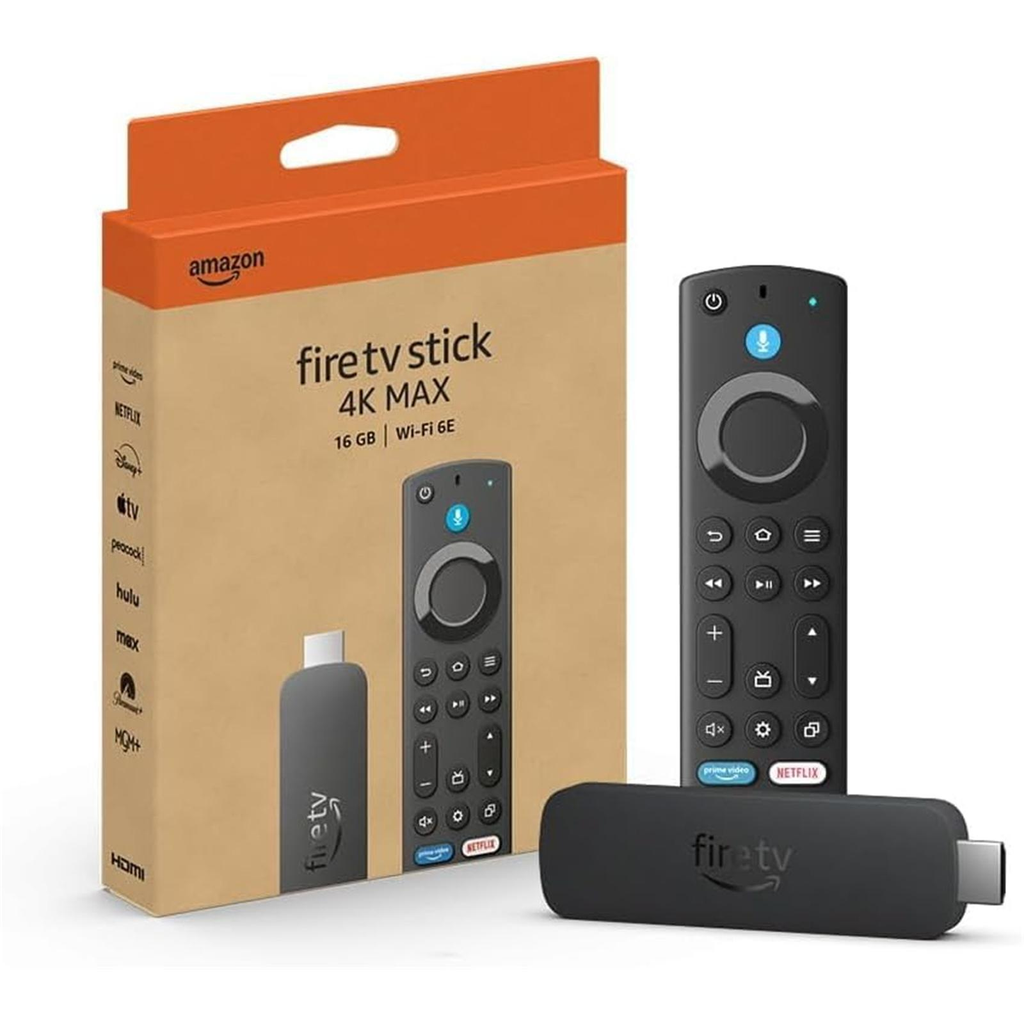
Our subscription is separate from the Amazon hardware. It does not automatically come installed or activated on the device.
Explore Our IPTV Subscription Plans
This guide explains seven practical steps for preparing your device, choosing a suitable subscription and completing your setup.
Table of Contents
Table of Contents
1. Understand the Best Fire TV Stick 4K Max Features
Before purchasing a television subscription, it helps to understand what your hardware can do.
The fire tv stick 4k max is a compact streaming device that connects to a compatible television through HDMI. It provides access to supported internet applications using Amazon’s Fire TV interface.
The second-generation model, released in 2023, offers several features that make it suitable for home entertainment.
Official hardware specifications
| Feature | Fire TV Stick 4K Max (2nd Gen) |
|---|---|
| Release year | 2023 |
| Operating system | Fire OS 8 |
| Maximum supported video resolution | 4K Ultra HD |
| Storage | 16 GB |
| Wi-Fi | Wi-Fi 6E |
| Processor | Quad-core up to 2.0 GHz |
| HDR formats | HDR10, HDR10+, Dolby Vision, HLG |
| Audio technology | Dolby Atmos support |
| Remote | Alexa Voice Remote Enhanced |
| Connection to television | HDMI |
These hardware specifications are documented by Amazon.

Amazon Fire Device Specifications
4K Ultra HD capability
One of the main benefits of the fire tv stick 4k max is its ability to output supported content in 4K resolution.
For users with a compatible 4K television, this provides the hardware foundation for high-resolution viewing.
However, owning 4K-capable hardware does not automatically make every video available in 4K.
Actual output quality depends on the source, supported application, television and internet connection.
When selecting a subscription, check which picture formats are offered for the content you want to watch.
Wi-Fi 6E connectivity
The second-generation fire tv stick 4k max supports Wi-Fi 6E.
This wireless standard allows compatible devices to use the 6 GHz band, in addition to other supported Wi-Fi bands.
A Wi-Fi 6E router is required to benefit from 6 GHz connectivity.
If you have an older router, the streaming stick can still use compatible wireless networks.
Wi-Fi 6E can be useful in a busy home, but it cannot correct problems caused by an unreliable internet provider or an overloaded video source.
16 GB storage capacity
The fire tv stick 4k max includes 16 GB of internal storage.
This is the device’s advertised total capacity, not necessarily the space available for installing applications.
Fire OS and preinstalled software occupy some storage.
The remaining space can be used for supported applications and their associated data.
Regularly removing unused applications may help keep the device organized.
Alexa Voice Remote
The supplied remote allows navigation through the Fire TV interface.
It includes voice-search functionality and controls for supported televisions and audio equipment.
The exact features available depend on the connected hardware and application support.
For IPTV users, the remote is especially important because some player applications are designed around directional navigation, channel lists and on-screen menus.
Is the fire tv stick 4k max suitable for IPTV?
Yes, the Fire OS 8 second-generation model can run compatible IPTV player applications.
However, not every Android application is available through the Amazon Appstore, and not every application is supported on every Fire TV model.
The player must also support the authentication information supplied by your subscription service.
We recommend verifying compatibility before purchasing a long-term plan.
2. Check Fire TV Stick 4K Max IPTV Compatibility
The most important distinction is between the device, the IPTV player and the television subscription.
These are three separate components.
The fire tv stick 4k max supplies the hardware. A compatible player application supplies the viewing interface. An authorized content subscription supplies access to the programming included in its service.
Buying only one component does not automatically provide the other two.
Device versus player versus subscription
| Component | Purpose | Purchased from |
|---|---|---|
| Fire TV Stick 4K Max | Streaming hardware | Device retailer |
| IPTV player | Application for supported streaming content | App developer or store |
| Digital Lizard IPTV | Separate subscription service | Our website |
This distinction prevents a common misunderstanding.
For example, installing a compatible media player on your fire tv stick 4k max does not automatically provide a playlist, subscriber credentials or access to premium programming.
Likewise, buying a television subscription does not necessarily include a paid application license.
Fire OS and application compatibility
The second-generation fire tv stick 4k max uses Fire OS 8.
Although Fire OS is based on Android technology, it has its own application environment and distribution rules.
An app available on Google Play is not automatically available in the Amazon Appstore.
Customers should check the developer’s compatibility information before choosing a player.
Newer Fire TV products can also have different operating systems. An installation guide written specifically for Fire OS 8 should not automatically be applied to a Vega OS device.
What information does IPTV setup require?
Depending on the supported player, account setup may require a username, password and server URL, or another provider-supported login format.
Our Digital Lizard IPTV setup guide explains how to enter credentials and verify that the selected login method matches the account.
Keep your account information private.
Do not post credentials in public forums or send them to websites that are not involved in providing your service.
Why verify compatibility before ordering?
When preparing a fire tv stick 4k max, start with the application and subscription requirements rather than assuming all services work in the same way.
A few checks can reduce setup problems:
- Confirm the Fire TV generation and operating system.
- Verify that the intended application supports the device.
- Check the required login format.
- Confirm any separate app fees.
- Review the subscription’s simultaneous-connection limit.
Once these details are clear, selecting a subscription becomes easier.
Check Our Fire TV Setup Instructions
3. Prepare Your Fire TV Stick 4K Max for Streaming
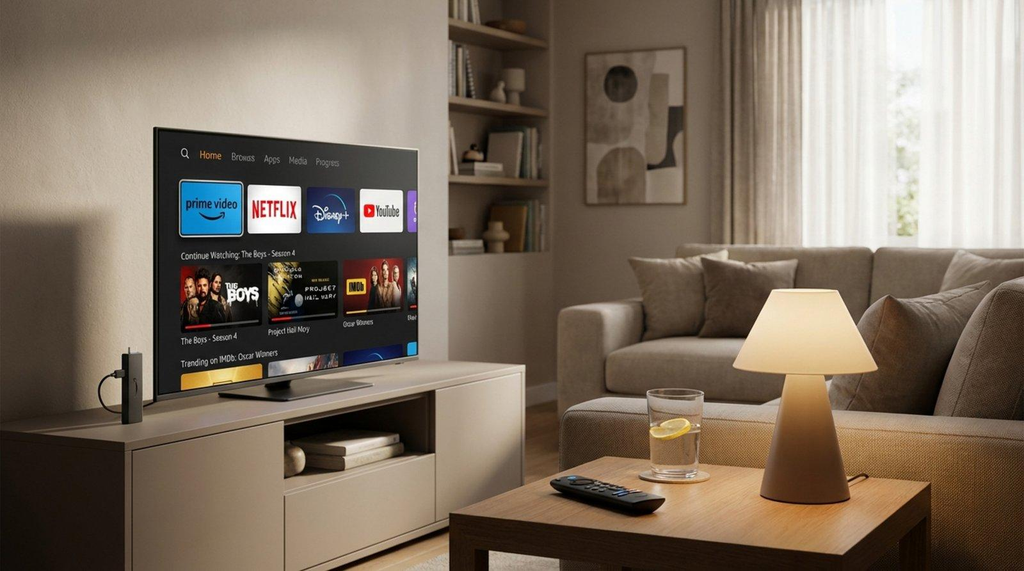
A successful setup starts before entering subscription credentials.
Make sure your television, power supply and network connection are functioning correctly.
Step 1: Connect the streaming device
Plug the fire tv stick 4k max into a suitable HDMI port on your television.
Connect the included power equipment according to Amazon’s instructions.
Select the appropriate HDMI input using your television remote.
If your television has multiple HDMI ports, make sure you select the one used by the streaming stick.
Step 2: Connect to your home internet
Follow the Fire TV setup prompts to connect to your wireless network.
Enter your Wi-Fi password carefully.
For a Wi-Fi 6E network, both the streaming stick and router must support the appropriate connection.
If the television is far from the router, consider improving router placement or using an appropriate supported networking accessory.
Step 3: Sign in to your Amazon account
The fire tv stick 4k max uses Amazon’s Fire TV environment.
Complete the registration prompts presented on screen.
You may need to confirm account details or other setup information.
Follow Amazon’s official instructions if you experience an account registration problem.
Step 4: Check for software updates
Device updates can include security improvements, compatibility changes and bug fixes.
Open Fire TV settings and check the device software update section.
Install available updates following Amazon’s instructions.
Avoid interrupting an update or disconnecting power during installation.
Step 5: Review available storage
A streaming device with insufficient free storage can have problems installing or updating apps.
Open the device settings to review installed applications and available storage.
Remove applications you no longer use if additional space is required.
Step 6: Test your network
Before configuring IPTV, verify that your fire tv stick 4k max can access a legitimate streaming application.
This helps distinguish a general connection problem from an issue with a particular IPTV player.
If every application has trouble connecting, check your router or internet service first.
Step 7: Confirm your viewing requirements
Consider how your household will use the television.
Will the fire tv stick 4k max be the only active streaming device, or will other televisions and mobile devices be used simultaneously?
Your answer helps determine which connection configuration is suitable when choosing our subscription.
4. Choose the Best IPTV Player for Fire TV Stick 4K Max
An IPTV player is the software used to display compatible media streams, navigate channels and, where supported, access an electronic program guide.
Different players have different interfaces, licensing rules and account-format requirements.
The best player for your fire tv stick 4k max is one that is compatible with the device and supports the login format associated with your chosen subscription.
IPTV Smarters Pro
IPTV Smarters Pro is a familiar IPTV player name among streaming users.
Depending on the specific version and supported platform, it can provide account login functions and live television navigation.
However, distribution and compatibility can vary.
Before installing IPTV Smarters Pro on a fire tv stick 4k max, verify the application’s genuine publisher and the compatibility of the version offered.
Do not assume that a similarly named application is published by the same developer.
TiviMate
TiviMate is another IPTV player used on Android-based television devices.
It provides an interface designed for navigating compatible IPTV sources.
Some features may require a separate premium purchase.
For a fire tv stick 4k max running Fire OS, verify the current installation method and supported player version through trustworthy developer documentation.
TiviMate does not provide a television content subscription by itself.
Users must supply an appropriate authorized playlist or subscription.
Other compatible IPTV players
Additional players may support playlist-based authentication, provider credentials or different program-guide formats.
Before installing an unfamiliar application, check its developer, privacy practices, compatibility and current availability.
We do not recommend selecting a player solely because it promises access to every premium channel.
How to choose the right player
For your fire tv stick 4k max, concentrate on four practical questions.
First, does the application work on your device’s actual operating system?
Second, does it support the account information your provider supplies?
Third, can you navigate the interface conveniently using the Fire TV remote?
Fourth, are there separate application charges or limitations?
Once these questions are answered, follow the official installation steps for that player.
Entering your subscription details
After you install a compatible IPTV player on your fire tv stick 4k max, open its account or playlist setup section.
Enter the information supplied with your subscription.
For username-and-password systems, verify all characters carefully.
When a server URL is required, enter it exactly as provided.
Save the account and allow the application to synchronize.
If the account is rejected, verify the login method before repeatedly changing the credentials.
Our setup resources can help with common configuration problems.
Read Our Digital Lizard IPTV Installation Guide
5. Compare Digital Lizard IPTV Plans for Your Fire TV Stick 4K Max
Choosing the correct subscription is just as important as choosing a compatible streaming device.
At Digital Lizard IPTV, we offer several subscription durations so customers can compare their desired commitment with their budget.
If you already own a fire tv stick 4k max, you do not need to purchase another television device simply to compare our plans.
You should first check the subscription’s compatibility and available programming.
Our current IPTV subscription pricing
| Subscription | Duration | Connections | Total price | Equivalent per month |
|---|---|---|---|---|
| Monthly | 1 month | 1 | $16 | $16.00 |
| Quarterly | 3 months | 1 | $36 | $12.00 |
| Six-month | 6 months | 1 | $55 | $9.17 |
| Annual | 12 months | 1 | $75 | $6.25 |
These are our currently published prices for one simultaneous connection. The monthly equivalents are calculated for comparison; they are not separate monthly charges on a longer-duration plan.
Digital Lizard IPTV
One-month plan: A shorter initial commitment
Our one-month subscription is listed at $16 for one simultaneous connection.
This option can suit customers who want to confirm compatibility and understand the available service before committing to a longer period.
For someone using a fire tv stick 4k max for the first time, a shorter commitment can offer useful flexibility.
However, we recommend verifying app compatibility and required content before ordering any plan.
Three-month plan: A balanced duration
Our three-month subscription costs $36 for one connection.
The equivalent monthly cost is $12 when the total is divided by three months.
This option may suit customers who have completed the initial fire tv stick 4k max setup and prefer a subscription lasting longer than one month.
Compare the full upfront amount with your preferred budget before purchasing.
Six-month plan: Fewer renewal decisions
The six-month subscription is listed at $55 for one simultaneous connection.
Its equivalent monthly cost is approximately $9.17.
This can appeal to established subscribers who want a longer period without committing to a full year.
Before selecting it, confirm that the service fits your household’s ongoing viewing requirements.
Twelve-month plan: Lower monthly equivalent
Our twelve-month one-connection plan is currently listed at $75.
That works out to an equivalent of $6.25 per month over the subscription term.
It offers the lowest effective monthly cost among the four published single-connection options.
For an established fire tv stick 4k max user who has already confirmed the service and device requirements, this longer duration may be an appropriate choice.
Nevertheless, the lowest monthly equivalent is not automatically the best purchase for every customer.
The upfront commitment, content requirements, application licensing and service policies also matter.
How to select the best plan
A useful selection method is to begin with your circumstances rather than the advertised monthly equivalent.
If you’re testing compatibility, consider a shorter term. If you already know the service meets your requirements, compare the longer commitments.
All displayed plans require a compatible device, a suitable application and a working internet connection.
Our subscription prices do not represent the retail purchase price of the fire tv stick 4k max, and a premium third-party player may involve separate charges.
You should also verify that the programming you want is actually included and legitimately available.
Compare Our Subscription Plans and Current Prices
6. Select the Right Number of Connections for Your Household
One of the most common IPTV subscription questions involves simultaneous connections.
A connection refers to the number of devices that can actively stream at the same time.
It does not necessarily mean the total number of devices on which an application can be installed.
One connection for one active screen
Imagine that you use a fire tv stick 4k max in your living room.
You also have a smartphone, but you do not plan to stream on both devices simultaneously.
A one-connection subscription may be enough for your viewing habits, provided your use complies with the account terms.
You should still confirm device switching and other usage conditions with the provider.
Two connections for two active screens
Suppose your household has a fire tv stick 4k max connected to the main television and another compatible streaming device in a bedroom.
If both screens need to play content at the same time, a two-connection configuration could be more appropriate.
Our website describes options for more than one simultaneous connection.
The total price will depend on the selected duration and connection count.
Three to five connections for larger households
Households with multiple televisions may have different viewing patterns.
For example, two adults might use separate televisions while another family member uses a compatible mobile device.
A three-connection configuration could fit that hypothetical situation.
For larger requirements, our website describes connection options of up to five simultaneous streams.
We recommend reviewing the final price through the online selector rather than assuming a fixed additional charge.
Example household selection table
| Household situation | Active streams needed | Connection count to consider |
|---|---|---|
| One television | 1 | 1 |
| Living room and bedroom | 2 | 2 |
| Two TVs and one tablet | 3 | 3 |
| Four active compatible devices | 4 | 4 |
| Five active compatible devices | 5 | 5 |
These are illustrative usage examples, not promises of unlimited device registration or specific content availability.
If you use only one fire tv stick 4k max, avoid purchasing additional simultaneous connections unless your household actually needs them.
Choosing based on real usage can make the subscription decision simpler.
7. How to Purchase and Activate IPTV on Fire TV Stick 4K Max
Once your device is ready and you have reviewed the subscription options, you can complete the purchasing process through our website.
We recommend following these seven steps.
Step 1: Open the official pricing page
Visit our Digital Lizard IPTV pricing page.
Review the available subscription durations.
Check the total price for your preferred connection configuration.
Step 2: Choose your duration
Select one month, three months, six months or twelve months.
Your choice should reflect how long you intend to use the subscription.
If you have not previously configured IPTV on your fire tv stick 4k max, consider whether a shorter commitment fits your situation.
Step 3: Confirm the connection count
Determine how many compatible devices need to stream simultaneously.
Select the appropriate connection configuration and verify the updated order total.
If you need assistance understanding the connection limit, consult our FAQs before purchasing.
Step 4: Review your order
Our subscription page displays an order summary and customer information form.
The form requests information such as your name, email address, country, phone number and device type.
It also provides a choice between a new subscription and a renewal.
Check your selection before submitting the order.
Step 5: Review payment options
The subscription form displays payment methods, including PayPal, credit card, Binance and Cash App.
Available methods and promotional conditions may change.
Read the current payment information and verify the final order amount before completing payment.
Step 6: Obtain your activation information
After your order is processed, use the subscription details supplied through the service.
These may include a username, password and applicable server information.
Do not assume that every IPTV player uses the same login format.
Store your account information securely.
Step 7: Configure your player
Open the compatible IPTV application on your fire tv stick 4k max.
Select the correct login method, enter the supplied credentials and save the configuration.
Allow the application to load the available service information.
If the setup fails, check the login details and consult our installation guide before making repeated changes.
Choose Your Digital Lizard IPTV Subscription
Troubleshooting Common Fire TV Stick 4K Max IPTV Problems
Even a compatible streaming device can experience configuration or playback problems.
Understanding the possible causes helps you troubleshoot more efficiently.
The IPTV application will not install
First, verify the app’s compatibility with your actual Fire TV model and operating system.
The fire tv stick 4k max second generation runs Fire OS 8, but not every Android application is officially distributed through Amazon’s application store.
Check available storage and make sure the device has completed pending software updates.
If an application is unavailable, use an authorized compatible alternative rather than downloading unverified packages from unknown sources.
The IPTV username or password is rejected
Check each character in the credentials.
Look for accidental spaces, uppercase and lowercase errors, and an incorrect login method.
If your player asks for a server address, verify that it matches the information supplied with the account.
Do not publish account credentials when requesting support.
Streaming playback keeps buffering
Buffering can result from several causes, including Wi-Fi problems, internet congestion, application issues and source-stream limitations.
Restart the application and test the fire tv stick 4k max internet connection.
If possible, compare performance with another legitimate streaming application.
This can help identify whether the problem affects your entire network or only one service.
Remember that even Wi-Fi 6E hardware cannot guarantee buffering-free playback.
The application closes unexpectedly
Close unnecessary background applications and restart the device.
Check whether software updates are available.
Make sure sufficient storage remains and that the player supports your Fire OS version.
If the problem affects one specific video, report the exact error, player name and relevant playback details to support.
The program guide is missing
Some IPTV players use an electronic program guide, commonly called an EPG.
If the guide does not appear, allow time for the application to synchronize.
Where supported, use the player’s manual program-guide refresh function.
If the problem continues, verify the account information and available guide features.
The television screen is black
Check that your television is set to the correct HDMI input.
Inspect the device’s power connection and restart it if necessary.
If Fire TV menus appear but a particular video remains black, investigate the application, content source and supported video format instead.
When to contact support
If your fire tv stick 4k max operates correctly in other applications but your subscription setup does not work, collect the relevant information before contacting us.
Useful details include the device generation, player name, error message and the step at which the problem occurs.
Do not include your password in public support messages.
Our Digital Lizard IPTV contact page provides a route for assistance.
Frequently Asked Questions About Fire TV Stick 4K Max and IPTV
1. Can I use Digital Lizard IPTV on a fire tv stick 4k max?
Our website includes Amazon Fire TV in its supported setup categories. You must use a compatible player and the correct subscription login method.
Specific application compatibility depends on your device generation, operating system and the app’s availability.
2. Does the fire tv stick 4k max include an IPTV subscription?
No. The hardware is sold separately from television subscriptions.
Purchasing the streaming stick does not automatically provide Digital Lizard IPTV credentials or premium content access.
3. Does the device support 4K streaming?
Yes. Amazon’s second-generation device supports 4K Ultra HD output and several HDR technologies.
The actual picture quality depends on the video source, television, application and internet connection.
4. How much does a Digital Lizard IPTV subscription cost?
Our published one-connection totals are $16 for one month, $36 for three months, $55 for six months and $75 for twelve months.
Additional simultaneous connections may affect the final price.
5. Is TiviMate available for the fire tv stick 4k max?
TiviMate is designed for compatible Android-based television environments, but installation options and availability must be verified for your device and region.
A separate premium app license may be required for certain features.
6. Can I use IPTV Smarters Pro?
A compatible IPTV Smarters player may work with supported Fire TV configurations.
Check the publisher, app version and login format before installing it.
A player alone does not include a television subscription.
7. How many TVs can watch simultaneously?
That depends on the connection count selected during purchase.
Our subscription options describe configurations from one to five simultaneous connections.
A one-connection subscription permits one active stream at a time.
8. Is Wi-Fi 6E necessary for IPTV?
No. The fire tv stick 4k max can connect to other compatible Wi-Fi networks.
Wi-Fi 6E may provide networking advantages with suitable equipment, but it is not required for every streaming application.
9. What happens after I purchase a subscription?
You should follow the activation and account instructions supplied through our service.
Enter the applicable credentials into a compatible player, save the account and allow the application to synchronize.
Activation timing and availability should not be assumed without confirmation.
10. Does Digital Lizard IPTV offer a refund period?
Our website currently describes a three-day refund request period, subject to the applicable conditions and eligibility review.
Read the complete refund policy before purchasing. A refund request period is not an unconditional money-back guarantee.
Final Thoughts: Choose the Best IPTV Plan for Your Fire TV Stick 4K Max
The fire tv stick 4k max provides a capable platform for internet-connected television viewing, with 4K support, Wi-Fi 6E and an interface designed for compatible streaming applications.
To use it successfully with a separate IPTV subscription, confirm the application, login method, internet connection and available service features before purchasing.
At Digital Lizard IPTV, our subscription options let you choose a duration and the number of simultaneous connections that suit your household.
You can begin with a shorter plan or compare longer commitments after confirming the service meets your needs.
Review our published pricing, read our setup guidance and choose the subscription that matches your equipment and viewing preferences.
Explore Digital Lizard IPTV Plans and Subscribe Today
Amazon Developer — Fire TV device specifications
Amazon — Fire TV software updates
Digital Lizard IPTV — Pricing plans