
Quick answer: To set up IPTV Smarters Pro Setup on Firestick, first check whether your device runs Fire OS or Vega OS. An older, Android-based Fire OS device may support a compatible player installed from an authorised source. A Vega OS Fire TV Stick cannot use the usual Android APK installation method. Once you have a trustworthy, compatible player, add your lawfully obtained Xtream-style login or M3U playlist, check the TV guide and test playback.
If you have searched for iptv smarters pro setup firestick, you have probably seen tutorials that say to install Downloader, type in a short code and start watching. That approach misses two questions that matter in 2026: which Fire TV operating system do you own? And where did the app file come from? Amazon has introduced Vega OS on several newer Fire TV Sticks, while multiple apps and websites use similar Smarters names. A guide that skips these checks can lead to an incompatible download or an untrustworthy APK.
This UK-focused walkthrough starts with device identification, then covers installation options, account sign-in, programme guides, buffering, blank screens and common login errors. The instructions concern media-player configuration, not access to unlicensed television channels.
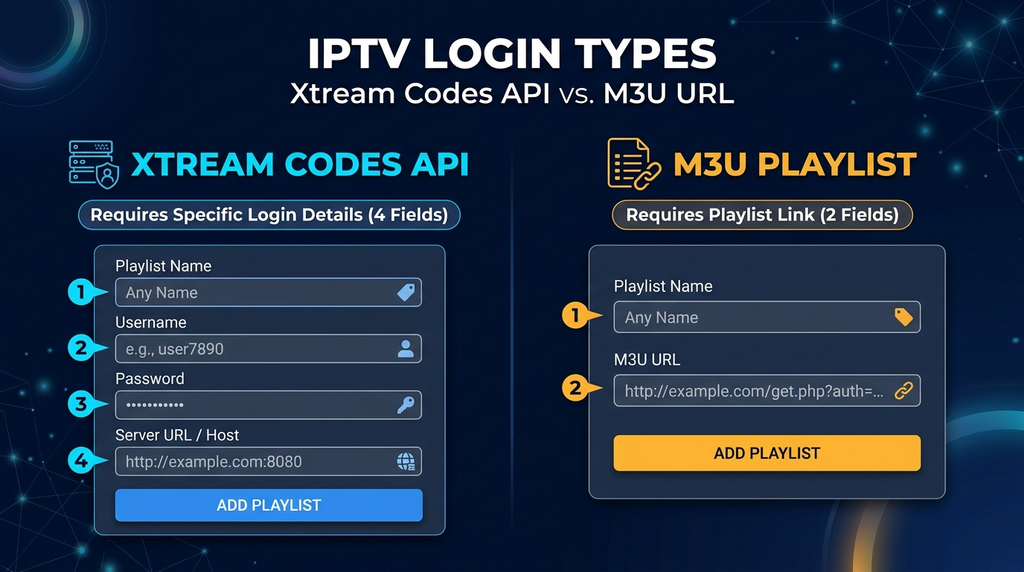
Table of Contents
Table of Contents
Can you install IPTV Smarters Pro Setup on Firestick?
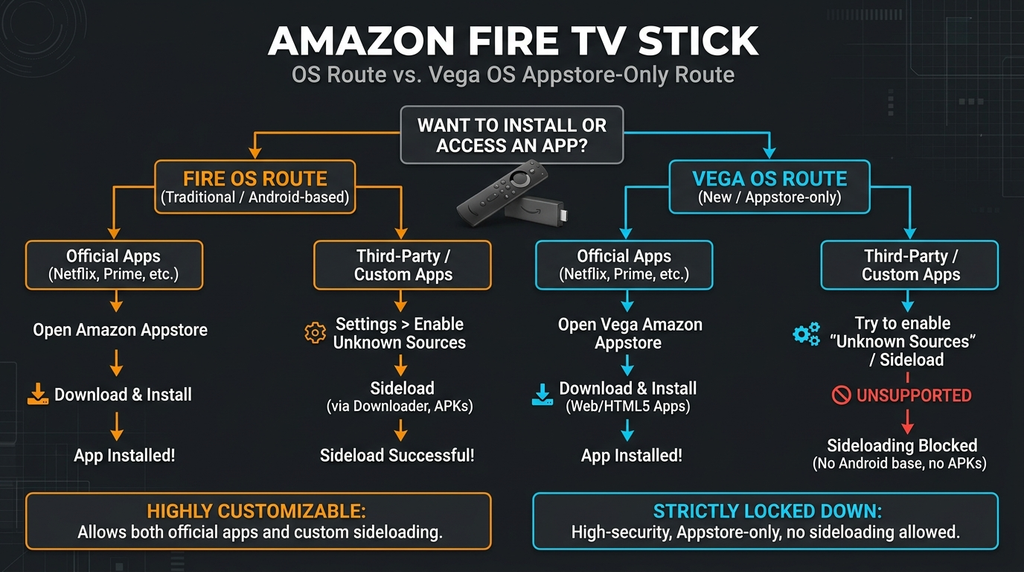
It depends on the operating system and the exact app. Fire TV Stick is a product family, not a single software platform. The familiar Downloader-and-APK instructions are relevant only to compatible Android-based Fire OS devices; they are not a universal Firestick installation method.
Amazon’s Fire TV device specifications identify several models running Vega OS rather than Android-based Fire OS. That difference changes which applications and installers will run.
| Device example | Operating system | What it means for installation |
|---|---|---|
| Fire TV Stick 4K Max, 2nd generation (2023) | Fire OS 8 | Android-based; a compatible APK may be installable, subject to device policies and a verified source. |
| Fire TV Stick 4K, 2nd generation (2023) | Fire OS 8 | Android-based; use the Amazon Appstore first, or a verified developer installation route where supported. |
| Fire TV Stick 4K Plus (2025) | Fire OS 8 | Android-based; app compatibility and availability still need checking. |
| Fire TV Stick 4K Select (2025) | Vega OS | Do not use Android APK or Downloader sideload instructions; look for a compatible Appstore application. |
| Fire TV Stick HD (2026) | Vega OS | The older Android APK method is not applicable. |
| Fire TV Stick 4K, 3rd generation (2026) | Vega OS | Use apps made available for this platform; Android APK tutorials do not apply. |
Model examples are based on Amazon’s developer documentation reviewed in November 2026. Product names may be similar across generations, so check your exact model rather than guessing from “4K” or “HD”.
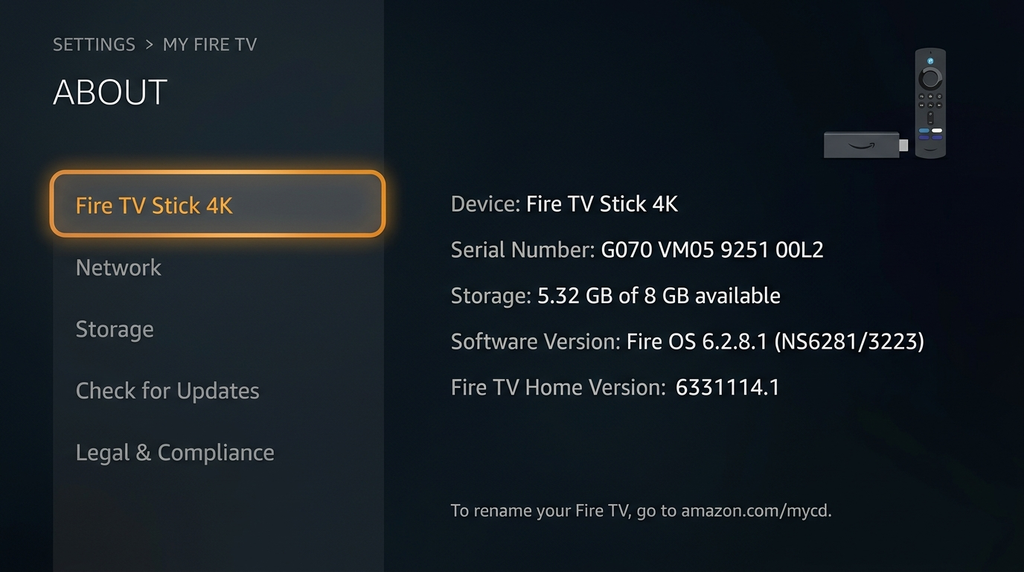
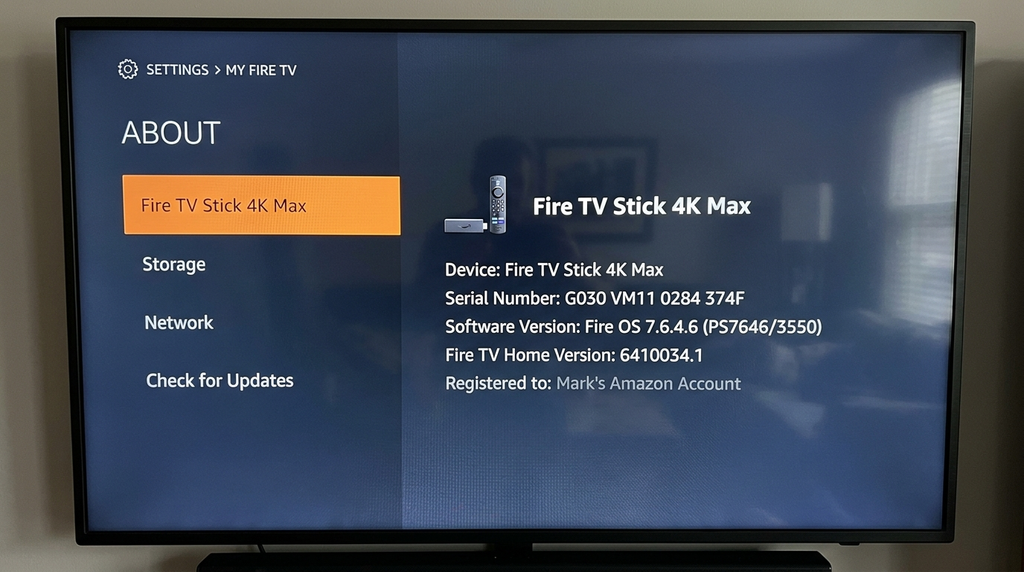
How to check your Fire TV model
- Open Settings from the Fire TV home screen.
- Select My Fire TV or Device & Software, depending on the model.
- Open About and read the device name and available software information.
- If the device is unfamiliar, compare its precise model against Amazon’s published device list.
- Follow the relevant route below. If it runs Vega OS, skip the APK section entirely.
Important: “I cannot find Developer Options” does not automatically mean the menu is hidden. On a Vega OS model, the traditional Android sideloading workflow is simply the wrong workflow.
What you need before you start
You need a Fire TV Stick with a working internet connection, a compatible media-player application and permission to use the content you intend to play. Keep your account details ready, but do not share them in comments, screenshots or public forums.
| Item | Why it matters | What to check |
|---|---|---|
| Fire TV model and OS | Determines whether an Android APK can run | Fire OS versus Vega OS |
| Internet connection | Downloads the player and streams media | Stable Wi-Fi or a suitable Ethernet adapter |
| Player app | Organises and plays a playlist | Exact app name, publisher and device support |
| Playlist or service login | Supplies the content source | Valid, authorised M3U or Xtream-style details |
| EPG data, if available | Shows programme titles and times | Whether the source supplies an EPG |
| Available device storage | Helps installation and app performance | Remove unused apps if storage is low |
An IPTV player and an IPTV subscription are not the same thing. A player does not automatically include channels. The current Smarters Pro developer website also states that its media-player software does not sell channel packages. Because products with similar names exist, do not assume that every “Smarters” download is the same app or comes from the same publisher.
If you already use Digital Lizard IPTV’s device instructions, the site’s general setup guide covers the account information commonly needed across supported devices. That page does not by itself verify the provenance of a particular third-party APK.
How to install a compatible player on Fire OS
These steps apply only to a Fire OS model that supports the chosen app. Start with the official store and proceed to manual installation only when a trustworthy developer source is independently confirmed.
Step 1: Search the Amazon Appstore
- From the Fire TV home screen, open Find or Search.
- Search for the exact player name.
- Open a result and check its publisher, device support and permissions.
- If the app is the genuine compatible product you intend to use, follow Amazon’s installation prompts.
- If you cannot verify the app identity, do not install it merely because the icon looks familiar.
Amazon explains the ordinary installation workflow in its Fire TV app-download instructions. The presence or absence of a listing can vary by region, device and date; this guide does not claim that a particular version of IPTV Smarters Pro is currently listed for UK Fire TV devices.
Step 2: Consider manual installation only when the developer provides a verified APK
Some older Fire OS devices permit installation outside the Appstore. This procedure has an important condition: you must already have a validated download URL supplied by the actual app developer, for the exact app and model. An IPTV reseller’s shortened code or a random APK mirror is not equivalent to developer verification.
- Install a trusted download utility, if supported, from the Amazon Appstore.
- Go to Settings → My Fire TV → Developer Options. On some Fire OS versions the menu may be hidden; Amazon documents enabling it by selecting the device entry in About seven times.
- Under Install unknown apps, authorise only the specific installer you intend to use. Menu names vary by Fire OS release.
- Enter the verified developer URL into the downloader; inspect the destination before proceeding.
- Check that the download is an Android package intended for your device, then follow the on-screen installation dialogue.
- After successful installation, remove the downloaded installer file if it is no longer required, and turn off unnecessary unknown-app permissions.
Amazon documents Developer Options in its Fire TV developer instructions. Those instructions describe Android-based Fire TV development controls; they do not make an Android APK compatible with Vega OS.
No universal Downloader code is provided here. As of this research, an independently verifiable, current Fire TV APK URL tied to the exact “IPTV Smarters Pro” product was not established. Publishing an unverified code would make this tutorial less safe, not more helpful. If you do not have an authenticated developer download, stop and choose an independently verified, compatible player available through your Fire TV Appstore instead.
Step 3: Open the installed player
Return to Your Apps & Channels (or the equivalent Apps screen), launch the player and review its terms and permissions. If the app opens a sign-in screen, identify which login methods it supports. Common options may include an Xtream-style API login or an M3U playlist. The wording and availability vary between similarly named apps and versions.
If your particular player offers only an M3U import, use the M3U section below rather than searching for a login button that does not exist. Do not buy a separate media subscription just because an app offers a premium-feature upgrade; a player upgrade and content rights are separate purchases.
How to log in with Xtream-style details
If your verified player includes an option such as Login with Xtream Codes API, use the credentials issued by the authorised service or playlist administrator. They normally include a server address, username and password. Some players ask for a profile name as well.
- Launch the player and choose Add User, Add Playlist or its equivalent.
- Select Xtream Codes API or the equivalent supported login method.
- Enter a recognisable local profile name, such as Living Room.
- Type the server URL exactly as provided. Include the scheme (
https://orhttp://) and any supplied port number. - Enter the username and password without leading or trailing spaces. Both may be case-sensitive.
- Select Add User, Login or Save, according to the app.
- Wait for the player to load the content and guide data supplied by your authorised account.
An illustrative server field might look like https://example.com:1234, but that is an example only, not a working IPTV server. Do not replace the address provided by your legitimate service with a URL copied from an unrelated tutorial.
What if login fails?
Check the easiest mistakes before reinstalling anything: mistaken capital letters, an accidentally copied space, a missing port, an expired account or the wrong login method. Also check whether the device has internet access independently of the player. If you need help interpreting a message, contact the issuer of the credentials privately and provide the exact error—not your password.
For Digital Lizard account holders, its support page requests the model, player name, error message and attempted troubleshooting. This article does not establish rights to any specific channel catalogue.
How to add an M3U playlist
An M3U playlist is a file or URL containing references to media streams. Some players accept an M3U link rather than a username, password and server combination. Use a playlist only when you have permission to access the streams it contains.
- Open the player and find Add Playlist, Load Playlist or a similarly labelled option.
- Choose M3U URL if your source supplied a web link, or local-file import if the app supports that and you were given a file.
- Enter the authorised playlist URL exactly as supplied; long URLs can include case-sensitive tokens.
- Assign a useful name, such as Personal Playlist.
- Save and allow the player to read the playlist. If it appears empty, test the supplied link’s validity with the administrator rather than guessing a different endpoint.
Xtream-style login versus M3U: which should you choose?
| Criterion | Xtream-style login | M3U playlist |
|---|---|---|
| Typical input | Server URL, username, password | Playlist URL or file |
| Good for | An account whose provider supports the app’s API login | A permitted playlist provided as an M3U link |
| Programme guide | Depends on app and source integration | Often needs separate guide data |
| Films and series categories | Depends on provider and player | Depends on playlist structure and player |
| Common error | Incorrect credentials or server address | Expired, mistyped or inaccessible URL |
Neither format proves that a stream is licensed. It is the underlying content source and permissions—not the login format—that determine whether your use is authorised.
How to set up the UK programme guide
An electronic programme guide (EPG) displays schedules and programme names when guide data is available. An empty guide does not necessarily mean that playback has stopped working.
First, wait for the initial playlist synchronisation and look for your player’s Refresh EPG, Update Guide or equivalent control. If the service supplies a separate XMLTV guide URL and your player supports it, add that authorised URL through the EPG settings. A correct stream URL alone does not guarantee matching schedule information.
If programmes show at the wrong time in the UK, investigate the device’s date, time zone and the guide source before applying any manual offset. Britain moves between GMT in winter and BST in summer. An offset that appears correct in one season may be wrong after the clock change, and some guide sources already handle daylight saving automatically.
A practical diagnostic sequence is to check the Fire TV’s clock, refresh the guide once, inspect one known programme against the source’s official schedule, and adjust a timeshift setting only if a consistent difference remains. Avoid repeatedly adding or subtracting hours without identifying the cause.
Firestick setup problems and fixes
Most setup faults fall into one of four groups: device incompatibility, app installation, account details, or playback/network conditions. Identifying the group first is quicker than reinstalling everything.
| What you see | Likely area to investigate | Sensible first action |
|---|---|---|
| No Developer Options or APK installation route | Device may run Vega OS | Check model and OS in About |
| “App not installed” | Package, OS, storage or system policy | Confirm app identity, compatibility and available space |
| Invalid username or password | Credentials or login format | Re-enter exact authorised details |
| Blank screen on a channel | Stream availability, decoder or app | Test another authorised stream and player setting if offered |
| App opens, but the channel list is empty | Account or playlist synchronisation | Check the source and refresh once |
| EPG is blank or inaccurate | Guide source or time settings | Refresh EPG; check UK GMT/BST handling |
| Repeated buffering | Wi-Fi, network congestion, source or device | Test connection near the device and compare another legal service |
| App crashes or freezes | App data, memory or software | Restart Fire TV; clear cache if needed |
App keeps closing or won’t load
Amazon recommends restarting the Fire TV, checking for system updates and, when appropriate, clearing the affected app’s cache. Navigate to Settings → Applications → Manage Installed Applications, choose the app and select Clear Cache. See Amazon’s cache and data instructions.
Clear Data is different from Clear Cache: it can reset local sign-in details and app settings. Keep a secure copy of your legitimate login information before clearing data or uninstalling. Avoid repeating the installation from a questionable source to fix a crash.
Video plays for a few seconds and then buffers
Start with the basics: check the Fire TV’s internet connection, restart the router if other devices are affected, and test whether a different authorised streaming service works normally. If practical, compare a 5 GHz Wi-Fi connection with a suitable wired Ethernet adapter. The quality and stability of the signal at the stick behind the television can matter more than the speed measured on a phone beside the router.
An app cannot guarantee smooth HD or 4K playback by itself. Real performance depends on Wi-Fi, bandwidth, stream encoding, server availability and the hardware’s decoding capabilities. Avoid treating any single speed figure as a guarantee; content bitrates vary.
Sound works but the picture is black
This may indicate an incompatible codec, stream failure or player-decoder issue rather than bad login details. Test a different authorised stream. If your app includes a clearly documented player-selection option, switching between supported decoding modes may help. Otherwise check for an official app update and ask the source administrator whether that format is supported.
Favourites don’t remain saved
Confirm that you are adding a favourite to the same user profile that you later reopen. Some players separate favourites across playlists or user profiles. Close the app normally and reopen it to test whether changes persist. If they do not, check app permissions, local storage and updates. Do not clear app data before noting which favourites you would lose. Features and menu labels differ by application version.
App asks for “Premium” but you already have a playlist subscription
A premium prompt may concern the media player’s features, not the subscription that supplies the streams. Check the publisher’s description of the upgrade before paying. A premium app licence does not automatically create channel access, and a content subscription does not automatically unlock paid player features. The Smarters Pro developer explains this distinction on its website.
Which problem is yours: Firestick, app or stream?
Use a simple isolation test:
- Device: Does another legitimate streaming app work on the Fire TV?
- Network: Does playback improve when the network connection changes?
- Player: Does the same authorised playlist work in a second, supported player?
- Source: Does the account or content administrator report an outage or access limitation?
Only change one variable at a time. This avoids losing working settings while troubleshooting an unrelated server-side issue.
Safer app downloads and UK viewing rights
The player software, the source of the APK and the rights to the channels are three different issues. For software safety, prefer the Amazon Appstore or a verified publisher. Avoid APK mirrors, shortened codes shared in comments, apps that request unnecessary permissions and pages that impersonate a well-known player brand.
For content rights, the UK Intellectual Property Office explains that streaming devices can be used lawfully for legitimate content, but using them to access copyrighted programmes without permission can be unlawful. Read the UK government’s guidance on illicit streaming devices. Having paid a reseller does not, by itself, establish that the reseller holds distribution rights.
If you are comparing a subscription’s terms, check authorisation, compatible devices, geographic restrictions, simultaneous connections, pricing and the actual refund policy before purchasing. Digital Lizard publishes general subscription FAQs and a refund policy; these pages are not independent evidence of content licensing or UK catalogue rights.
Frequently asked questions
Can I install IPTV Smarters Pro on any Amazon Firestick?
No. The installation route depends on the exact model and operating system. Fire OS models may support compatible Android applications, but the Fire TV Stick 4K Select (2025) and newer listed Vega OS models do not use the traditional APK installation method. Check Amazon’s device specifications first.
What is the Downloader code for IPTV Smarters Pro in 2026?
There is no single independently verified code included in this guide. Short codes can redirect to files that change ownership or content. Use only a current link authenticated by the actual app developer for your model; otherwise select a verified player in the Amazon Appstore.
Why can’t I find Developer Options on my Firestick?
On some Fire OS releases, the Developer Options menu is hidden and can be enabled through the device’s About screen. However, on a Vega OS Fire TV Stick the old Android sideloading instructions are not applicable. Determine the OS before trying to reveal the menu.
Is IPTV Smarters Pro free, and does it include TV channels?
Do not assume a player includes channels. Smarters-branded media players are generally separate from any content source and may offer optional premium features. Check the exact application’s publisher and current terms. Legitimate content rights and source access must be obtained separately.
Which is better for sign-in: Xtream Codes or M3U?
Choose the method your authorised source and verified app both support. Xtream-style entry usually uses a server address, username and password; M3U typically uses a playlist URL or file. Neither choice guarantees an EPG, catalogue features or streaming quality.
Why is my IPTV programme guide one hour out in the UK?
The player, EPG source or device may be using a different time-zone or daylight-saving setting. Check whether the guide has already adjusted for GMT or BST before changing the timeshift value. Refresh the guide after confirming the settings.
Does a VPN fix IPTV Smarters Pro buffering?
Not necessarily. A VPN can introduce additional latency and cannot repair an unavailable stream, incompatible app or weak Wi-Fi. Diagnose your network and source first. A VPN is not a substitute for permission to access copyrighted content.
Can I use the same account on two Fire TV Sticks?
That depends on the account’s permitted simultaneous connections and the source’s terms, not merely on the fact that the player can be installed twice. Check the account agreement and avoid assuming that multiple installed devices mean multiple concurrent streams are allowed.
Conclusion: check the Fire TV OS before installing anything
The safest IPTV Smarters Pro setup on Firestick begins with identifying the device—not searching for an APK code. On a compatible Fire OS stick, search for a verified player in the Amazon Appstore first. Consider manual installation only from a developer-authenticated source. On a Vega OS stick, use a supported Appstore app instead of Android sideloading instructions.
Once a trustworthy player is installed, use your authorised Xtream-style credentials or M3U link, refresh the guide and troubleshoot in a methodical order. If your issue involves an existing Digital Lizard account rather than app installation, consult the site’s device setup guide or contact its support team with the device model, player version and precise error message—never your password in public.