
Choosing an IPTV player for Windows begins with the computer’s supported operating system and the account format you intend to use. A desktop player may accept a network stream or playlist without providing the same interface as a television-focused account portal. Confirm the required workflow before installing software or paying for a license.
At Digital Lizard IPTV, we recommend using a verified compatible player and the account details supplied for your order. This guide also addresses searches for “Xtream IPTV Player Windows 10” without assuming that an Android app or APK can be installed as a native Windows application. The actual publisher’s Windows requirements matter.
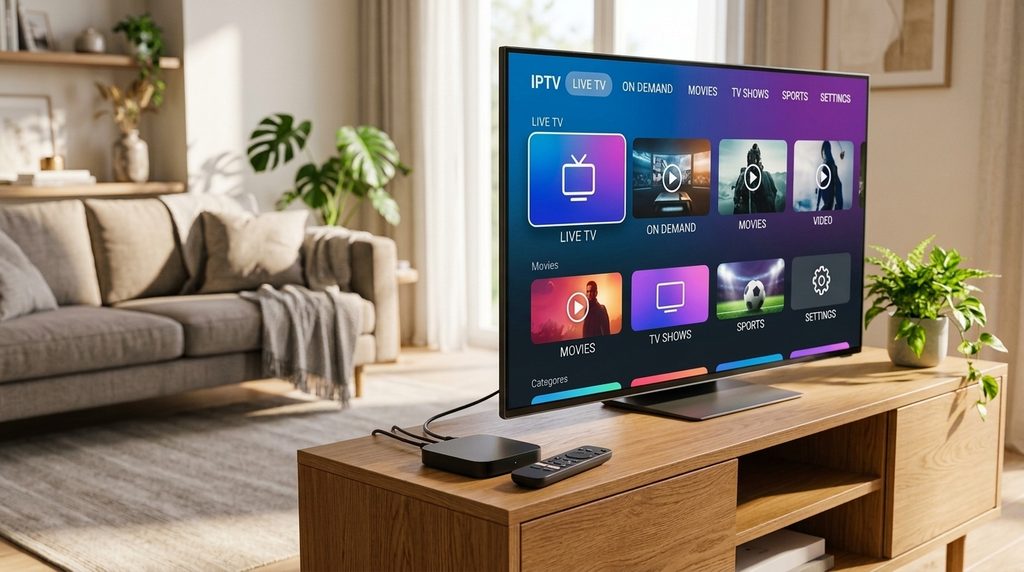
Table of Contents
Table of Contents
Check your Windows version and support status
Identify the version and edition installed on the computer. Microsoft states that standard support for Windows 10 ended on October 14, 2025, with separate arrangements applying to eligible extended-update programs and particular products. Check Microsoft’s current information for your device rather than assuming that an app running means the operating system is fully supported.
An operating system’s lifecycle and a player’s compatibility are separate questions. A program may launch on an older system while updates, support, or security arrangements differ. Use a supported setup wherever practical and verify the current requirements before downloading.
Decide what kind of IPTV Player for Windows you need
| Workflow | What to look for | What not to assume |
|---|---|---|
| Open a supplied network stream | Supported URL playback | Full channel-account interface |
| Import a playlist | Compatible playlist format | Automatic guide integration |
| Use separate account credentials | Explicit support for that method | Every desktop media player accepts it |
| Navigate a television-style guide | Documented desktop interface | Mobile screenshots prove Windows support |
| Use the computer with a TV | Suitable controls and output | A mouse-oriented app is remote-friendly |
VLC is a well-known desktop media player with an official Windows distribution. It is a candidate for supported stream and playlist workflows, rather than a claim that every provider-specific account form works inside it. Check the publisher’s current documentation for the method you want.
If you prefer a dedicated account interface, verify the exact Windows product and developer. A search result with “Xtream” in the title may concern a different app or an Android download. Do not assume the name establishes native Windows support.
Download from the official source
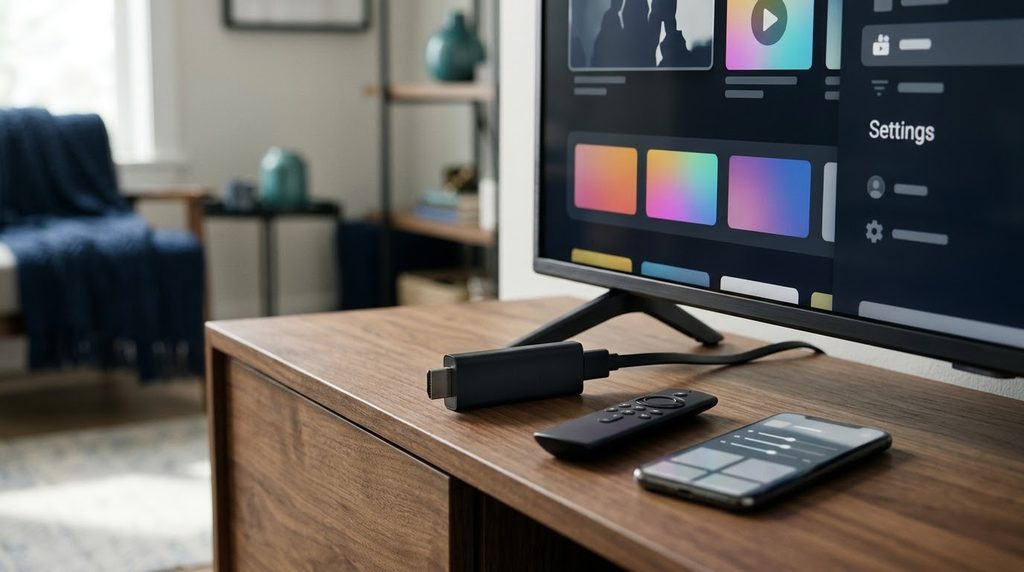
Use the developer’s official website or a verified official store listing. Confirm the publisher and the download intended for your version of Windows. Avoid third-party installers that add unrelated software or ask for your service password before explaining their role.
An APK is an Android application package, not a native Windows installer. Running it through an emulator would introduce another software layer and separate compatibility questions. Do not use that route as a default substitute for a documented Windows solution.
Prepare the account information
Find the original private message supplied with your subscription. Identify whether you received a supported playlist URL, separate credentials, or another account method. Choose a player that explicitly supports what you have.
Do not substitute the public Digital Lizard website address for a supplied service endpoint. Do not put a full playlist URL into a username field. When the format does not match the application, ask for clarification before experimenting with guessed values.
Set up the supported playback method
For a player supporting your supplied playlist, use its playlist or network-open function as documented by the developer. Paste the complete private URL accurately, then allow the application to load it. For a dedicated account app, use the matching credential fields instead.
Menu wording varies by software and version. Follow the application’s current help rather than assuming a screenshot from an older release is exact. Start with one stream and standard settings before adding more profiles or optional features.
Keep the account separate from Windows and store logins
Your Windows sign-in, Microsoft Store account, player license, and television-service credentials have different roles. A password for one should not be substituted into another form. Identify which account a prompt concerns before resetting anything.
This distinction is especially useful when a player requests a premium purchase. An app license can unlock software features without renewing the television service. Keep payment records organized by product.
Test video and audio carefully
Try several unrelated available streams and note whether the issue affects video, audio, or both. If only a particular source fails, record its identity and the time. If everything fails before loading, inspect the account method and network first.
If you compare a second compatible player, close the first playback session. A connection allowance can be exceeded even when both apps are on one computer. Keep the source and network conditions similar so the comparison is meaningful.
Investigate common Windows playback symptoms
| Symptom | First useful check |
|---|---|
| Installer does not run | Correct platform, publisher, and OS requirements |
| Account fields are not available | Player may not support that login method |
| Playlist opens without a guide | Separate EPG integration and available data |
| Audio plays with no picture | Source format and decoder compatibility |
| Playback stutters during other activity | Resource use and network conditions |
| Another device disconnects | Simultaneous account sessions |
Do not disable the firewall or security software as a blanket first step. Use documented troubleshooting for the application and inspect any specific permission prompt. Changing broad security settings can create another problem without explaining the original one.
Use the computer with a television if appropriate
A supported computer-to-display connection can make the television a larger screen for the Windows player. Check the computer’s output and display configuration using the relevant manufacturer information. The player still runs on Windows in this arrangement.
Consider how you will control playback from your seat. A keyboard or mouse-oriented interface can be less convenient than a dedicated television application. The right choice should fit daily use, not merely demonstrate that one video can appear on the screen.
Ask for help with useful details
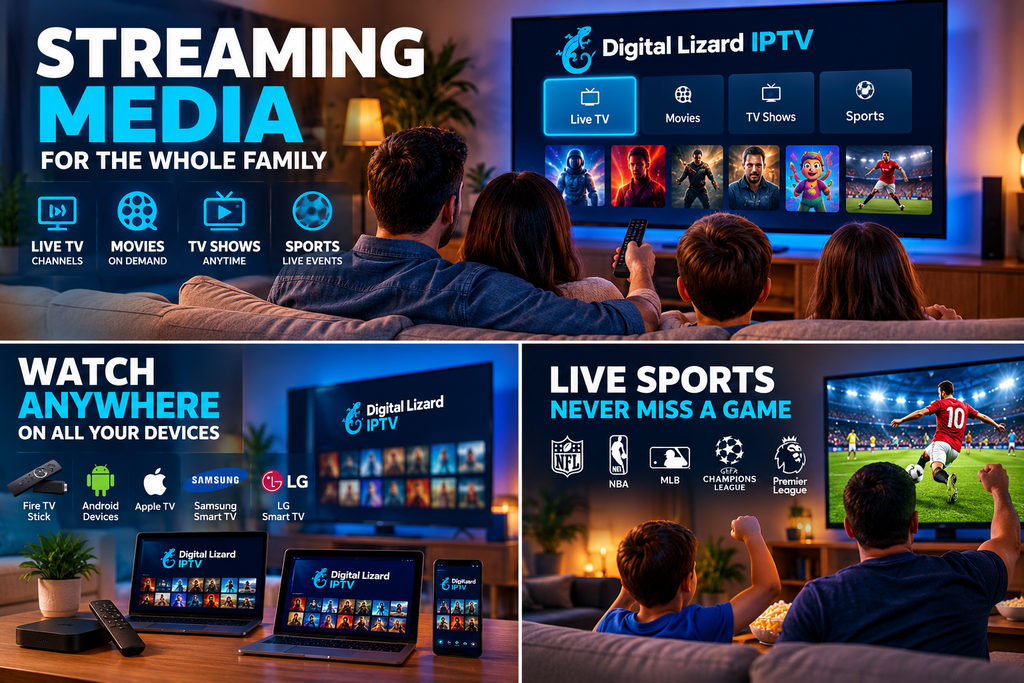
Send the Windows version, player name and version, selected login method, and exact symptom through our contact page. Mention whether the account loads and whether unrelated streams behave differently. Include an order reference for account activation or renewal questions.
Keep private URLs and credentials out of screenshots. Our setup guide offers broader device context, and current plans explain service choices. App-specific installer and licensing questions should also be checked with the developer.
Frequently asked questions
Is a player running on Windows 10 proof the OS is still supported?
No. App operation and operating-system support are different. Check Microsoft’s current lifecycle and applicable update arrangements.
Can I install an IPTV APK as a Windows program?
An APK is not a native Windows installer. Choose a documented Windows application for a straightforward setup.
Does VLC accept every credential-based IPTV account?
Do not assume that. Check whether your supplied stream or playlist workflow is supported, or choose an app explicitly supporting the required account method.
Why is there no program guide after opening a playlist?
Guide data can require separate support and configuration. Successful video playback does not guarantee a television-style guide.
Can two players on one PC exceed my connection allowance?
They can create separate playback requests. Close one before a controlled comparison unless your allowance supports both.
What should I report for a black screen with audio?
Include the source, player version, computer details, and whether other formats play. This helps investigate decoding rather than assuming login failure.
Choose a supported Windows workflow
Confirm the operating system, official player source, and account format before installing. Then test one stream and add complexity only after the baseline works. Contact Digital Lizard IPTV if your supplied information does not match the player’s available options.