
The best IPTV subscription for Apple TV is a practical fit for your viewing needs, compatible tvOS player, and household connection requirements. A service account does not install itself on the device, and a player purchase does not automatically include television access. Check the complete setup before choosing a subscription duration.
Table of Contents
Table of Contents
At Digital Lizard IPTV, we recommend confirming the Apple TV model, available application, and supported account method first. Then compare the plan’s full price and simultaneous connection allowance. This page explains that buying process rather than ranking unrelated providers.
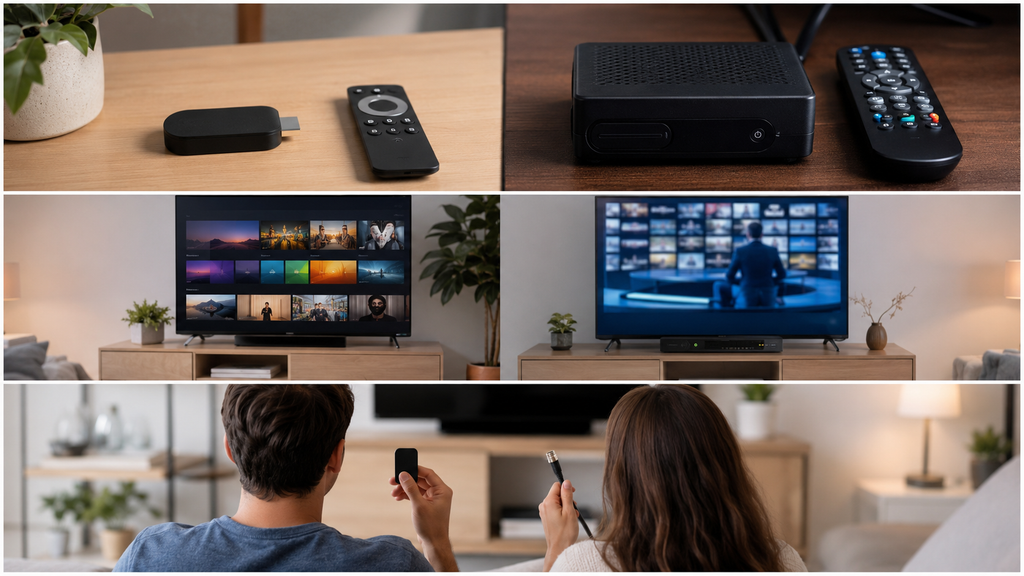
Confirm which Apple TV product you mean
Apple TV can refer to a hardware device, an application, or branding connected with other Apple services. For this guide, the relevant device is an Apple TV running a supported version of tvOS with access to compatible applications. Knowing that distinction prevents buying a subscription based on the wrong platform assumption.
Check your hardware model and software version before installing a player. The presence of an Apple TV app on another television does not make that television a tvOS device. Applications must be available for the hardware that will actually run them.
Choose a tvOS-compatible player
Open the App Store on your Apple TV and check the player’s current listing. Confirm the publisher, supported platform, account formats, and payment information. An iPhone listing alone does not establish that the same application works on your Apple TV model.
Examples with Apple TV presence in their official listings include IPTVX and UHF. Their account-format and feature information should be checked against your supplied subscription details. We do not present them as benchmark winners or claim that every advertised function has been tested with every account.
| Question | Why to ask before paying |
|---|---|
| Does the app support my tvOS device? | Avoids a platform mismatch |
| Does it accept my account method? | Prevents unsupported login attempts |
| Are the required features paid? | Clarifies the separate player budget |
| Can I navigate it with my remote? | Determines daily usability |
| How are account data and purchases handled? | Helps distinguish app and service accounts |
Separate the subscription from the player purchase
Your television service order concerns access under a particular plan. A player’s paid tier concerns its own application features and licensing. Keep those payments separate in your records and do not assume one renews the other.
For example, an App Store receipt does not by itself identify a Digital Lizard television order. Likewise, a service confirmation does not establish that premium player features are included. Review the specific offer rather than inferring a bundle.
Match the account method to the application
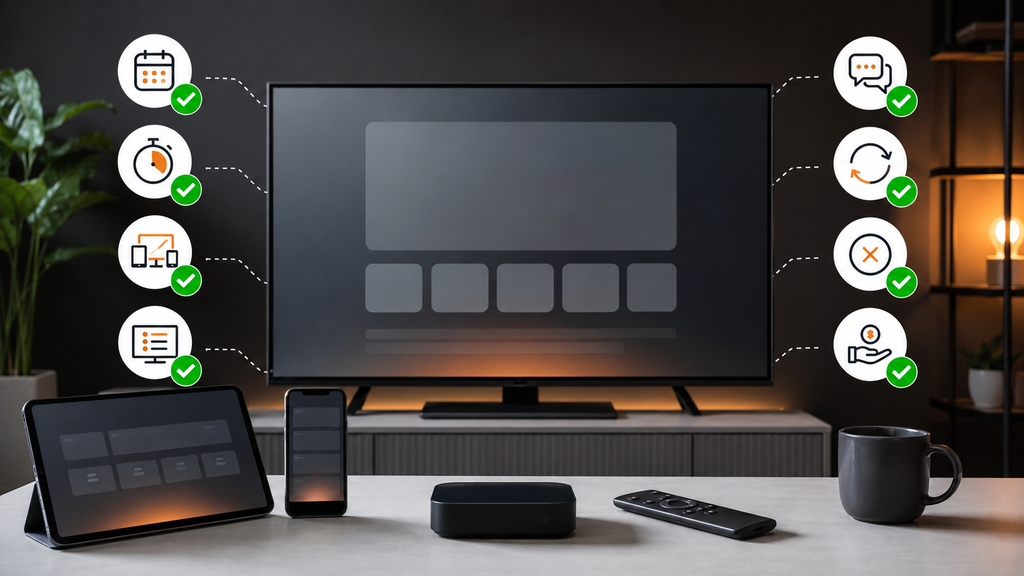
Some players accept credential-based accounts, playlist URLs, or several formats. Use the option that matches the information supplied for your subscription. A complete private playlist URL should not be substituted for a base server address unless the player’s instructions specifically call for it.
Enter the account fields carefully and keep the original message available. Avoid guessing server variations or adding punctuation that was not supplied. If your chosen app does not support the supplied method, ask about a compatible configuration before paying for another license.
Choose the connection allowance for your household
Apple TV is one viewing device, but your household may use other screens at the same time. Count separate active programs rather than only the devices you own. Multiview and recording, where supported, may also involve additional requests.
Compare durations for the same simultaneous connection count at our current pricing page. Check the full total rather than comparing one-device advertising with a multi-device selection. Ask us to confirm any location or device-switching conditions relevant to your arrangement.
Understand what 4K means for Apple TV viewing
A 4K-capable device and display do not guarantee that every available source is native 4K. The source resolution, encoding, player, output configuration, and network all matter. Upscaled video can be displayed at a high output resolution without gaining original detail.
If picture quality is central to your decision, ask about current source availability and test the actual viewing arrangement when possible. Do not use the presence of a 4K logo on a box as proof of a complete end-to-end result. Also check that your display and connection path support the output you intend to use.
Set up the first account
- Update the Apple TV through its supported software process where appropriate.
- Install a compatible tvOS player from the App Store.
- Open the account or playlist menu.
- Select the method matching your supplied account information.
- Enter the private fields accurately and save.
- Allow initial synchronization to finish.
- Test one stream and then several unrelated streams.
Our device setup hub provides a starting point for Apple TV configuration. Player-specific menu labels can change, so follow the current application instructions for the version you installed. Keep screenshots of errors free of private credentials.
Check everyday usability before adding complexity
Try opening the guide, moving between categories, adding a favorite, and returning to playback. Those tasks often matter more than a long feature list. If someone else in the household will use the device, make sure they can navigate the interface comfortably.
Test subtitles and audio selection on material that supplies those options. A visible control does not guarantee that every source includes every track or subtitle language. Confirm the real result rather than assuming the interface creates missing source information.
If the account loads but playback has a problem
Identify whether the issue affects one item, multiple unrelated streams, or only a particular format. Close other sessions during the test so the plan allowance is not another variable. Then note the player, tvOS version, network type, and exact behavior.
If a comparison device works during a separate test, report that result. Do not treat it as proof that every part of the Apple TV configuration is faulty; it simply narrows the investigation. Use our contact page for account-related assistance and the developer’s support route for app-specific billing questions.
Frequently asked questions
Does the Apple TV app on my television run tvOS players?
No. The Apple TV application and Apple TV hardware are different products. Check the operating system of the device running the player.
Does a paid player include a Digital Lizard subscription?
Do not assume it does. The player license and television service are separate unless an offer explicitly states otherwise.
Which player should I choose?
Choose one that is available for your model, accepts your account format, and provides the features you actually need. Check current official listings and charges.
Will everything play in 4K?
No. Source quality and the entire playback chain determine the result. A 4K-capable device cannot create native source detail.
Can I watch on Apple TV and another device together?
Choose the appropriate simultaneous connection allowance and confirm the conditions for your selected plan.
What if I am unsure about the setup before purchase?
Send us your Apple TV model and preferred player through Contact. Clarify compatibility before choosing a longer subscription.
Choose a plan after confirming the tvOS setup
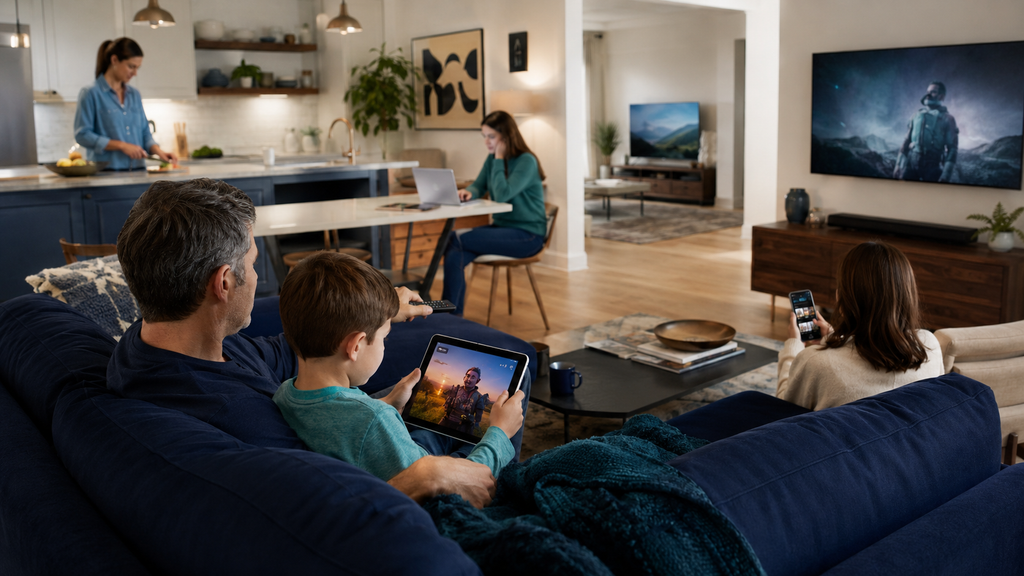
The right Apple TV subscription begins with a compatible application and clear account requirements. Once those are settled, choose the number of simultaneous screens and the duration that fits your household. Compare Digital Lizard IPTV plans or ask us about your Apple TV setup.