
Digital Lizard IPTV activation should begin with three checks: confirm your device can run a compatible player, choose the correct number of simultaneous connections, and keep the account details from your order ready. This guide shows where those details go, how to solve common setup failures, and what to verify before checkout.
The goal is a working setup, not simply an installed app. You will learn the difference between the service and the player, how activation changes by device, what one connection means, and when to contact support.
Table of Contents
Table of Contents
What Does Digital Lizard IPTV Activation Mean?
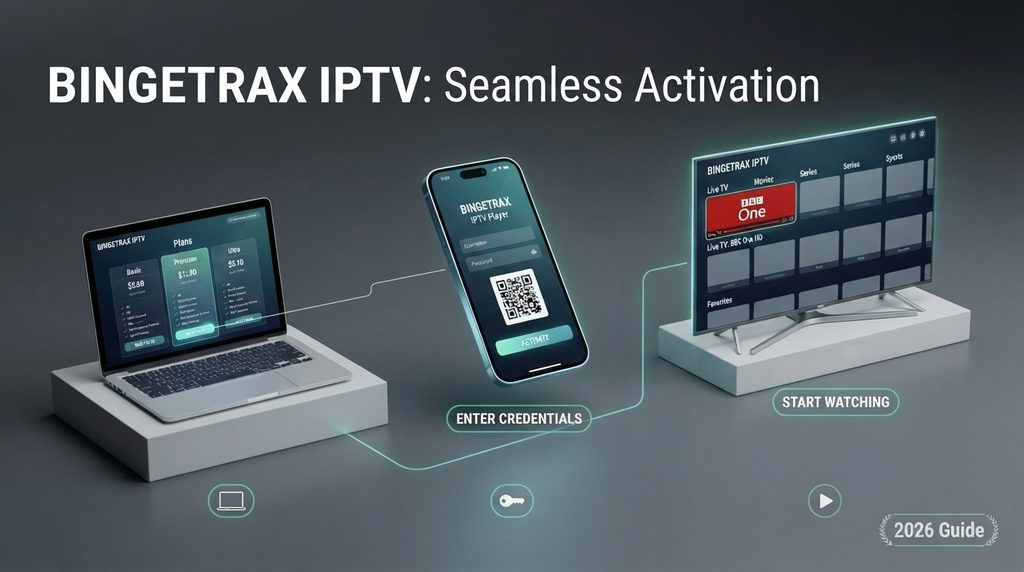
Digital Lizard IPTV activation is the process of adding the subscription information supplied after purchase to a compatible IPTV player. You install the player on your device, select the login method that matches your order details, enter the credentials exactly, save the profile, and wait for the account data to synchronize.
Activation involves two separate products:
- The subscription supplies access details and determines duration and simultaneous connections.
- The player app is the software used to load and display the account on your TV or mobile device.
Buying one does not automatically mean the other is included. A third-party player may be free, paid, or offer an optional premium license. Its price, features, and availability are controlled by its developer and the device’s app store. Check this before choosing a plan.
Activation is also different from renewal. New activation adds an account to a player. Renewal extends an existing subscription. If a renewed account does not update, refresh the playlist or account data before deleting the entire profile.
What You Need Before Activation
Prepare the following items before opening the player:
- An active Digital Lizard IPTV order or renewal confirmation.
- The username and password supplied with that order.
- Any required server, portal, or playlist information.
- A compatible player that supports the supplied login format.
- A supported, updated streaming device connected to the internet.
- The correct simultaneous-connection plan for your household.
- Access to the email address used during checkout.
Do not guess the server address or use credentials from a public forum. Copy the details tied to your order and remove any extra spaces.
Before paying for a long subscription, open the Digital Lizard IPTV setup guide and verify the operating system, not only the brand. Samsung Tizen, LG webOS, Android TV, Fire OS, and Apple tvOS use different app stores and may not offer the same players.
How to Complete Digital Lizard IPTV Activation
The menu labels vary between players, but the reliable workflow stays the same.
- Choose or confirm your plan. Select the duration and number of simultaneous connections you need. Review the final total at checkout.
- Keep the order confirmation. Save the purchase email or transaction reference. It helps support locate the order without exposing payment details.
- Install a compatible player. Search your device’s official app store first. Confirm that the player supports the login format supplied with your subscription.
- Open the add-account screen. Look for wording such as Add User, Add Playlist, New Account, or Login.
- Select the matching login method. Do not choose an M3U-style field if you received separate username, password, and server fields, or vice versa.
- Enter the supplied information exactly. Credentials may be case-sensitive. Check zeros, capital letters, punctuation, and unwanted spaces.
- Name the profile. Use a recognizable local label such as “Living Room.” The profile name normally does not change the subscription.
- Save and wait for synchronization. The app may need time to load live and on-demand categories and program-guide information.
- Test one standard stream. Confirm picture, sound, navigation, and guide loading before changing advanced player settings.
- Protect the credentials. Do not post a screenshot containing the username, password, server address, or full playlist URL.
Digital Lizard IPTV Activation With Subscription Credentials
Use the exact login type stated in the order message. If you received a username, password, and server field, place each value in its matching box. If you received a playlist URL, use the player’s playlist option. The site should not promise one universal method because player interfaces and credential formats can vary.
If the player asks for a web portal or device MAC address instead, stop and compare that request with the instructions supplied for your order. A login failure often comes from using correct information in the wrong activation screen.
Validate the First Stream Before Customizing
Once the account loads, test a normal live stream and one on-demand item if available. Then confirm that the program guide populates and that the remote-control buttons behave correctly.
Only after basic playback works should you change decoder, buffer, EPG, parental-control, or display settings. This order makes troubleshooting easier because you can identify whether the problem comes from the account, device, network, or a setting you changed.
Digital Lizard IPTV Activation by Device
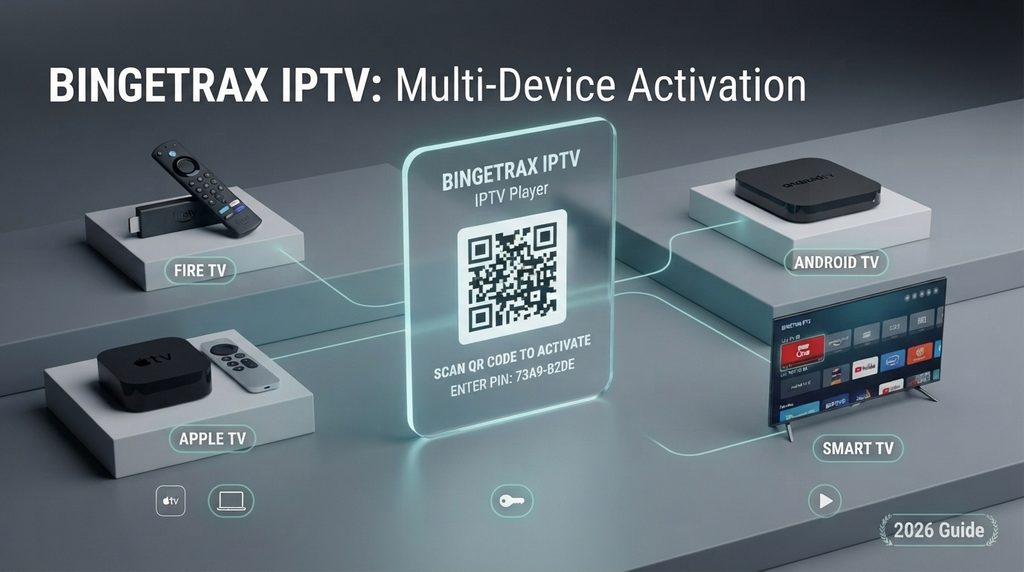
The service website currently provides setup guidance for Smart TVs, Fire TV, Android, and Apple TV. Application availability can still vary by model, region, operating-system version, and app-store policy.
| Device platform | Where to get a player | What to verify | Common obstacle |
|---|---|---|---|
| Samsung Smart TV | Samsung Apps | Tizen compatibility and supported login type | An Android-only app will not install |
| LG Smart TV | LG Content Store | webOS version, region, and login support | Desired player may not appear in the store |
| Amazon Fire TV | Amazon Appstore on the device | Fire OS support and remote-friendly interface | App version or menu differs by device |
| Android TV/Box | Google Play where available | TV interface and supplied login format | Phone-only app is awkward with a remote |
| Android phone/tablet | Google Play | Screen layout and account method | Battery or background restrictions |
| Apple TV | tvOS App Store | tvOS support, not merely iPhone support | iOS and tvOS availability can differ |
Digital Lizard IPTV Activation on a Smart TV
Open your television’s app area and search for a player compatible with your exact platform. Install it, open Add Account, select the matching login method, enter the supplied details, and allow the initial sync to finish.
Do not assume every Samsung or LG model uses Android. Samsung’s official instructions direct users to Home, Apps, and Search, while LG provides its own Apps or Content Store workflow. If your chosen player is unavailable, select another compatible player rather than downloading software intended for a different operating system.
Fire TV Stick
Connect and update the Fire TV device, then search the Amazon Appstore for a suitable player. Amazon’s official guidance recommends finding apps from the Fire TV menu and downloading the compatible listing. Open the installed player and add the subscription details from your order.
Use the official store route where possible. Do not install an unknown file merely because a forum supplies a short code or link. Amazon states that Fire TV may disable apps identified as providing access to unlicensed content.
Android TV, TV Box, or Phone
Open Google Play, select a compatible player, and check whether its interface is designed for a television remote or touchscreen. Choose the login option that matches your credentials, save the profile, and let the account load fully.
If the same credentials work on a phone but not on an Android TV box, compare the player version and login method. That result often points to a local app configuration problem rather than a subscription problem.
Apple TV
Open the App Store on Apple TV and search for a tvOS-compatible player. Apple explains that users download a tvOS app by selecting its price or Get button. After installation, add the account with the details supplied by the service.
An iPhone app listing does not guarantee an Apple TV version. Verify tvOS compatibility before paying for a separate player license.
Digital Lizard IPTV Plans and Pricing Before You Activate
At the time of research, the Digital Lizard IPTV pricing page listed the following totals for one simultaneous connection:
| Duration | Total price | Effective monthly cost | Best fit |
| 1 month | $16 | $16.00 | Lowest commitment for compatibility and support evaluation |
| 3 months | $36 | $12.00 | Short-term users who want fewer renewals |
| 6 months | $55 | About $9.17 | Users satisfied with device and network performance |
| 12 months | $75 | $6.25 | Lowest published monthly equivalent, highest commitment |
These figures are not a permanent quotation. The site’s terms state that prices, plan structures, payment methods, and third-party app conditions can change. Always check the final total on the pricing or checkout page.
The page says the plans include activation details, compatibility guidance, and setup resources. The homepage describes live and on-demand categories plus HD and 4K where available. That is not a promise that every item will stream in 4K; playback also depends on the source, device, display, player, and network.
What Does One Connection Mean?
One connection means one stream at a time, not one device installed forever. You may be able to configure an account on more than one compatible device, but simultaneous playback must stay within the connection count purchased. If two people need to watch different streams at the same time, compare a two-connection option and verify its final checkout total.
Which Plan Should You Choose?
Use a commitment-first decision rule:
- Choose one month if this is your first purchase, your device is older, your app choice is uncertain, or you still need to evaluate support.
- Choose three months if activation already works and you want a lower monthly equivalent without a long commitment.
- Choose six months if your primary device and normal home network have performed consistently.
- Choose twelve months only after checking compatibility, connection count, payment total, refund conditions, and the service’s suitability for your needs.
The longer plan has the lowest published monthly equivalent, but a smaller commitment can be wiser while app availability, content needs, or network behavior remains uncertain.
Before checkout, answer these buyer questions:
- Is my exact device and operating system supported?
- Does the player accept the login format the service supplies?
- Is the player license a separate cost?
- How many simultaneous streams does my household need?
- Does the service clearly disclose renewal and cancellation terms?
- Can I verify that the content I intend to watch is authorized for my use and location?
- What evidence must I retain if activation or billing support is needed?
If those answers are clear, compare the available subscription options. If not, contact support before making a longer commitment.
Troubleshooting Digital Lizard IPTV Activation
Start with the smallest reversible check. Do not repeatedly reinstall the app or purchase another plan before identifying the failure stage.
| Symptom | Likely area to check | Next action |
| Login rejected immediately | Typing error or wrong login method | Remove spaces, check case, and match the supplied credential format |
| Account saves but nothing loads | Server detail, expired account, or sync problem | Confirm order status, refresh once, then contact support |
| App unavailable | Device, OS, region, or store compatibility | Search the official store for another compatible player |
| One device works, another fails | Player or device configuration | Compare app version, login type, and device clock/network |
| “Connection limit” message | Too many simultaneous streams | Stop playback on other devices and retry |
| Guide is blank | EPG has not refreshed | Wait for the first sync or use the player’s EPG refresh option |
| Buffering on all streams | Local network, device load, or broader service issue | Restart device/router, close apps, and test another network if practical |
| Picture but no sound | Player decoder or audio-format compatibility | Return to default playback settings or test another compatible player |
Login Details Are Not Accepted
Compare each field with the order message. Look for capital letters, zeros versus the letter O, and spaces added during copying. Confirm that the subscription is active and that the server value is placed in the server field rather than the profile-name field.
If the same credentials fail in two compatible players, stop guessing. Send support the order email, device model, player name, selected login method, and exact error text. Never send full card details or publish the login in a comment.
The Playlist Loads but Channels Do Not Play
Test more than one ordinary stream. If only one item fails, the issue may be limited to that item. If everything fails, restart the app and device, check the internet connection, and confirm that another device is not using the only allowed connection.
Avoid changing five settings at once. Make one change, retest, and record the result. This gives support useful evidence and makes it possible to reverse a setting that makes playback worse.
The Program Guide Is Missing
The EPG may load after the main categories. Wait for the initial synchronization, then use the player’s manual guide-refresh control if it has one. A blank guide does not always mean the subscription failed if live playback is already working.
Buffering Starts During Busy Viewing Times
Compare the behavior on Ethernet and Wi-Fi if your hardware supports both. Close background downloads, restart the router and player, and test the same stream on another compatible device. The FCC’s broadband guidance can help households evaluate whether their connection is shared across too many simultaneous activities.
Privacy, Policy, and Purchase Checks
Treat subscription credentials like a password. A full playlist URL may contain account information, so do not post it in screenshots, public support boards, reviews, or social media. Use the site’s contact page and include only the order reference and technical details requested.
The website currently describes a three-day refund request period, subject to its stated conditions. That is not the same as an unconditional guarantee. Read the current refund policy before ordering, keep the confirmation, and report a problem promptly.
Also check permitted and lawful use. IPTV is a delivery technology; the rights to distribute particular channels, events, movies, or series are a separate issue. Buyers should verify content authorization instead of assuming that app availability or a working stream proves licensing.
Pros and Cons to Consider
| Potential advantages | Practical limitations |
| One workflow across several device categories | Requires a compatible third-party player |
| Multiple subscription durations | Lowest monthly equivalent requires a larger upfront commitment |
| Published one-connection totals | Multi-connection price must be confirmed at checkout |
| Setup resources and support contact | App menus and availability vary by platform and region |
| Live and on-demand categories | HD or 4K is only available where supported |
| Connection options for simultaneous viewing | Performance still depends on network, device, app, and service conditions |
Digital Lizard IPTV may suit a buyer who understands player-based setup, confirms compatibility first, and wants flexible duration and connection choices. It may not suit someone who wants one first-party app on every device, guaranteed app-store availability, offline downloads, or an independently verified content catalog before payment.
Alternatives to Consider
Compare service categories, not only prices:
- A licensed direct-to-consumer streaming app is simpler when you want one brand’s catalog and first-party support.
- A US live-TV streaming bundle may be better when verified local broadcast coverage, cloud DVR, and household features are priorities.
- A free ad-supported service can work for casual viewing without a paid commitment.
- An over-the-air antenna may be the clearest option for available local channels.
- A different IPTV player can solve an interface problem, but it does not replace or extend the underlying subscription.
Choose based on content rights, device support, simultaneous streams, support quality, cancellation terms, and total cost. A large catalog claim should never replace those checks.
Common Activation Mistakes
- Purchasing before confirming the television’s operating system.
- Treating a player app fee as the service subscription price.
- Selecting the wrong login method in the player.
- Adding spaces when copying credentials.
- Assuming one connection allows unlimited simultaneous screens.
- Changing decoder, EPG, and network settings before testing defaults.
- Sharing credentials in a public screenshot.
- Buying a long plan before checking the refund policy and compatibility.
- Assuming every stream is available in 4K.
- Installing unverified apps from links posted by strangers.
What Happens After Purchase?
Keep the order confirmation open, install the compatible player, add the supplied account details, and wait for synchronization. Test playback and the guide on your main device before setting up additional screens. If something fails, gather the device model, operating system, player name, login method, exact error, and steps already tried.
That evidence turns “it does not work” into a support request that can be diagnosed quickly.
Make the Activation Decision With Fewer Surprises
Successful Digital Lizard IPTV activation depends on the right player, exact credentials, a suitable connection count, and realistic expectations about app and stream availability. New buyers should verify the device first and choose the shortest sensible commitment. Existing customers should follow the same activation sequence and troubleshoot one layer at a time. When your device and household needs are clear, view current plans and final pricing before completing checkout.
FAQ
How do I activate Digital Lizard IPTV?
Purchase or renew a plan, install a compatible IPTV player on your device, select the login method matching the details supplied with your order, enter those details exactly, and save the profile. Allow the app to synchronize before testing playback. Use the official setup guide if the menu differs on your device.
Do I need a subscription before activation?
Yes. The player needs active account information supplied with a subscription. Installing a player alone does not create a Digital Lizard IPTV account or provide service access.
Is the IPTV player included in the plan price?
Do not assume it is. The service and player are separate. A third-party player may be free, paid, or offer an optional premium upgrade. Confirm the app’s current price in the official app store or developer documentation.
What devices can I use?
The website currently provides guidance for Samsung and LG Smart TVs, Amazon Fire TV, Android TV, Android boxes and phones, and Apple TV. Compatibility still depends on model, operating-system version, region, player availability, and the supplied login format.
Can I use one subscription on two TVs?
Installation and simultaneous viewing are different. A one-connection plan allows one stream at a time. If two TVs must play simultaneously, choose the appropriate connection count and verify the final total before paying.
Why are my Digital Lizard IPTV login details not working?
The most common checks are unwanted spaces, incorrect capitalization, a mistyped server value, the wrong login method, an inactive subscription, or an exceeded connection limit. If the same details fail twice, contact support with the exact error instead of repeatedly guessing.
How much does Digital Lizard IPTV cost?
On August 26, 2026, the site listed one-connection totals of $16 for one month, $36 for three months, $55 for six months, and $75 for twelve months. Prices can change, so use the pricing or checkout page for the current total.
Is there a free trial?
The supplied website pages reviewed for this article did not establish a current free-trial offer. Do not promise one in the article. Direct readers to the pricing or contact page to ask about any currently available option.
What should I do if activation succeeds but playback buffers?
Restart the app, device, and router; close background downloads; test another ordinary stream; and compare Wi-Fi with Ethernet if available. Also confirm that another device is not using your only simultaneous connection. Record the result before changing advanced settings.
Can I request a refund if setup does not work?
The site currently states a three-day refund request period subject to its policy conditions. Contact support promptly, keep the order confirmation, describe the exact problem, and provide the requested technical information without publishing credentials.