
If you are searching Digital Lizard IPTV down, the fastest answer is not to assume a full outage. A blank channel, rejected login, frozen app, expired plan, overloaded home network, and provider-side interruption can look almost identical on a television. Each one requires a different response.
This guide identifies where the failure begins, orders safe fixes, and helps you send support useful evidence. It also explains when renewal may solve the issue—and when another subscription would leave the technical problem untouched.
Table of Contents
Table of Contents
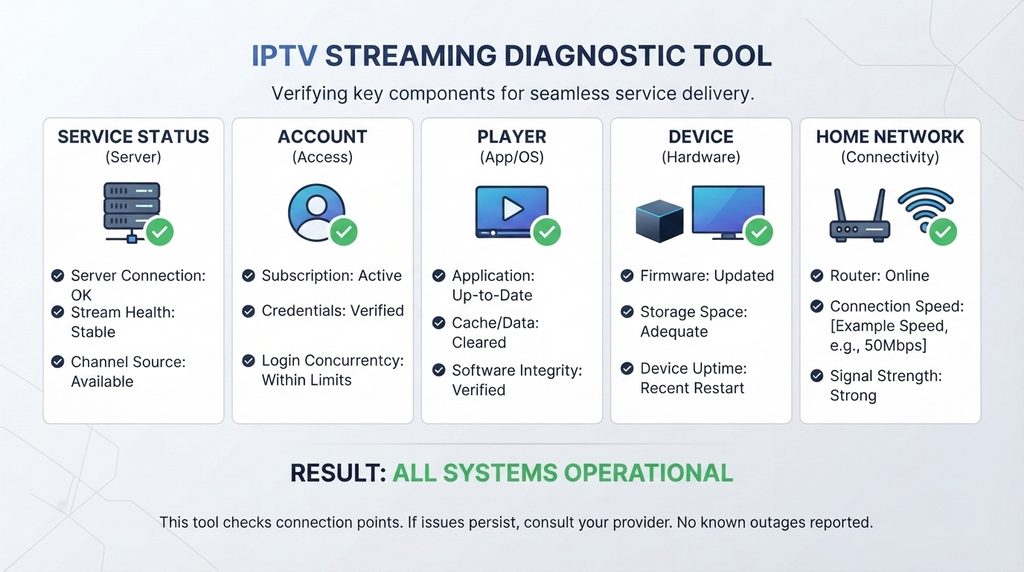
Is Digital Lizard IPTV Down Right Now?
There is no reliable way to confirm a complete live-service outage from one failed device. As of August 26, 2026, the Digital Lizard IPTV website is reachable, but a working website does not prove that every stream, account server, or regional route is operating normally. Test the scope of the failure before deciding it is provider-wide.
The site does not currently present a public, real-time status dashboard. The most useful evidence therefore comes from controlled tests and account support. Do not treat an old forum post from another date, reseller, region, or application as proof of a current outage.
Website status is not streaming status
“Down” can describe several separate systems:
- Website: The public site, pricing page, or contact page will not open.
- Account authentication: The player cannot validate the username, password, or server information.
- Channel source: One stream or category is temporarily unavailable.
- Player application: The app freezes, crashes, or fails to refresh its data.
- Device: The Fire TV, Smart TV, Android box, or Apple TV has a local software or storage problem.
- Network: Wi-Fi, router, DNS, internet-provider routing, or congestion interrupts playback.
This distinction matters. Reinstalling an app cannot repair a provider-side stream, while contacting account support will not improve weak Wi-Fi inside the home.
Diagnose the Problem Before Changing Anything
Start with observation. Do not delete the app, erase its data, change the router, and reset the television together. Multiple changes hide the real fix and may remove settings you need.
Use this quick diagnosis table:
| What you observe | More likely cause | Best first check |
|---|---|---|
| One channel fails, but others play | Individual stream or source issue | Try other channels in the same and different categories |
| Every channel fails on one device | App, credentials, or device issue | Restart the app and test the account on another compatible device |
| Every channel fails on every device | Account, connection limit, network, or provider issue | Check plan status, then test another network |
| Service works on mobile data but not home Wi-Fi | Home network or internet-provider route | Restart the network and compare Wi-Fi with Ethernet |
| Login is rejected immediately | Typing, capitalization, server URL, or subscription status | Re-enter the supplied account details exactly |
| Video buffers only at busy times | Congestion, Wi-Fi interference, device load, or source capacity | Test Ethernet and close other network activity |
| Picture works but the guide is empty | EPG synchronization or player issue | Refresh the guide without deleting the account |
| Website and contact page will not load | Website, DNS, or route issue | Test the site on a second network and wait before retrying |
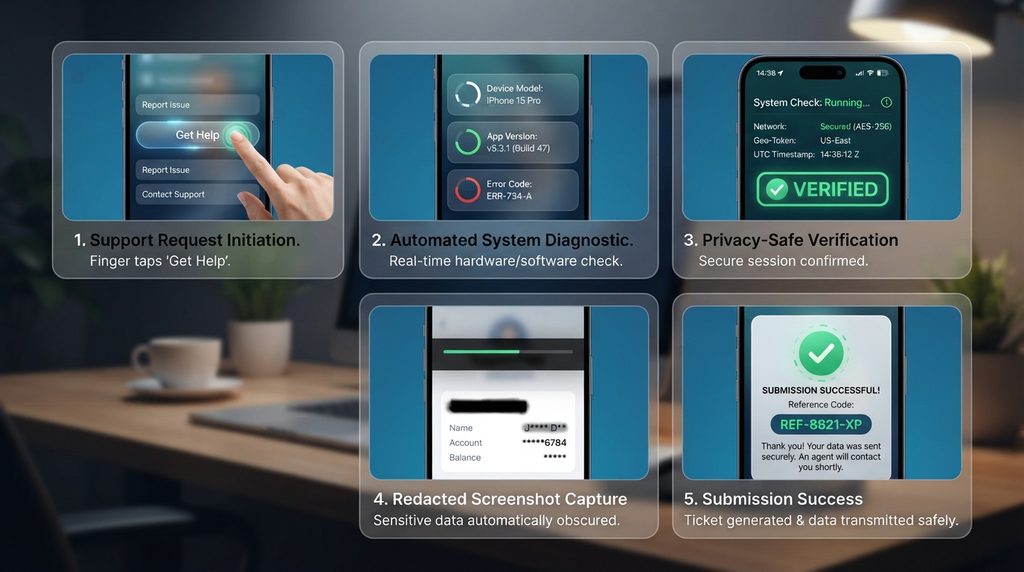
Write down the time, device, app name, and exact error. A redacted screenshot can help, but it must not expose a password or full account URL.
Digital Lizard IPTV Down? Run These 9 Checks
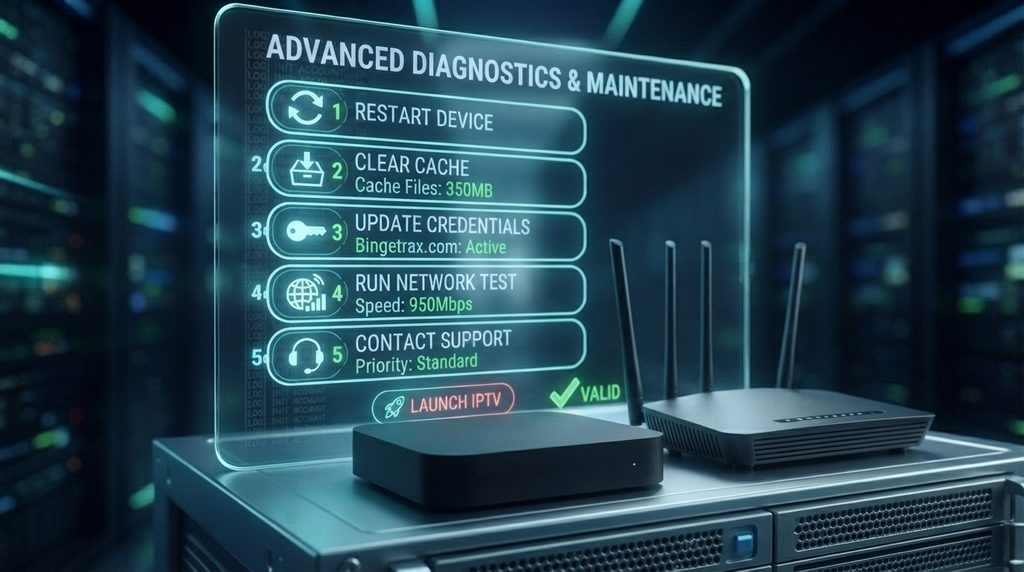
1. Test more than one channel
Open three to five channels from different categories. Then test an on-demand item if your active package includes one. If only one channel fails, the service is not completely down; the problem is likely limited to that source.
If nothing plays, note whether the channel list still loads. A visible list with failed playback differs from a player that cannot authenticate or retrieve account data.
2. Check the subscription and connection count
Confirm that the subscription has not reached its end date. An expired account can produce a generic login error, empty list, or authorization message depending on the player.
Also stop playback on other devices before testing. A connection is the number of devices allowed to stream simultaneously, not the total number on which you have entered the account. The current pricing page says its displayed base prices are for one simultaneous connection.
If the plan is expired, use Renew Subscription rather than creating an unrelated account. If it remains active, do not renew as a troubleshooting experiment.
3. Verify login and server information
Compare every field with the activation information you received. Check:
- Uppercase and lowercase characters
- Similar-looking characters such as
0andO - Spaces added before or after a copied value
- The complete server address, including its required protocol and port
- The login method selected in the player
Never post credentials publicly. If they changed or were compromised, ask official account support to verify or replace them.
4. Restart the player, device, and network
Close and reopen the player. If that fails, restart the device, then power-cycle the router or modem using its normal procedure. Wait for the connection to return before reopening the player.
Restarting can clear a stuck process or temporary network state without erasing your account. Device manufacturers also recommend restart steps for unresponsive streaming apps; for example, Amazon documents restarting Fire TV when an app crashes or will not load, and Apple documents restarting Apple TV from Settings or by briefly disconnecting power.
5. Clear cache before clearing app data
A cache stores temporary files. Clearing it can help when a player opens slowly, crashes, or displays stale guide information. On Fire TV, Amazon’s documented path is Settings → Applications → Manage Installed Applications, followed by the cache option for the affected app.
Clearing data is more disruptive because it can remove saved profiles and credentials. Photograph or securely record the required login information first, and use clear data only after a simple restart and cache clear have failed.
6. Update the player and device software
Open the device’s official app store and check whether the player has an update. Also check for Fire OS, Android TV, Smart TV firmware, or tvOS updates through the device settings.
App availability varies by model and region. If an update caused the problem, record the app version and start time instead of downloading an unverified replacement.
7. Compare Wi-Fi, Ethernet, and another network
Run one controlled comparison at a time:
- Pause large downloads, cloud backups, and other high-bandwidth streams.
- Move the device closer to the router or test Ethernet if the device supports it.
- Test the same account briefly on another authorized network or a phone hotspot.
- Return to the original network and compare the result.
If playback succeeds elsewhere, the result points toward the original home network or internet route—not necessarily a Digital Lizard IPTV outage. If you already use a VPN, test with it disabled as well as enabled because either the VPN or the original route can introduce a failure. Follow applicable laws and service terms; do not use a VPN to defeat content restrictions.
8. Test another compatible device or player
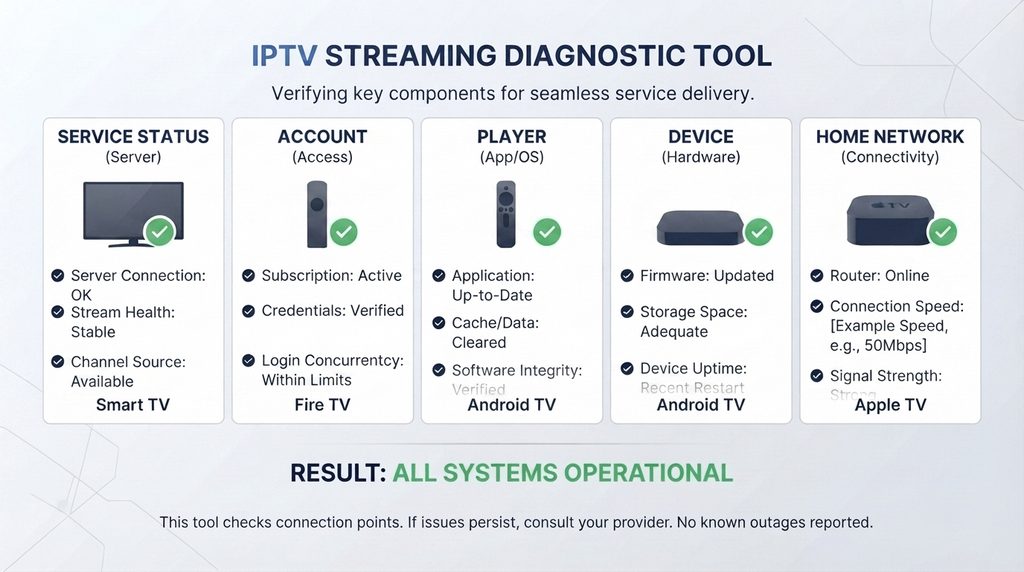
The Digital Lizard IPTV setup guide covers Smart TV, Fire TV, Android, and Apple TV platforms. If the account works on a second supported device, focus on the first device or its player.
You can also test a compatible player from the device’s official app store. It must support the supplied login format. A different player does not extend an expired account or repair an unavailable source.
9. Contact support with useful evidence
After the controlled tests, use the official Contact Us page and report the pattern. Include the account email or order reference requested by support, but never place the password in a public post.
State whether the problem affects one channel, all channels, one device, or every tested network. This is more actionable than “IPTV down.”
Next step: If every channel fails across multiple compatible devices and networks while the subscription is active, stop reinstalling apps and contact support with your test results.
Device-Specific Fixes
Digital Lizard IPTV down on Fire TV Stick
If Digital Lizard IPTV down is the phrase you searched because playback stopped on Fire TV Stick, begin with the app—not a factory reset.
- Force-close the compatible player.
- Restart Fire TV.
- Clear the player’s cache.
- Confirm available device storage and install official updates.
- Reopen the player and refresh the account or playlist if that option exists.
- Test another channel, then test another device or network.
Amazon advises restarting Fire TV and clearing app cache or data when an app crashes or will not load. Treat clear data as a later step because you may need to enter your subscription information again.
Smart TV troubleshooting
Samsung Tizen, LG webOS, Google TV, and Android TV are different platforms. Do not use Android instructions on a television that does not run Android TV.
Close and reopen the player, restart the television, verify the network connection, and check the television’s official app store for updates. If the app is no longer compatible with an older television model, a supported external streaming device may be more practical than repeatedly reinstalling the same app.
Android TV and Android Box troubleshooting
On Google TV, Google recommends checking system updates, restarting the device, and clearing an affected app’s data as part of its troubleshooting process. Start with a restart and cache clear when those options are available; save clear data for later because it removes app information.
Ensure the device has free storage and a trusted player. Android-box menus and software vary, so record the exact model and Android version for support.
Apple TV troubleshooting
Force-quit an unresponsive player and reopen it. Apple’s official instructions use the app switcher: press the TV button twice, select the app, and swipe up. If needed, restart Apple TV through Settings → System → Restart.
Confirm that the installed player supports tvOS and the login format you received. Do not confuse an IPTV player problem with the separate Apple TV app or Apple’s own subscription services.
Fix the Symptom You Actually See
Login or authorization error
Check the subscription end date, connection limit, username, password, server information, and selected login type. Type the details manually once instead of repeatedly pasting a value that may include an invisible space.
If the same credentials fail on two compatible players and two networks, ask support to confirm the account status. Do not keep guessing the password, and do not pay a third party to “unlock” an account.
Buffering and freezing
Buffering does not automatically mean the entire service is down. Compare multiple channels and lower the player’s video setting temporarily if such an option is available. Then test Ethernet, pause other downloads, and restart the device and router.
If only one stream buffers while others play smoothly, report the affected channel and time. If every streaming app on the device struggles, investigate the network or device before blaming one subscription.
One channel or category is missing
Refresh the playlist or account inside the player without deleting it. Search for an alternate listing only if it is already included in the authorized package. Channel categories and source availability can change, so support must confirm whether the item remains part of the active plan.
Send the exact displayed channel name, category, approximate time, and device. “Sports not working” is too broad to isolate a source.
EPG or program guide is empty
An empty guide is not the same as failed video. If channels still play, refresh the EPG or program guide inside the compatible player and allow synchronization to finish.
Check the device date, time zone, and available storage. If the guide remains blank on only one player, the issue may be that app’s cache or guide handling rather than an account-wide failure.
Black screen with or without audio
A black picture with working audio can indicate a player, decoder, display, or format problem. Restart the player and device, test a different channel, and review the player’s playback or decoder options only if you understand how to restore them.
If both picture and audio are missing, use the scope tests first. Avoid random codec packs, unofficial apps, or unknown “fix” files.
Mistakes That Can Make the Problem Worse
- Factory-resetting immediately: This erases settings before simpler tests have isolated the cause.
- Clearing app data without saving credentials: You may turn a playback problem into a login problem.
- Changing many settings together: You lose the ability to identify the actual fix.
- Buying a second subscription during an outage: A new order may use the same affected system and will not repair your network or player.
- Sharing credentials publicly: Screenshots can reveal passwords, server URLs, or account identifiers.
- Installing an app from an unknown source: Unverified downloads create privacy and security risks.
- Assuming one broken channel means total downtime: Test multiple categories first.
- Using old community reports as live status: Date, region, provider, and reseller differences matter.
The safest troubleshooting path moves from reversible actions to disruptive ones: observe, test, restart, clear cache, update, compare devices and networks, then contact support. Reinstallation, clearing data, and factory reset belong near the end.
What to Send Digital Lizard IPTV Support
A strong request gives support enough context to reproduce or classify the problem. Include:
- Order reference or account email
- Subscription status and approximate end date
- Device brand and model
- Operating-system version
- Player name and version
- Exact error message
- Whether the list loads
- Whether one or all channels fail
- Tests performed on another device and network
- Time the issue started, including time zone
- A redacted screenshot that hides credentials
You can adapt this template:
Subject: Active account not playing on two tested devices
My subscription appears active. Since [date and time, time zone], [all channels / named channel] shows “[exact error].” I tested [player and version] on [device] and [second device], restarted both, and compared [home network] with [second network]. The result was [same/different]. My order reference is [reference]. Please confirm the account and service status.
Keep the first ticket reference and add new test results to that conversation instead of opening duplicates.
Should You Renew or Choose a New Plan?
Renew only after confirming that expiration is the cause. If an active account fails because of an app, network, or provider-side interruption, adding time does not correct the technical problem.
The website displayed the following one-connection totals when checked on August 26, 2026:
| Duration | Displayed total | Simultaneous connections | Best fit |
| 1 month | $16 | 1 | New customers who want the lowest initial commitment |
| 3 months | $36 | 1 | Viewers who have already confirmed device compatibility |
| 6 months | $55 | 1 | Customers comfortable with a medium-term commitment |
| 12 months | $75 | 1 | Existing users satisfied with performance and support |
Prices, payment methods, and terms can change. Verify the total on the current pricing plans page and read the refund policy before checkout. The site currently provides a three-day request period, subject to its published conditions.
Before choosing a longer subscription, confirm:
- The player is available for your device and region.
- The supplied login format works with that player.
- The connection count matches simultaneous household use.
- The categories you care about are included and authorized for your use.
- You understand activation, support, renewal, and refund terms.
Ready to compare commitments? Review the Digital Lizard IPTV pricing plans and choose a duration only after checking device compatibility.
Is the Service Worth Keeping After an Outage?
One short interruption is not enough to judge any internet-delivered service. The better question is how often the problem occurs, how widely it affects your setup, and how support handles it.
Reasons to consider renewing
- The account works reliably on your normal device and network.
- Support explains account issues and resolves them within a reasonable time.
- The plan’s connection count fits your household.
- Device setup remains straightforward.
- Current price and commitment length fit your budget.
Reasons to choose a shorter plan or wait
- You have not tested the intended device yet.
- Problems recur across multiple devices and networks.
- You cannot verify the content or categories you need before purchase.
- Support has not resolved an active-account issue.
- Refund, renewal, or payment terms are unclear to you.
Decide from verified experience, not a headline uptime claim. Begin with a lower commitment if uncertainty is high. Choose a longer plan only after compatibility, stability, and support meet your expectations.
Use IPTV Services Responsibly
IPTV is a delivery technology; legality depends on licensing, content, location, and use. Confirm distribution rights and follow applicable laws and platform terms.
Keep account credentials private, use trusted applications, review the privacy and refund policies, and avoid offers that rely on anonymous intermediaries or unverifiable claims. A low price does not replace due diligence.
Frequently Asked Questions
How do I know if Digital Lizard IPTV is down for everyone?
You cannot prove a provider-wide outage from one device. Test several channels, another compatible device, and another network. If an active account fails everywhere, check the official website or contact page and ask support to confirm whether there is a service-side interruption.
Why does Digital Lizard IPTV work on my phone but not my Fire TV Stick?
That pattern points toward the Fire TV player, device storage, software, or local Wi-Fi connection. Restart Fire TV, clear the player’s cache, check for official updates, and re-enter the account only if necessary. Do not factory-reset before trying simpler actions.
Can an expired subscription look like an outage?
Yes. Depending on the player, an expired account may show a login error, empty playlist, or failed playback. Confirm the end date and ask account support if it is unclear. Use the renewal option only after expiration has been verified.
Why do only some channels fail?
One or several failed channels usually indicate a limited source or category issue rather than complete downtime. Refresh the playlist, test other categories, and report the exact channel name and time to support.
Will reinstalling the IPTV player fix the problem?
It may help if the installation is corrupted, but it will not fix an expired account, unavailable stream, connection limit, or provider-side outage. Restart and clear cache first. Save your login information before deleting or clearing the app.
Does changing the internet connection help diagnose the issue?
Yes. If the same account works on a phone hotspot or second network, the original router, Wi-Fi, DNS, or internet route becomes more likely. A network comparison is a diagnostic test, not proof that any particular internet provider is blocking the service.
How many devices can stream at once?
Simultaneous use depends on the purchased connection count. The base prices currently displayed on the pricing page are for one simultaneous connection. You may configure more than one device, but only the allowed number should stream at the same time.
Should I buy a new plan if my current account stops working?
Not until you know why it stopped. Renew if the account is expired. If it is active, test the app, device, network, and connection limit, then contact support. A new purchase is not a reliable technical fix.
Where can I find official setup instructions?
Use the IPTV setup guide for Smart TV, Fire TV, Android, and Apple TV instructions. App availability and menu names can vary by device model, software version, and region.
Final Decision
When Digital Lizard IPTV down appears to describe your situation, first determine whether the failure affects one channel, one device, one network, or the entire active account. Restart safely, clear cache before data, verify credentials and expiration, and compare a second device and network.
If the same failure remains everywhere, send support the exact error and your test results. Renew only when expiration is confirmed; otherwise, resolve the underlying problem first. Your next logical step is to use the official contact page or, once the setup works, compare current plans.