
When an EPG is not working, first determine whether the guide is completely empty, only some channels are missing, or every program is shifted by the same number of hours. Refresh the guide, confirm automatic date and time, check the authorized EPG source, and test whether the playlist itself still loads. The pattern of failure identifies whether the problem is local, mapping-related, or provider-side.
An Electronic Program Guide is schedule data, not the video stream itself. A channel can play while its guide remains blank because the player receives those two resources separately.
Table of Contents
Table of Contents
What an EPG Does and Does Not Do
An EPG organizes program titles, start times, descriptions, and sometimes artwork into a time-based grid. The player matches those records to channel entries using identifiers supplied by the account or guide source.
The EPG does not create channels, grant content rights, or guarantee that a schedule is correct. A streaming player simply displays guide information that it can download and match.
| Component | Purpose | Controlled by |
|---|---|---|
| Player app | Displays channels and guide rows | App developer and device |
| Playlist or account | Lists authorized stream entries | Service provider |
| EPG source | Supplies schedule records | Provider or approved guide source |
| Channel mapping | Connects guide records to channels | Source metadata and player |
| Device clock | Places programs at the correct local time | User and operating system |
“A blank guide and a broken stream are different failures. Diagnose them separately.”
Identify the EPG Failure Pattern
Do not begin by deleting the app. Open the guide and describe exactly what still works, because each pattern suggests a different cause.
- Every row is blank: the guide download may have failed or no source is assigned.
- Only some rows are blank: those channels may lack matching guide identifiers.
- All listings are shifted: the time zone or EPG offset is probably wrong.
- Old programs remain: the cache may be stale or the source has not updated.
- Guide loads on one device only: the failing device likely has a local app, storage, clock, or network issue.
- Video and guide both fail: examine account access or service availability before guide settings.
Record the last time the EPG displayed correctly and whether the problem began after an app update, device update, account renewal, router change, or daylight-saving transition. That timeline often exposes the relevant variable.
Refresh the Guide in the Correct Order
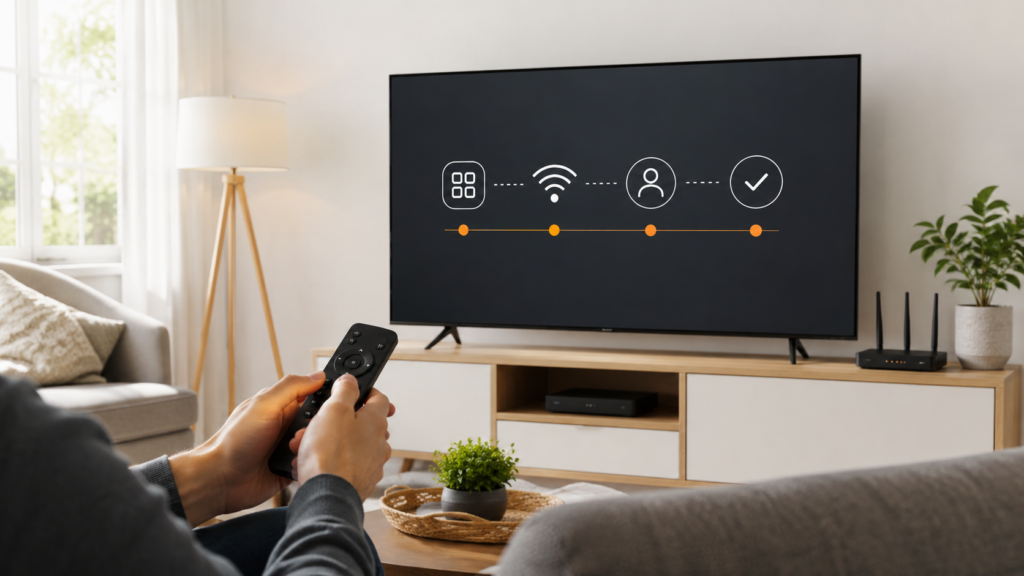
Most players provide an update, sync, or refresh command under guide, playlist, or account settings. Use that command once and allow it to finish before navigating rapidly through channels.
- Confirm that the device has a working internet connection.
- Open the account or playlist settings without changing the credentials.
- Select Refresh EPG, Update Guide, or the equivalent command.
- Keep the app open until the progress indicator finishes.
- Close and reopen the guide view.
- Restart the player only if the new data does not appear.
Repeatedly pressing refresh can create overlapping downloads on slower devices. One completed refresh is more useful than several interrupted attempts.
If a separate playlist refresh is available, update the playlist first and the EPG second. This order gives the player the latest channel identifiers before it tries to match schedule records.
Check Date, Time Zone, and EPG Offset
A guide that is consistently early or late is usually receiving data but interpreting its time incorrectly. Set the device date, time, and time zone to automatic, then compare the clock with a phone on the same location setting.
Some players also include a manual EPG offset. Leave it at zero unless the source documentation requires an adjustment, because a device time-zone correction plus a manual offset can shift listings twice.
| Observed shift | Likely reason | Check |
|---|---|---|
| Exactly one hour | Daylight-saving mismatch | Automatic time-zone data |
| Several whole hours | Wrong time zone or offset | Location and EPG offset |
| Different shift by channel | Source metadata or mapping | Provider guide records |
| Random past listings | Stale or incomplete cache | Clear and refresh guide data |
After changing the clock, restart the player and download the guide again. Existing cached records may retain the earlier conversion until the next full refresh.
Verify the Authorized EPG Source
Some accounts deliver guide data automatically through a login, while others use a separate approved EPG address. Follow the provider’s current setup instructions rather than copying an address from an unrelated forum.
Source Details to Inspect
- The full address includes the correct protocol, domain, path, and port.
- No space appears before or after the address.
- The source belongs to the account being used.
- The account is active and permitted to request guide data.
- The player supports the source format and update method.
Do not publish an EPG address containing account tokens. Treat it like a password because it may reveal private access information.
If the provider changed its endpoint, editing the old address character by character is error-prone. Remove the obsolete account entry only after saving the correct details, then add the current information exactly as issued.
Understand Channel-to-Guide Mapping
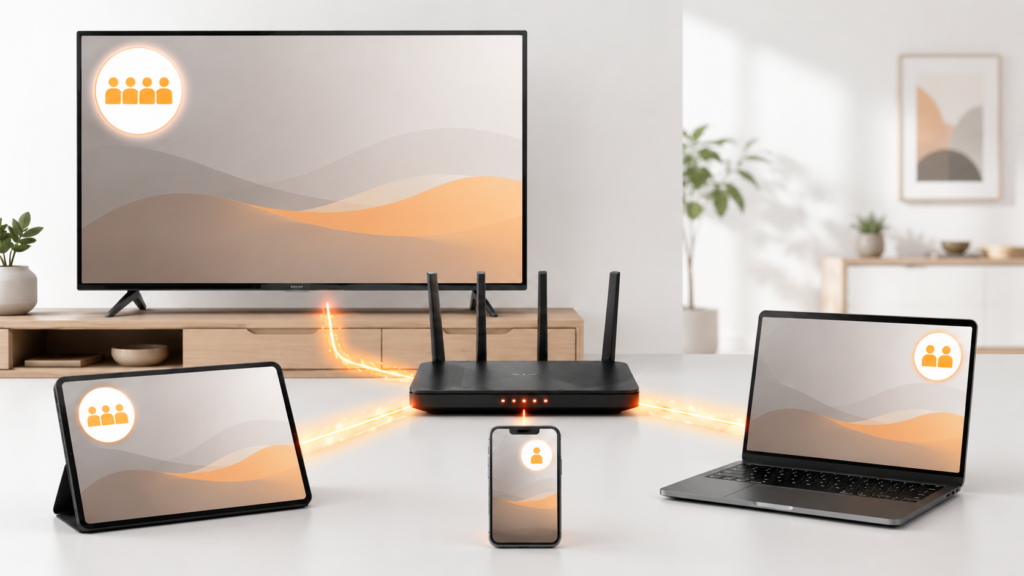
Guide records commonly contain a channel ID, while the playlist contains its own ID or name. The player needs a match between those values before it can place a program beside a channel.
A row can remain blank even when the EPG file downloaded successfully. This happens when the channel was renamed, duplicated, newly added, or supplied without a corresponding guide identifier.
Signs of a Mapping Problem
- Most channels show listings but a small group does not.
- One channel displays another channel’s schedule.
- Duplicate regional channels share the same guide record.
- A newly added channel has no schedule while older entries do.
If the player supports manual assignment, choose the matching guide record only when the name, region, and schedule clearly correspond. Otherwise report the channel name and missing period to the service provider so the source metadata can be corrected centrally.
Clear Stale Guide Data Without Erasing Everything
Guide caches improve speed by avoiding a full download every time the app opens. A damaged or outdated cache can preserve blank rows even after the source has recovered.
- Use the player’s Clear EPG or Delete Guide Data command if available.
- Close the player fully.
- Reopen it and run one complete EPG update.
- Wait for indexing or processing to finish.
- Check several channels across different categories.
Do not select the device-level Clear Data command unless you have saved all login information. Clearing app data usually removes accounts, favorites, history, and custom settings in addition to the EPG.
On a Smart TV, a cold restart can release temporary memory without erasing configuration. Manufacturer support pages often recommend restarting and updating before a full app or hub reset.
Check Storage, Memory, and App Version
Large guide databases require storage for the download and memory for indexing. A television with almost no free space may download only part of the guide or fail while processing it.
- Remove unused apps and old downloads through the device settings.
- Install the latest supported player version from the official store.
- Install available television or streaming-device updates.
- Restart the device after freeing space.
- Reduce the number of stored EPG days if the player offers that setting.
Samsung recommends a cold boot, software update, app reinstall, and Smart Hub reset for apps that freeze or fail to load. Use the earlier, less destructive steps before reinstalling.
An older TV may run a basic player but struggle with an unusually large guide. A supported external streaming device can offer more memory and newer software without requiring a new television.
Test the Network Path Used by the Guide
The guide and video may come from different endpoints, so successful playback does not prove that the EPG address is reachable. Router filtering, DNS failure, or a temporary route problem can affect one resource while leaving another available.
- Restart the router and the affected device.
- Test another trusted online app on the same device.
- Try the same authorized account on a second supported device.
- Compare home Wi-Fi with another permitted connection.
- Disable only network filters you control and understand, then retest.
Do not use random proxy or VPN applications as a universal fix. They can add latency, alter location checks, violate service terms, or introduce privacy risk without repairing a broken guide source.
If every device on one network fails but the same account works elsewhere, document that result for the internet provider or network administrator. If it fails everywhere, the guide source or account becomes the stronger suspect.
Compare Devices to Locate the Fault
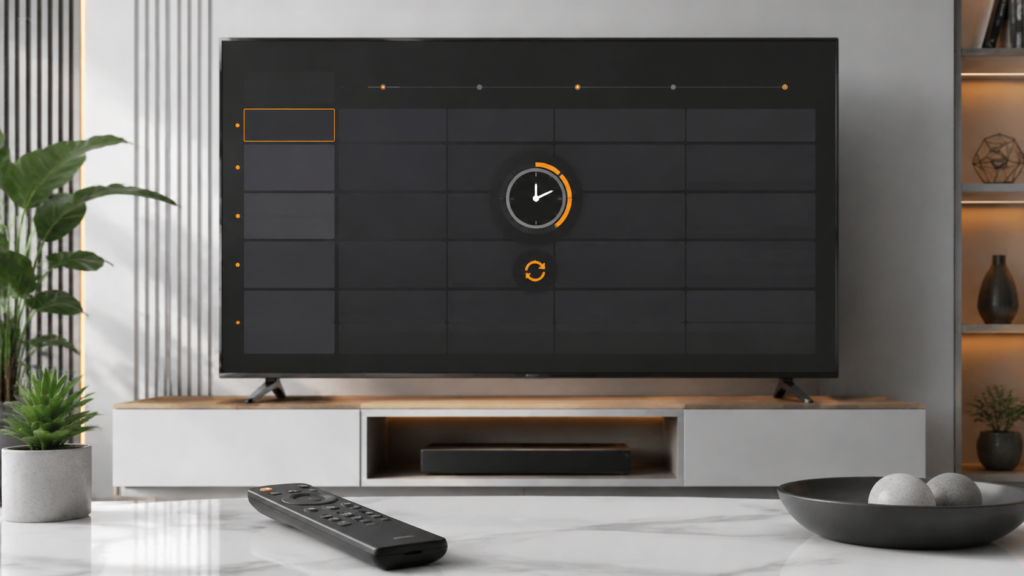
Practical Case Study
A Smart TV displays live entries but every guide row is blank. The same account shows a complete EPG on an Android phone connected to the same Wi-Fi.
Because the source, account, and home network worked on the phone, the user checks the television clock and finds a manual time zone left from travel. After selecting automatic time, clearing only guide data, and refreshing once, the schedule appears correctly.
In a second scenario, the guide is blank on every device while channels still open. Refreshes complete unusually fast and contain no listings, which points away from device storage and toward an empty or unavailable provider-side guide response.
The user reports three sample channel names, device tests, and the time of failure to support. This evidence allows the service to investigate its source instead of asking the user to repeatedly reinstall the player.
Know Which Team Can Fix the Problem
| Problem | Best contact | Useful evidence |
|---|---|---|
| App crashes during EPG update | Player developer | App version, device model, crash steps |
| Guide source is empty | Account provider | Time, devices tested, affected categories |
| Only a few channels are unmapped | Account provider | Exact channel names and regions |
| TV clock will not remain correct | Device manufacturer | Firmware version and time settings |
| Guide fails only on one network | Network administrator or ISP | Cross-network test result |
When the account came from this site, use the technical support page. Include a screenshot without credentials and state whether playback still works.
Support cannot diagnose “EPG broken” as efficiently as “all rows blank on two devices since 7:30 p.m. Eastern, while playback works.” Specific reports lead to specific tests.
Understand EPG Update Windows and Data Freshness
Guide data is normally published in windows that may cover several days. A source can be reachable but temporarily contain fewer future listings than expected, especially around schedule changes, new channels, regional variations, or live events.
Check both current and future periods. If today is populated but later days are blank, the player is downloading data and the source may simply not have published the next window yet.
| Guide observation | What it suggests | Reasonable response |
|---|---|---|
| Current day complete, future blank | Short publication window | Check again after normal update time |
| Past data visible, present blank | Stale cache or failed new update | Clear guide data and refresh once |
| Descriptions missing, times present | Partial source metadata | Report examples to source provider |
| Sudden live schedule changes | Event overrun or late metadata update | Compare official schedule source |
Do not refresh continuously while waiting for future data. That adds device work without changing what the source currently contains.
Diagnose Duplicate and Regional Channel Entries
Regional variants may share similar names while carrying different schedules. A guide can appear wrong when a national record is matched to a local affiliate or when two duplicate-looking entries use different time zones.
- Open the stream or authorized channel information and record the full displayed name.
- Note regional labels, call signs, city names, and time-zone markers.
- Compare the current program with an official schedule for that exact region.
- Inspect whether the player allows a manual guide assignment.
- Change a mapping only when the correct record is unambiguous.
- Report unclear or widespread mismatches to the account provider.
A manual match may solve one television while leaving every other customer with the same source problem. Provider-side metadata correction is better when the channel identifier itself is wrong.
Keep a list of three representative examples rather than reporting hundreds of rows. The examples should include the displayed channel name, expected current program, incorrect guide entry, device time zone, and approximate time checked.
Build a Weekly EPG Maintenance Routine
A guide should not require daily rebuilding under normal conditions. Configure an automatic update interval supported by the player and use manual refresh only after a visible problem or account change.
- Keep device date, time, and time zone automatic.
- Leave enough storage for the guide database.
- Update the playlist before the guide after account changes.
- Review whether the player stores more guide days than the device can handle.
- Remove obsolete duplicate accounts from the player.
- Record recurring source gaps with dates and sample channels.
If a guide fails at the same time every week, compare that time with automatic app updates, router restarts, parental-control schedules, and provider guide publication windows. A recurring schedule is stronger evidence than a one-time blank screen.
Maintenance should preserve favorites and account details. Full app resets are recovery actions, not routine guide care.
Verify the Fix Across a Full Guide Cycle
After the guide returns, confirm that the fix survives an app restart and the next automatic update. Check current programs, a later time period, several categories, and one regional entry.
A correction that lasts only until the player closes may indicate that settings are not being saved or that the app lacks storage. A correction that disappears after the next download may indicate a source mapping or time conversion problem.
Record the working time zone, offset, update interval, and player version without storing private source credentials. This small baseline makes a later comparison reliable and prevents the same troubleshooting from starting at zero.
EPG Not Working Final Checklist
EPG not working: Quick Reference
- Classify the issue as blank, partial, shifted, stale, or mismatched.
- Confirm the playlist or account still loads.
- Set device date, time, and time zone automatically.
- Update the playlist before updating the guide.
- Run one complete EPG refresh.
- Verify the approved source address and account status.
- Clear guide data without clearing the whole app.
- Free storage and install supported updates.
- Test another device and network.
- Report mapping examples or provider-wide failure with evidence.
If the EPG is not working, the fastest route is to diagnose the pattern before resetting the device. A blank guide, a shifted guide, and a partially mapped guide require different corrections.
For a broader setup review, follow the Smart TV streaming setup guide and verify the device, network, player, account, and support information as separate layers.
Frequently Asked Questions
Why is my EPG not working when channels still play?
The video playlist and guide data can be delivered separately. The EPG source may be empty, unreachable, stale, or unable to match its channel IDs to the playlist.
How do I refresh EPG data?
Open the player’s playlist, account, or guide settings and select its EPG update command. Let one update finish completely before reopening the guide.
Why is my EPG one hour behind?
A one-hour shift commonly points to daylight-saving, time-zone, or manual-offset settings. Enable automatic date and time, set the correct time zone, and remove unnecessary offsets.
Will clearing cache delete my account?
Clearing cache normally preserves the account, but clearing app data often removes logins and settings. Save credentials and confirm the device wording before proceeding.
Why do only some channels have no guide?
Those channels may not have matching guide identifiers, may be newly added, or may lack schedule data from the source. Report exact examples to the account provider.
Can low storage stop the guide from loading?
Yes. The player needs space to download and index guide records. Free storage, restart the device, and reduce the number of guide days when that option exists.
Does the streaming player provide the EPG?
The player displays EPG records it receives. The guide source and channel metadata normally come from the service or another authorized source.
When should I contact support?
Contact support after checking the clock, source, refresh, cache, storage, second device, and second network. Send the failure pattern and test results without exposing credentials.