
If you are searching for how to install IPTV on Firestick UK, start by checking which Amazon Fire TV Stick you own. The installation process has changed: some Fire TV devices run the Android-based Fire OS, while newer models run Vega OS. An Android IPTV player APK that can be installed on a compatible Fire OS stick will not run directly on a Vega OS stick. Getting this distinction right can save you from downloading an unsuitable app or following the wrong tutorial.
This UK-focused guide explains how to choose a compatible IPTV player, install it from the Amazon Appstore when available, use a publisher-supplied installer on a suitable Fire OS device, enter your own authorised playlist details, and fix common setup problems. It also explains why a streaming player and a paid content subscription are different products.
Quick answer: On your Fire TV Stick, open Settings → My Fire TV (or Device & Software) → About and identify the model and operating system. Search the Amazon Appstore for a compatible IPTV player first. If you have an Android-based Fire OS model and the publisher offers a trusted APK, a sideloading route may be possible. On Vega OS, use a compatible Appstore app instead of an Android APK. Open the player, select its supported account method, and enter the credentials for a service or playlist you are authorised to use.
Table of Contents
Table of Contents
Check which Fire TV Stick you own
The word Firestick refers to several different Amazon products. Their names can look similar, but installing an application depends on the operating system and the application’s compatibility, not simply on whether the packaging says HD or 4K.
From the home screen, open Settings, select My Fire TV or Device & Software, then About. Note the full device name and software version. Amazon’s Fire TV device identification guide gives model-specific operating-system information.
| Example Fire TV device | Operating-system family | What it means for IPTV player installation |
|---|---|---|
| Fire TV Stick 4K Max, 2nd generation (2023) | Fire OS | Appstore installations; Android APK installation may be possible where supported and permitted. |
| Fire TV Stick 4K, 2nd generation (2023) | Fire OS | Check Appstore availability first; a trustworthy Android APK can be an option. |
| Fire TV Stick HD, 2024 model | Fire OS | Android-based device; check the app’s exact compatibility. |
| Fire TV Stick 4K Select (2025) | Vega OS | Do not try to install a standard Android APK. Choose a Vega-compatible app in the Appstore. |
| Fire TV Stick HD, 2026 model | Vega OS | Choose an Appstore listing explicitly compatible with this model. |
| Fire TV Stick 4K, 3rd generation (2026) | Vega OS | Standard Fire OS sideloading instructions do not apply. |
Amazon’s developer documentation confirms the fundamental difference: Vega OS is not Android and does not run Fire OS APK files. The fact that Vega has a developer mode does not make Android APK files compatible. Amazon’s October 2026 engineering explanation describes the distinction.
Do not rely on a guide saying that a single Downloader code works on every Fire TV Stick. Even the same app name may be available for one generation but not another. Check the Works With section of an Appstore listing, when shown, for your exact device.
For the initial HDMI, power, remote and Wi-Fi steps, see our existing general Firestick setup guide. This article focuses on installing and configuring a compatible IPTV player in the UK.
What you need before installation
You do not need a satellite dish for an internet-based streaming player. You do need a few essentials:
- A working Fire TV Stick, connected to a television, with its software up to date.
- A stable internet connection. Speed alone is not the whole story: Wi-Fi signal, congestion and source quality also affect viewing.
- An Amazon account linked to the device, so you can access compatible Appstore applications.
- A compatible IPTV player that accepts your particular sign-in method. Applications differ in platform availability and features.
- Authorised content access: for example, an account with a licensed streaming service or an M3U playlist you have permission to use.
- Your activation details, which might be an app-specific sign-in, an M3U URL or an Xtream Codes-style server address, username and password.
An IPTV player is software; an IPTV playlist is a way to organise stream entries; and an IPTV subscription is an arrangement for access to content. Installing a player does not automatically give you rights to programmes, sport or films. A third-party player may also charge for premium functions independently of your content provider.
Before installing anything, use Amazon’s software-update instructions: Settings → My Fire TV or Device & Software → About → Check for System Update. Menu wording can vary.
Method 1: How to Install IPTV on Firestick UK the Amazon Appstore
This is the preferred method on both Fire OS and Vega OS when a compatible player is available. It avoids downloading installation files from third-party websites.
- Press Home on your Fire TV remote and go to Find or the search option.
- Search for the exact name of the player you intend to use. Check the publisher and listing rather than selecting a similarly named clone.
- Open the result and read the Works With or compatibility information where available.
- Select Get or the download icon. Complete any Amazon account verification requested.
- When installation finishes, select Open.
- Choose the account or playlist format supported by the app, and continue with the sign-in section below.
Amazon describes the official process in its Download Apps on Your Fire TV help page.
What if your preferred player is absent? An app may be unavailable in the UK marketplace, not released for your model, removed from the store or incompatible with the installed OS. Searching a different spelling will not fix true incompatibility. On Vega OS, look for a different Vega-compatible Appstore player that supports your authorised playlist type. On an eligible Fire OS model, you can also review Method 2.
Which IPTV player should you choose?
Compare compatibility and the interface you prefer rather than assuming a familiar brand will run everywhere.
| Player or approach | Possible advantage | Important check |
|---|---|---|
| An IPTV player listed in your Fire TV Appstore | Straightforward download and updates | Confirm it works with your model and supports the playlist or service you have. |
| TiviMate on a supported Android-based device | TV-focused playlist and guide interface | The developer describes it as a player only, not a source of channels; verify current installation and premium conditions at tivimate.com. |
| IPTV Smarters-type player on a supported device | May offer Xtream Codes and playlist login formats | Verify the real publisher, correct version and app availability; similarly named apps are not interchangeable. |
| A service’s own official Fire TV app | May simplify account activation | Confirm the service is authorised for the programmes you want in the UK and lists your Fire TV model as supported. |
This table does not claim that any specific third-party player is currently listed in the UK Amazon Appstore on every model; that must be checked on the actual device.
Method 2: Install a publisher-supplied APK on Fire OS
Use this method only on an Android-based Fire OS device, only where the application publisher supplies a legitimate compatible APK, and only where Amazon permits the installation. Skip this method entirely if your device runs Vega OS.
Sideloading means installing an Android application package from outside the Appstore. It is not the same as rooting or replacing Fire TV’s operating system. It also creates more security risk than using the official Appstore, so the source matters.
Step 1: Confirm Fire OS and a trusted download source
Return to Settings → My Fire TV → About. Verify that the device runs Fire OS, not Vega OS. On a separate phone or computer, visit the application publisher’s actual website and confirm it offers a Fire TV-compatible Android installer. Prefer an official app-store listing when one exists.
Avoid unexplained short numeric Downloader codes, modified or “premium unlocked” APK files, unofficial mirrors and links shared only in comments. A code does not tell you who owns the file or whether it has been altered.
Step 2: Find the Downloader application, if needed
On the Fire TV home screen, search the Amazon Appstore for Downloader. If available for your device, verify the publisher before installing. The Downloader app is simply a file-fetching tool; it does not itself provide channels or subscriptions.
If your device does not offer a compatible Downloader application, do not force an installation. Contact the app publisher for an officially supported method or choose an Appstore alternative.
Step 3: Allow installations from that source
On many Fire OS devices, the relevant route is Settings → My Fire TV → Developer Options → Install Unknown Apps. Select the particular installation app, such as Downloader, and enable it temporarily. Some versions use slightly different labels. If Developer Options is hidden, certain Fire OS versions reveal it after selecting the device name repeatedly in About; this is model- and software-dependent, not a procedure for Vega OS.
Do not switch on every unknown-app source. Enable only the app needed for the installer and turn the permission back off when finished.
Step 4: Download and install the publisher’s file
- Open the trusted downloader on your Fire OS device.
- Type the full verified publisher URL for the specific APK, rather than a code from an unverified video.
- Inspect the destination and confirm it is the publisher you expected.
- If the correct Android package downloads and the installer is offered, choose Install.
- Open the app after installation. You can remove the leftover APK installation file to reclaim device storage.
- Return to Install Unknown Apps and disable the temporary permission you used.
If you see “App not installed”, “Parse error” or a security block, stop and investigate. Possible explanations include an incompatible build, insufficient storage, a damaged file, a platform mismatch or a device policy. Do not keep retrying random codes or disable unrelated protections to make it install.
Step 5: Open the player and prepare your details
Launch the installed player from your applications menu. The menu might say Add User, Add Playlist, Login with Xtream Codes API or something different. Choose the method your account actually supports. Never paste a private username, password or playlist URL into public support forums.
Method 3: Set up IPTV on Vega OS
If your device is a Fire TV Stick 4K Select, 2026 Fire TV Stick HD or 2026 Fire TV Stick 4K (3rd generation), follow the Vega OS route rather than an Android APK tutorial.
- Open Find on your Fire TV home screen.
- Search Amazon’s Appstore for a legitimate, Vega-compatible app that supports the content service or playlist format you use.
- Check the model compatibility information and the app publisher’s listing.
- Install the app with Get, open it and sign in using the method supported by that application.
- If no compatible app exists, ask the application developer or content provider whether a Vega version is planned. Do not assume an Android APK can be converted by renaming it or entering a special Downloader code.
Why the difference? Amazon explains that the newer Vega platform has a separate application architecture; standard Fire OS APKs cannot run on Vega OS. Development tools may allow publishers to test Vega application packages, but that is not the consumer installation path for Android IPTV players. See Amazon’s explanation of moving apps from Fire OS to Vega.
If your existing player is unavailable for Vega, an already-owned compatible Fire OS device, a supported Android TV device or your provider’s official app may be an alternative. Check the licensing and device requirements before buying new hardware.
Add an Xtream Codes or M3U playlist
After installing a compatible player, the next task is to add content you are authorised to access. The exact screen labels differ by app. Use the format supplied with your account, and never invent a server URL.
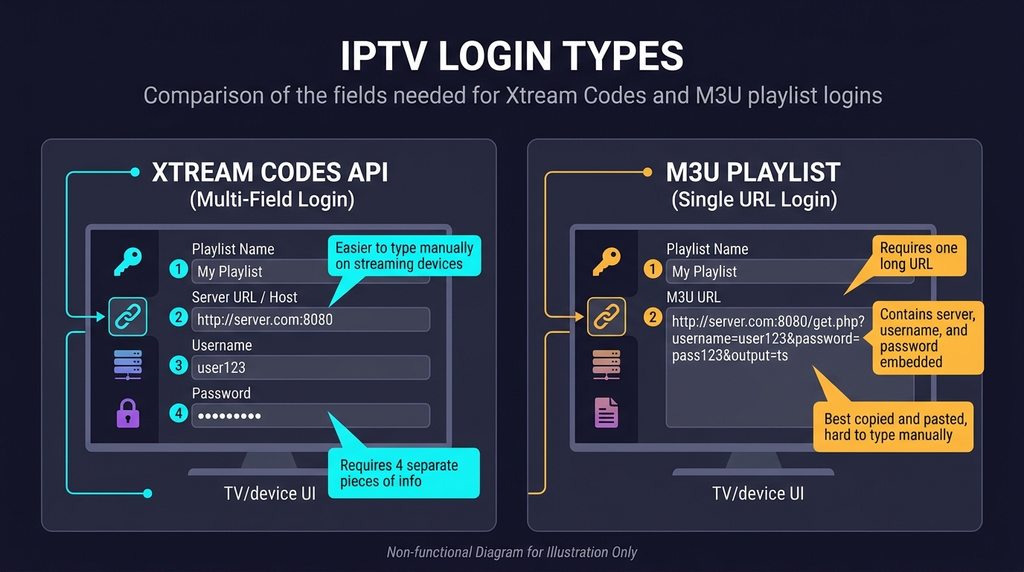
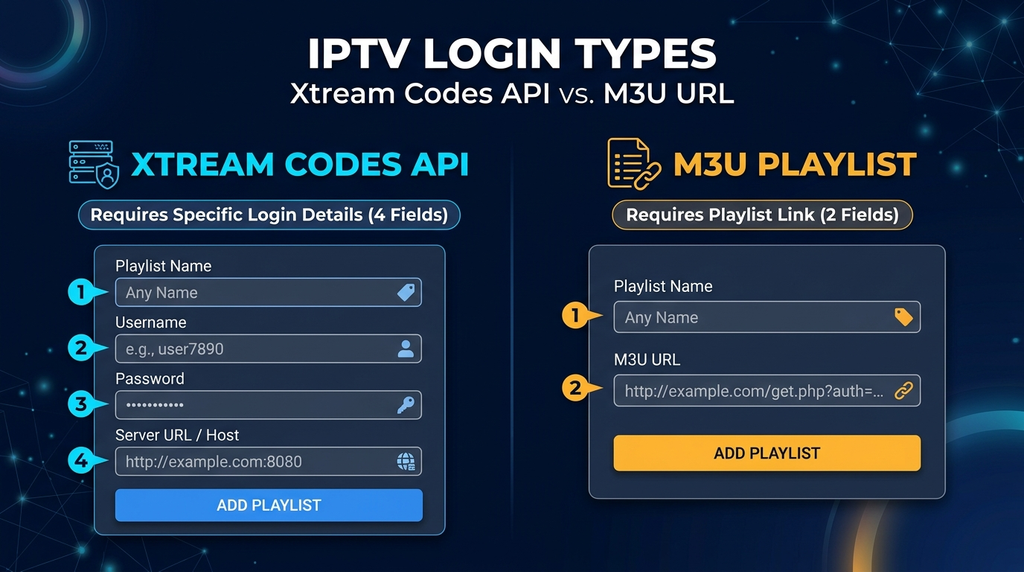
Option A: Xtream Codes-style login
This login method commonly uses three pieces of information:
| Field in many players | What to enter |
|---|---|
| Playlist or profile name | A label you choose, such as “Living Room”. |
| Server URL or portal address | The exact address your authorised service provides, including its required protocol and any port. |
| Username | Your account username, copied exactly. |
| Password | Your account password, preserving capitalisation and special characters. |
Select Login, Add User or Add Playlist to save. An account can fail if one character, port number or login format is wrong. Some services do not support this method at all.
Option B: M3U playlist URL
Other services supply a complete M3U or M3U8 playlist address. In an app that supports this format, choose M3U Playlist or Add Playlist URL, enter the full link, and follow the app’s instructions. If you also received an electronic programme guide (EPG) URL, add it in the guide settings if required.
An M3U URL can contain account credentials or private tokens. Treat it like a password: do not post it in screenshots, comments or shared tutorials. Never use playlists obtained without permission from the relevant rights holders.
If a player asks you to pay for Premium
A player upgrade may unlock application features such as additional interface options. It does not necessarily activate your content subscription. Check the developer’s current terms and whether the purchase is optional before paying. For example, TiviMate’s official website describes the product as a media player, rather than a source of television channels.
If you purchased an account through Digital Lizard IPTV, our device setup guide explains where the correct subscription details belong. Whether any particular stream is lawful or available in the UK still depends on the content rights and the actual subscription terms.
Set up the TV guide and improve playback
Once the account or playlist has loaded, check three things before assuming installation is complete.
First, test normal playback. Open a stream that is included in your authorised service. If only one entry fails while others work, the issue may be with that source rather than the Fire TV device. If the whole application crashes, start with the player or device instead.
Second, refresh the electronic programme guide (EPG). Some players update automatically; others offer Update EPG, Refresh TV Guide or a similar option. A blank guide does not always mean your subscription is inactive. It can result from missing guide data, a faulty EPG URL or a temporary synchronisation problem.
Third, check the clock and network. UK viewing uses Greenwich Mean Time in winter and British Summer Time when applicable. Let the device handle the correct time zone automatically where possible, and avoid manually applying a permanent one-hour adjustment. If video buffers, move the Fire TV closer to the router, reduce other heavy network activity or use a supported Ethernet adapter. Ethernet may improve local stability, but cannot repair an unreliable remote stream.
For diagnostics, Amazon documents the Fire TV Network Status tool, available through Settings → Network on supported devices. It can help distinguish a Wi-Fi connection problem from an internet connectivity problem.
Solve common Firestick IPTV problems
Use the symptom to choose the correct next step instead of repeatedly reinstalling everything.
| What you see | Likely area to investigate | Practical next step |
|---|---|---|
| The player does not appear in Appstore search | UK catalogue, device compatibility or app removal | Check the full app name, publisher and model. On Vega, use a confirmed compatible Appstore option. |
| Downloader code or APK will not install | Incorrect file, incompatible OS or device policy | Confirm Fire OS versus Vega. Verify the official publisher link. Do not bypass a security warning. |
| “Invalid login”, “Authorisation failed” or similar | Wrong URL, password, service status or login type | Re-enter fields exactly, including protocol and port, then ask your authorised provider to confirm the account. |
| The app opens but categories are empty | Account loading, missing playlist data or unavailable entitlement | Refresh within the player; check the selected profile and subscription details. |
| Programmes appear but do not play | Stream-side issue, player compatibility or network | Try another permitted stream and check Fire TV network diagnostics. |
| Playback keeps buffering | Wi-Fi instability, congestion, source issue or app performance | Restart the device and router, test another network when permitted and compare a different authorised stream. |
| TV guide says “No information” | EPG data absent or not refreshed | Refresh the guide; confirm any separate EPG URL with the provider. |
| Favourites will not save | Player feature, profile sync or local app issue | Verify you are using the correct profile, update the player and test whether favourites persist after reopening it. |
| A player shows a Premium payment screen | Application licensing rather than content access | Check the developer’s features and pricing; do not assume your streaming account includes a player upgrade. |
| Fire TV freezes or an app will not open | Application cache, storage or device software | Restart; consider clearing cache only before clearing app data, because data removal may delete local profiles. |
For an unresponsive app, Amazon recommends restarting it or using Settings → Applications → Manage Installed Applications to clear cache or data. Clear Data can remove local app settings and sign-in details, so save necessary information first. Read Amazon’s cache and data guidance before changing anything.
If you need to report a setup fault, include your device model, operating-system family, player name and the exact error message. Our support contact page explains the useful details to share without exposing private credentials.
IPTV legality and security in the UK
IPTV technology is not itself illegal. The key question is whether the service has permission to distribute the programmes, films or sporting events being streamed. Installing a player or purchasing a subscription does not, on its own, prove that a provider has the necessary rights.
The UK Intellectual Property Office explains that Fire TV devices can be used lawfully for legitimate content, while devices configured to access copyrighted programming without authorisation can be used for unlawful streaming. Review the UK government’s guidance on illicit streaming devices.
Before committing to any paid service, check what it actually includes, which territories it serves, what rights it has to the content you want, the applicable refund conditions and whether its app works with your Fire TV model. Be especially sceptical of advertisements for every premium UK sports channel at a very low price without any explanation of licensing.
For security, prefer official Appstore applications, verify publishers and keep your Fire TV updated. Do not give your login details to an unknown app, install unofficial “unlocked” packages or treat a VPN as proof that unlicensed content becomes legal. A VPN is not a universal technical requirement for IPTV and does not grant distribution rights.
Frequently asked questions
How do I install IPTV on Firestick in the UK?
Identify your model and operating system, search the Fire TV Appstore for a compatible player, install it, then sign in using the authorised account or playlist details you were given. If your Fire TV runs Fire OS, a publisher-supplied APK may be another option. If it runs Vega OS, a standard Android APK will not work.
Can I install IPTV Smarters Pro on any Fire TV Stick?
No compatibility should be assumed across all models. Check the actual developer and app availability for your operating system. A Fire OS Android build is not automatically compatible with a Vega OS Fire TV Stick.
Why is Developer Options missing on my Firestick?
Some Fire OS versions hide this menu; on certain models it can be revealed via the device-name selection in Settings → My Fire TV → About. However, the absence of an Android sideloading route on Vega OS is a platform difference, not simply a hidden setting.
Do I need the Downloader app to watch IPTV?
Not if your compatible player is available directly in the Amazon Appstore. Downloader is only an optional installation utility used for certain Android APKs on supported Fire OS devices. It is not an IPTV subscription or player by itself.
Is TiviMate the same thing as an IPTV subscription?
No. TiviMate is a media player that can display an authorised playlist. Premium player features, where offered, are different from access to content. Confirm the terms directly with the developer and your authorised content provider.
Why does my IPTV login work on my phone but not on Firestick?
Possible causes include different application support, a mistyped server URL, different login formats or a simultaneous-connection limit. Compare the exact details on both devices, verify the player supports the required method and check the subscription terms.
How can I stop IPTV buffering on Firestick?
Check Fire TV’s network status, try moving closer to the router or using supported Ethernet, restart the device, and compare other authorised streams. If the internet connection is healthy but just one stream fails, the source may be the problem. No player setting can guarantee uninterrupted video.
Is IPTV legal in the UK?
IPTV is a delivery technology and can be entirely lawful. Accessing copyrighted channels, films or sporting events without the required authorisation is a separate issue. Use licensed services and refer to the UK government’s official guidance for the legal distinction.
Your next step
Check your Fire TV operating system first, then install only a compatible player from a trustworthy source. This one decision prevents many failed installs and helps you distinguish a player problem from an account or connection problem.
If you are evaluating Digital Lizard IPTV, read the FAQs on device compatibility and simultaneous connections and the published plan options before ordering. Confirm UK service availability, content rights, player compatibility and current terms directly; these should not be assumed from a general setup guide. Only use subscriptions and streams you are authorised to access.