
IPTV for Samsung Smart TV UK is possible with a compatible player from Samsung’s TV app store and a legitimate television service or playlist. The important first step is to identify your Samsung model and confirm that the player is available on your television. Samsung Smart TVs generally use Tizen, not Android TV, so instructions involving Android APK downloads are not suitable for the TV itself.
This guide explains how to select a player, add an M3U playlist or Xtream Codes-style login, check picture and programme-guide performance, and troubleshoot common problems. It also explains UK-specific considerations before you pay for an app or subscription. You do not necessarily need to buy a separate streaming stick, but an external device can be useful when an older Samsung TV lacks a suitable app.
Quick answer: Press Home → Apps → Search on your Samsung TV, find a player compatible with your exact model, then install it through Samsung’s store. Open the player and add details supplied by an authorised streaming provider. If the app is missing, check your model and UK region; consider a compatible HDMI streaming device rather than trying to install an Android APK on Tizen.
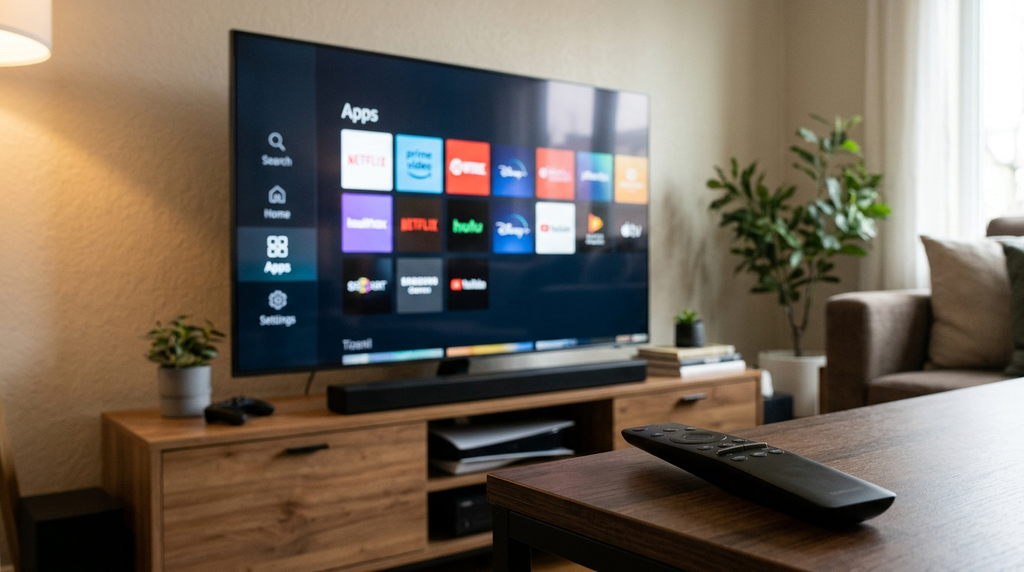
Table of Contents
Table of Contents
Can you use IIPTV for Samsung Smart TV UK?
Yes. A Samsung Smart TV can play supported internet-delivered television streams through a compatible application, provided the device, stream format and service are compatible. IPTV, short for Internet Protocol Television, describes a delivery method; it does not by itself tell you whether a programme is free, licensed, or included in a paid subscription.
The key distinction is between three separate things:
- The Samsung television provides the screen, internet connection, app platform and decoding hardware.
- The IPTV player supplies an interface for opening a playlist, organising categories and, where supported, displaying an electronic programme guide (EPG).
- The content provider is responsible for supplying the permitted stream or account credentials and having appropriate content rights.
A paid player activation does not automatically buy channels. Equally, buying a content subscription does not necessarily pay for a separately licensed player. This distinction prevents a common and costly misunderstanding.
Why Samsung Tizen is different from Android TV
Most Samsung Smart TVs use Samsung’s Tizen platform, now presented on newer models through the One UI Tizen interface. That means an app built as an Android APK will not install natively on the TV just because the file can be downloaded to a USB drive. You need a compatible Samsung TV app or another device connected through HDMI. Samsung’s own documentation explains how to search for and install apps from its TV interface: Samsung UK: manage and install TV apps.
App availability can change by model year, software version and country or region. An app shown on a US Samsung store page or an older YouTube tutorial is not proof that it is available on a UK television today. Treat the Apps search on your own TV as the final compatibility check.
What you need before installing
Before spending money, gather the following:
- Your exact TV model. Look in the television’s settings, its product label or its documentation. Menu names differ by generation.
- An internet connection. Both Wi-Fi and Ethernet can work; wired Ethernet may reduce instability caused by a weak wireless signal.
- A Samsung account if required. Samsung UK says an account is needed to download apps.
- An appropriate IPTV player. It must appear in your TV’s app store and support the input format your authorised service provides.
- Your permitted service details. These may be an M3U playlist URL, or a server address plus username and password. Some players use a QR code or web portal instead.
- A clear understanding of fees. The player, content subscription and any optional hardware can be separate costs.
Confirm the TV’s app-store region
A Samsung television purchased in another country may show a different catalogue from a UK-market set. Do not assume changing the region is an appropriate or guaranteed fix: regional changes may affect other installed apps or terms of service. Start by checking the model, Samsung account, internet connection and the store that the device currently presents.
Check whether you really need a new player
If you want a specific broadcaster, check whether its own official Samsung application is supported first. For example, a dedicated broadcaster app may be simpler than configuring a generic playlist player. If you already use a licensed television service, its official Samsung instructions should take priority over generic IPTV tutorials.
How to set up an IPTV player on Samsung TV
These steps cover the usual on-TV installation route. Samsung warns that screens and labels may vary with the television model.
Step 1: Connect the Samsung TV to the internet
Open the television’s network settings and confirm that it is online. Try another app you already use, such as a legitimate video service, to distinguish a general connection problem from an IPTV-specific issue. If Wi-Fi repeatedly disconnects, position the router more appropriately or test an Ethernet connection if your model supports it.
Step 2: Open Apps from the Samsung home screen
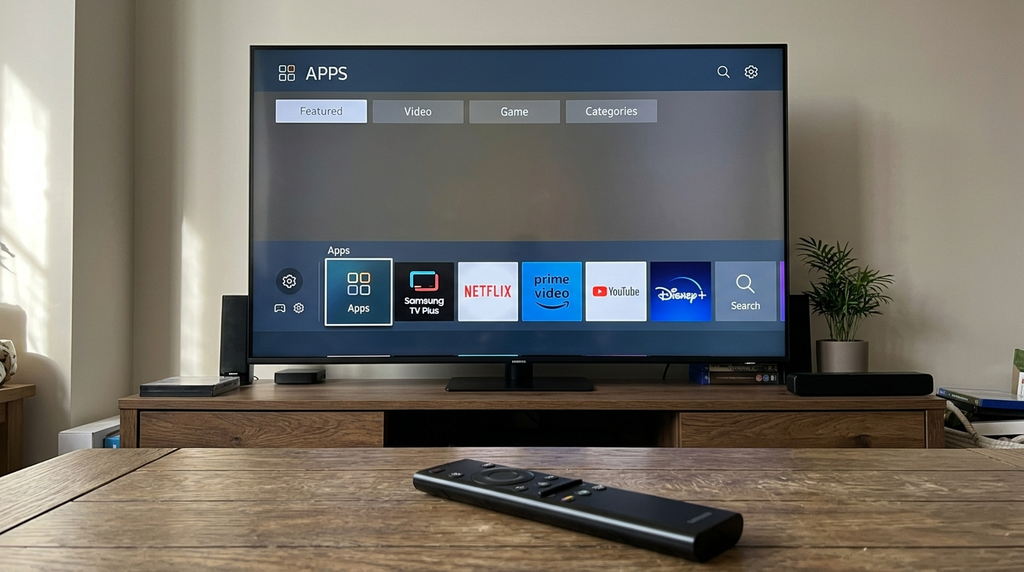
Press Home on the remote and find Apps. Depending on the model, the Apps area may be inside Smart Hub or a newer connected-TV menu. If the screen asks you to sign in to your Samsung account, complete that step before continuing.
Step 3: Search for a compatible Tizen IPTV player
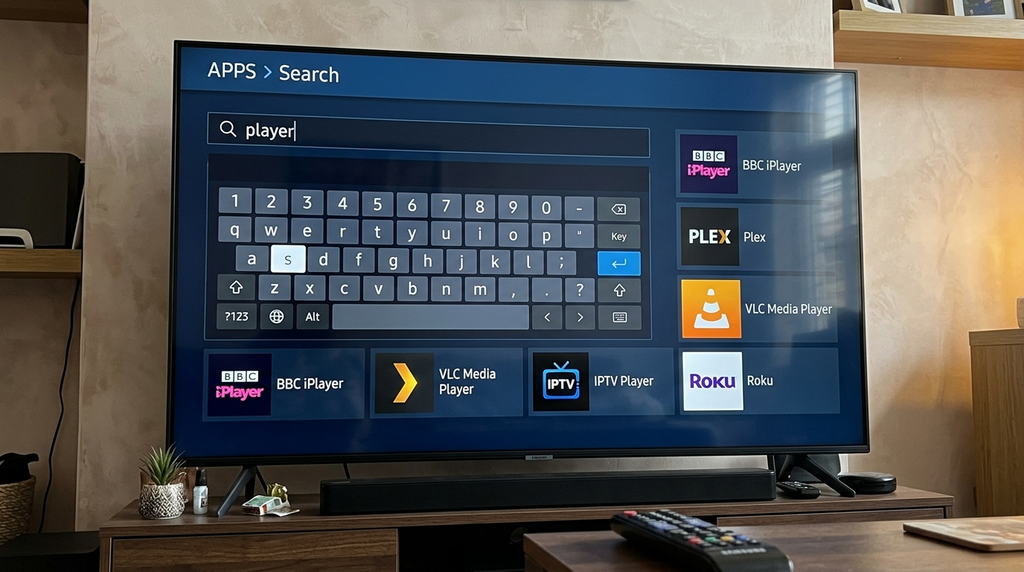
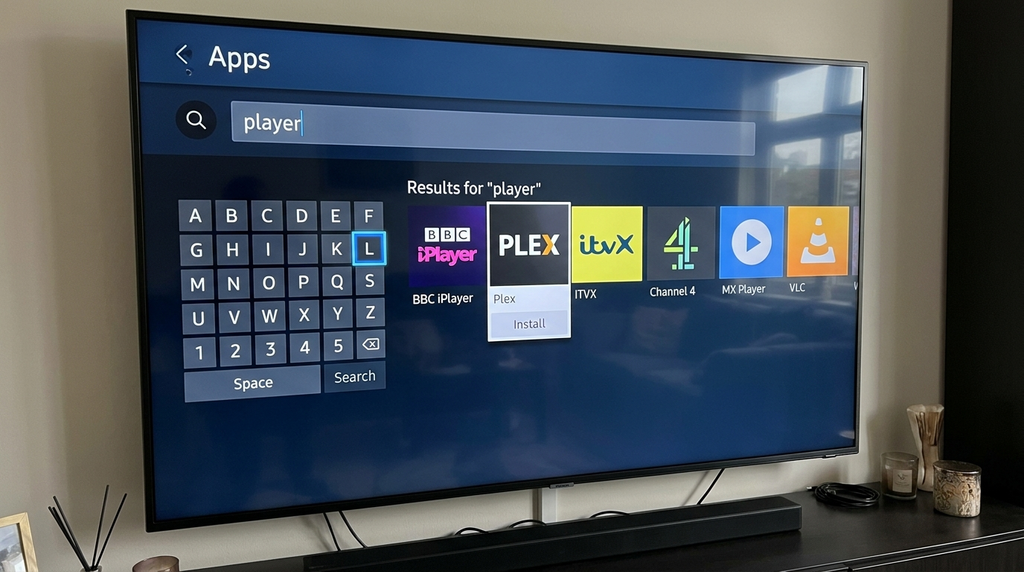
Select the search icon and enter the name of the player you intend to use. Check the developer name, supported features, price or trial information and any relevant device restrictions. Similar-sounding apps do not necessarily come from the same developer. Avoid paying an activation fee through a website you found in an unrelated comment or message.
Step 4: Install and launch the app
Choose Install from the actual Samsung app-store listing. When installation finishes, open the app. Some players require you to create an app account; others show a device identifier, playlist portal or direct login form. The right next step depends on that particular player, not simply on your television brand.
Step 5: Choose the matching login method
If the app supports multiple account types, choose the method that matches the details you received:
- M3U or playlist URL: one full URL, sometimes accompanied by a separate EPG URL.
- Xtream Codes-style API: a server URL, username and password, with an optional profile name.
- Device/portal activation: a code, MAC-style identifier or QR code used on the app developer’s verified management page.
Do not substitute one method for another without your provider’s guidance. A generic player cannot create access to a service that has not issued valid credentials.
Step 6: Enter the details carefully
Enter URLs exactly, including the scheme (http or https), port number if supplied, and punctuation. Do not add spaces at the beginning or end of a username, password or address. Be careful when typing with a remote: uppercase letters, zeros and the letter O can be easy to confuse. If the app supports a secure phone-assisted setup or its own official web portal, that may be more convenient for a long playlist URL.
Privacy tip: An M3U URL can contain credentials. Do not post it in a public forum, screenshot, review or comment. Share account information only through the provider’s appropriate private support process.
Step 7: Wait for the channel list and EPG to load
The first import may take longer than later launches, particularly when a playlist contains many categories. Let the app finish before assuming the account has failed. If the player offers an EPG refresh, use that option only after the channel list itself loads. Guide data can be missing even when the programme stream works correctly.
Step 8: Test a small range of permitted streams
Test one or two streams from different categories that your account is authorised to access. Check whether the player responds to the remote, whether sound matches the picture and whether the EPG shows plausible times. Note whether problems affect all streams, one category or only one particular item. That observation will make any later troubleshooting much faster.
If you want the general device checklist for this site, see the Digital Lizard IPTV setup guide. The official setup information is general; always verify your specific Samsung model and UK service availability before ordering.
Which Samsung IPTV app should you choose?
The best player is not necessarily the one with the loudest advertising or longest list of features. It is the one that actually exists in your Samsung app store, supports your authorised stream format, and is practical to use with a TV remote.
| Option | Best when | Check before proceeding | Main limitation |
|---|---|---|---|
| Native Samsung Tizen IPTV player | You want to use the TV without another device | UK app-store availability, developer, input type, licence terms | Varies by TV model and app |
| M3U-oriented player | Your provider supplies a playlist link | EPG support, playlist import method, activation fee | May not offer a direct username/password login |
| Xtream Codes-compatible player | Your service supplies server URL and credentials | Exact login support, account handling, app authenticity | Apps with similar names can behave differently |
| Broadcaster’s official Samsung app | You want content from that authorised broadcaster | Model support, country restrictions, subscription terms | Content limited to that service |
| External HDMI streaming device | Your Samsung has no suitable Tizen app or runs slowly | Hardware compatibility, official app availability, total cost | Extra device and remote may be needed |
What about IPTV Smarters, IBO Player and Smart IPTV?
These are names viewers may encounter while researching Samsung IPTV apps, but they should be treated as search starting points rather than guarantees. Several applications have similar names, and a listing shown for another country may not appear in the UK store on your exact TV. Confirm the app’s publisher and supported formats before installing it.
Some IBO Player-branded implementations use a device or playlist management workflow. The developer FAQ for one such player explicitly says the application does not include channels after activation; it also notes that playback compatibility varies by television model. See the IBO Player support FAQ, and verify that it corresponds to the exact app you installed before following any activation instructions.
For IPTV Smarters-style apps, check whether your particular Samsung listing accepts the login type you have. Do not assume that a mobile Android version and a similarly named Samsung TV version are interchangeable or have the same features.
Four questions to ask before paying an app fee
- Is this exact app available on my Samsung model in the UK?
- Does its official description confirm support for my login format?
- Is the charge for the player licence only, or for a separately identified content service?
- If the developer stops supporting the app, what happens to the licence and saved playlists?
A paid player does not verify the legality of a playlist. Authorisation for programmes and channels remains a separate question.
M3U versus Xtream Codes: which login do you need?
Both formats can be used by suitable players, but they organise the configuration differently. Neither format proves that a service is licensed.
| Detail | M3U playlist | Xtream Codes-style login |
|---|---|---|
| What you enter | Typically a full playlist URL | Server URL, username and password |
| What to verify | Complete URL, access permissions, supported media | Exact server and credentials, app API support |
| Programme guide | May require a separate EPG source | May be supplied by the service when supported |
| Common mistake | Truncating the URL or sharing it publicly | Leaving out the server port or adding spaces |
| Best practical choice | Use when supplied by the service and supported by the app | Use when supplied by the service and supported by the app |
If a login fails, resist changing many settings at once. First confirm the account is active, the correct method was selected, and the service is permitted in the UK. Then try the same account on another supported device only if its terms allow that test. Do not attempt to bypass access restrictions or exceed the authorised connection limit.
What if an IPTV app is not available?
A missing listing does not necessarily mean the Samsung TV is defective. The developer may not support your model, the app may have been withdrawn, or the catalogue may differ by region. Samsung confirms that app availability varies by country or region on its UK Smart TV apps information page.
Try the following order:
- Search for the exact app name and inspect the results carefully.
- Confirm the television model and current software version.
- Check the app developer’s official model support information.
- Consider a different legitimate player that supports your provider’s format.
- If there is no suitable native app, consider a compatible HDMI streaming device with its own legitimate app store.
An external streaming stick or box runs its own software and does not turn Tizen into Android. That distinction matters: instructions for an Android app should be followed on the external Android-compatible device, not as instructions to install an APK on the Samsung TV.
Troubleshooting Samsung IPTV problems
Before resetting the television, work from the symptom. The table below is a diagnostic guide, not proof that any single cause is responsible.
| Symptom | Possible explanation | First useful test |
|---|---|---|
| App not found | Region, model or developer availability | Search the TV’s own Apps store; check model support |
| App opens but login fails | Wrong login method or details, inactive account | Recheck the credentials privately and confirm service status |
| Login works but channels are empty | Playlist permissions, import or account issue | Refresh once, then contact the authorised provider |
| Picture freezes or buffers | Weak Wi-Fi, congestion, app or source issue | Compare Ethernet/Wi-Fi and test another permitted stream |
| Audio but no video | Incompatible media encoding or player issue | Test another stream and ask about TV codec compatibility |
| EPG empty or incorrect | Missing guide data, mismatch or time zone | Refresh EPG and check TV’s automatic UK time settings |
| Player requests payment | Separate app licence may have expired | Check the publisher and terms before paying |
| App crashes or will not launch | Software, memory or app issue | Restart TV, check updates, reinstall if needed |
Fix buffering without guessing the cause
First isolate the pattern. If all video apps buffer, the home network or internet connection is a sensible place to investigate. If only one IPTV stream buffers and other authorised content plays normally, the issue may be specific to that source. If one player fails but the same permitted account works on another compatible device, compare player features and stream-format support.
Next, restart the TV and router if appropriate. If possible, compare Wi-Fi with Ethernet. Do not conclude that a quoted broadband speed guarantees smooth playback: congestion, signal quality, encoding, TV hardware and the stream source all matter. Avoid installing dubious optimisation apps or changing advanced router settings without a clear reason.
Fix an empty or inaccurate programme guide
An EPG is programme metadata, not the video itself. If channels play but the guide is empty, check whether the provider actually supplies guide data and whether the app supports the supplied format. Refresh the guide, then check two or three channels. An unmatched channel identifier can leave a single channel without programme information even when other channels are correct.
For UK programmes, use the TV’s automatic clock and appropriate UK time zone where available. The UK changes between GMT in winter and BST in summer; hard-coding a fixed offset can contribute to an apparent one-hour discrepancy in some players. The correct EPG setting depends on the app and the provider’s metadata.
Fix an app that will not open
Samsung UK’s official guidance recommends trying a soft reset, checking for software updates and reinstalling an affected app. For a soft reset, Samsung advises unplugging the TV from power for 30 seconds before reconnecting it. Reset Smart Hub only as a last resort, because that signs you out of other TV apps too. Follow the model-appropriate procedure in Samsung’s app troubleshooting guide.
Before uninstalling anything, ensure you can recover your app credentials and any separately purchased player licence. Reinstalling an app may remove locally stored information or require you to log in again.
When to contact support
When a problem persists, send the support team the TV model, app name and publisher, exact error text, approximate time of the error and the troubleshooting steps already taken. Explain whether the problem affects all content or just certain permitted streams. Keep passwords and playlist URLs out of public messages. The site’s contact page describes the information useful for troubleshooting.
What UK viewers should check before subscribing
A Samsung-compatible player is only one part of choosing a TV service. A provider’s advert may describe thousands of channels or premium sport, but that does not establish whether it is authorised to distribute those programmes in the United Kingdom.
Is IPTV legal in the UK?
The technology is not inherently illegal. Legality depends on the content and the rights to provide or access it. UK government guidance distinguishes legitimate streaming technology from illicit streaming that gives access to copyright-protected television, films or subscription sport without appropriate authorisation. Read the UK Intellectual Property Office guidance on illicit streaming devices.
Before buying, check who operates the service, what rights it has for the content it advertises, whether the relevant broadcasts are offered in your country, and what its published terms actually cover. Do not assume that a working playlist or an app-store listing establishes broadcasting rights.
Do you need a UK TV Licence?
TV Licensing explains that viewers generally need to be covered by a TV Licence to watch live television on any channel or streaming service and to use BBC iPlayer, including on-demand BBC iPlayer content. Watching only non-BBC on-demand programmes without watching live television is treated differently. Check the official TV Licensing requirements for your circumstances; a commercial IPTV subscription does not replace a TV Licence where one is required.
Check total cost and subscription conditions
Compare the cost of the player, the service and any external hardware. Also confirm the allowed number of simultaneous connections, device compatibility, support routes, refund terms and regional restrictions before purchasing. A plan advertised for two devices may mean two streams at the same time, not an unlimited number of installations.
Digital Lizard IPTV publicly lists one-, three-, six- and twelve-month options, as well as choices involving simultaneous connections. Its current pricing page displays prices in US dollars, not pounds sterling, so UK visitors should confirm final currency, taxes, supported devices and service availability at checkout. Review the site’s FAQs and refund conditions as well.
Important: The publicly inspected pages do not independently establish UK rights for any particular channel or sporting event. Obtain clear confirmation of lawful UK availability before ordering; do not rely on a general statement that a service works on Samsung televisions.
A practical pre-purchase checklist
Consider these questions in order: Is the content authorised for the UK? Does your exact Samsung model offer the necessary app? Does the app accept the login format? Are there extra app activation fees? Are the connection limit, currency, cancellation and refund conditions clear? Can support explain what to do if the app disappears or fails to load?
If any critical answer is missing, obtain it before paying. For device and UK-availability questions about Digital Lizard IPTV, use its subscription information only after the unresolved compatibility, content-rights and terms questions have been satisfactorily answered.
Frequently asked questions
Can I install IPTV directly on a Samsung Smart TV in the UK?
Yes, if your exact Samsung model offers a compatible player in its TV app store and you have an authorised source of content. You may not need additional hardware.
Can I install an Android IPTV APK on a Samsung TV?
Not natively on a typical Samsung Tizen Smart TV. An APK is an Android application package. Use an appropriate Samsung TV app or install an Android app on a separate supported Android-compatible device connected by HDMI.
Is IPTV Smarters Pro available on all Samsung Smart TVs?
No universal availability can be assumed. Similar app names and regional listings create confusion. Search your own Samsung Apps store and verify the publisher, supported formats and model requirements before following instructions.
Can I use an M3U playlist on Samsung TV?
Yes, when the installed Samsung-compatible player supports M3U input and your playlist is authorised and accessible. Some apps accept a URL on the television; others use a verified web-based playlist manager.
Why is my Samsung IPTV app asking me to pay when I already subscribed?
The app developer may charge separately for a player licence, while the content provider charges for programme access. Confirm the publisher and licence details before paying. A player fee does not include channels unless explicitly and lawfully stated.
Why do my channels work but the TV guide is blank?
The stream may be available even though the EPG data is missing or cannot be matched to channels. Check the player’s refresh option, supported guide format and UK clock settings; then ask the authorised provider about its guide data.
Do I need a streaming stick for an older Samsung television?
Not always. First check whether a supported native app is available. An external streaming device can be a practical option if the television lacks the necessary app or performs poorly with it.
Do I need a VPN to watch IPTV on a Samsung TV in the UK?
A VPN is not automatically necessary, and it does not make unauthorised content lawful. Check the service’s country restrictions and the permitted viewing terms; investigate genuine network faults without using a VPN to circumvent licence or access restrictions.
Conclusion
For IPTV for Samsung Smart TV UK, the sensible route is to start with the TV itself: identify the model, use Samsung’s official app store, confirm that a compatible player supports your login method, and test a small selection of authorised content. If you cannot find a suitable app, a compatible HDMI streaming device is usually clearer than following APK instructions intended for Android.
Keep player licence fees separate from content subscriptions, verify UK viewing permissions and TV Licence obligations, and troubleshoot based on the actual symptom rather than changing random settings. This approach makes it easier to choose a compatible, lawful and manageable viewing setup.