
Streaming app buffering occurs when the player consumes video data faster than the device can receive, process, or store the next segment. Check the problem on one stream, measure speed at the playback device, reduce competing traffic, restart the network, and test Ethernet or stronger Wi-Fi. If every other service works, document the affected content and contact the account provider.
No responsible service can promise zero buffering in every home. Performance depends on the stream source, internet route, router, signal quality, device, app, resolution, and household activity.
Table of Contents
Table of Contents
Why Streaming Buffers Even on Fast Internet
An internet plan advertises a maximum or expected access speed, but the player needs consistent delivery from a particular source to a particular device. A brief drop, Wi-Fi interference, congested route, overloaded device, or delivery-side slowdown can empty the playback buffer.
Raw speed is only one variable. Stability, latency variation, packet loss, router placement, decoder capability, and available memory can matter just as much during live playback.
| Layer | Possible bottleneck | Best evidence |
|---|---|---|
| Stream source | One feed or region overloaded | Other content plays normally |
| Internet route | Congestion or packet loss | Different network works |
| Home network | Weak Wi-Fi or busy router | Ethernet works better |
| Device | Low storage, memory, or decoder limits | Second device works |
| App | Stale cache or outdated version | Update or cache refresh helps |
“A fast speed test is a clue, not proof that every stream has a stable path.”
Define the Buffering Pattern Before Fixing It
Write down what buffers, when it happens, and which devices are affected. The goal is to reduce a broad complaint to a reproducible pattern.
- One channel or title: likely source-specific or content-specific.
- Everything in one app: app, account route, or provider issue.
- Every streaming app: device or network problem is more likely.
- Only evenings: household, neighborhood, or delivery congestion may be involved.
- Only 4K: bandwidth, Wi-Fi stability, or decoder capacity may be insufficient.
- Only one television: inspect that device, signal, storage, and app.
Use a short test window with the same content and quality setting. Changing channels, apps, and resolutions every few seconds produces inconsistent evidence.
Check the Service Status and One Alternate Stream
Before restarting the entire home network, open another authorized stream in the same app. Then open a trusted mainstream video app on the same device.
| Result | Interpretation | Next check |
|---|---|---|
| One stream buffers | Source-specific issue | Report exact stream and time |
| All streams in one app buffer | App, account, or service route | Update app and test second device |
| All apps buffer on one TV | TV or its network connection | Signal, storage, restart, Ethernet |
| All devices buffer | Router, ISP, or heavy household use | Router restart and traffic check |
If the provider publishes a service-status page, check it through a separate device. Avoid relying on anonymous status posts that may describe a different service or region.
Measure Speed at the Playback Device
Run a reputable speed test on the television or streaming device when possible. A phone beside the TV can help measure local Wi-Fi conditions, but it may have a newer radio and stronger antenna than the television.
The FCC’s Broadband Speed Guide lists approximate activity ranges of 3–4 Mbps for standard definition, 5–8 Mbps for HD, and 25 Mbps for Ultra HD 4K. These are per-activity reference points, not guarantees for a busy household.
Record More Than the Download Number
- Run three tests several minutes apart.
- Record the lowest result, not only the highest.
- Note whether the device uses 2.4 GHz, 5 GHz, 6 GHz, or Ethernet.
- Compare a quiet period with the time buffering normally occurs.
- Check whether speed collapses when another household device downloads data.
A stable 30 Mbps connection can outperform an unstable connection that briefly reports 200 Mbps. Streaming depends on continuous delivery, not a single burst.
Reduce Competing Household Traffic
Cloud backups, game downloads, operating-system updates, video calls, security-camera uploads, and other streams share the same connection. Pause avoidable transfers for five minutes and repeat the playback test.
Count simultaneous activities, not just people. One person can use a television, phone backup, game console update, and laptop call at the same time.
| Household activity | How it affects playback | Short test |
|---|---|---|
| Large download | Consumes available download capacity | Pause it temporarily |
| Cloud backup | Can saturate upload and raise latency | Pause backup |
| Several 4K streams | Adds sustained bandwidth demand | Stop other streams |
| Online game update | Creates bursts and router load | Schedule update later |
| Many smart devices | Adds connections and radio competition | Check router client list |
If pausing other traffic fixes the issue, the long-term answer may be traffic scheduling, router quality, wired connections, or a plan sized for simultaneous use. It is not necessarily a player defect.
Improve Wi-Fi Signal and Router Placement
Place the router in an open, central, elevated position instead of inside a cabinet or behind the television. Dense walls, metal surfaces, large appliances, and distance weaken or reflect radio signals.
- Check the device’s Wi-Fi signal indicator.
- Move the router or device temporarily for a comparison.
- Use 5 GHz or 6 GHz at shorter range when both devices support it.
- Use 2.4 GHz for longer reach when higher bands are weak.
- Restart the router after installing firmware updates.
- Use a properly positioned mesh node for distant rooms.
Do not place a mesh node in the same dead zone as the television. It needs a strong connection back to the main router to relay data effectively.
A Wi-Fi analyzer can reveal crowded channels, but automatic channel selection is a safer starting point for users unfamiliar with radio settings. Record the original configuration before changing advanced options.
Compare Wi-Fi with Ethernet
Ethernet removes wireless interference from the test and often provides steadier delivery. Connect the playback device directly to the router or a correctly configured network switch, then repeat the same stream at the same quality.
| Factor | Wi-Fi | Ethernet |
|---|---|---|
| Installation | Simple without cable | Requires cable path or adapter |
| Interference | Affected by walls and nearby networks | Not affected by radio congestion |
| Mobility | Suitable for portable devices | Best for fixed televisions |
| Consistency | Varies by signal conditions | Usually more stable |
| Diagnostic value | Includes wireless variables | Isolates the Wi-Fi layer |
If Ethernet eliminates buffering, the internet connection and stream source may be adequate while the wireless path is not. Improve placement, mesh backhaul, band selection, or use the wired connection permanently.
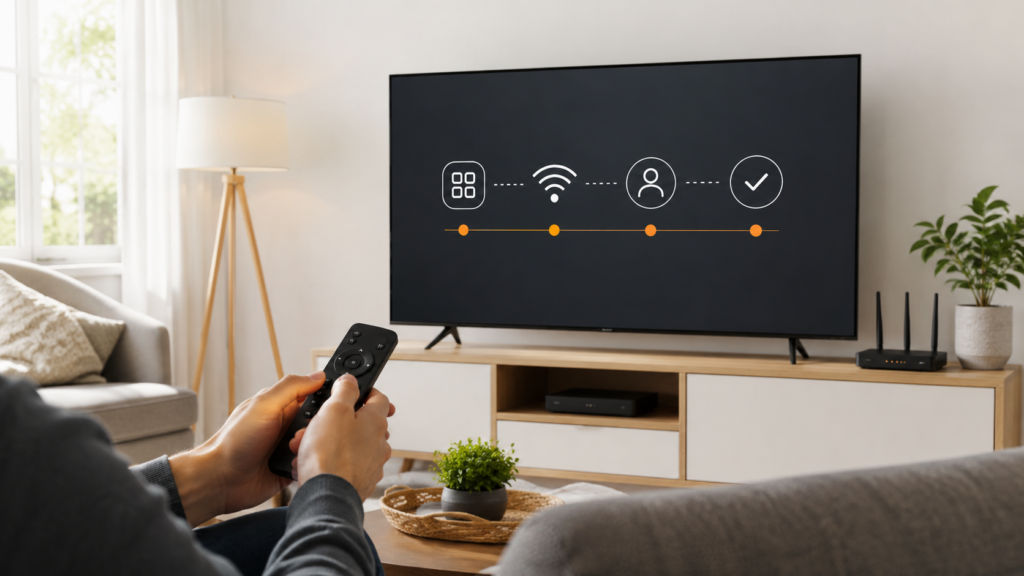
Restart the Network in a Controlled Sequence
A restart clears temporary router sessions and forces the device to establish a new connection. Use a controlled order so every component finishes starting before the next test.
- Close the streaming app.
- Power off the playback device.
- Restart the modem and router according to the manufacturer’s instructions.
- Wait until normal connection lights and internet access return.
- Start the playback device and reconnect it.
- Open one stream and observe it for several minutes.
A factory reset is not the same as a restart. Do not factory-reset a router unless you have the configuration and authorization to rebuild the network.
If the improvement lasts only a few hours, inspect router temperature, firmware, client load, and hardware age. Repeated restarts may hide a capacity or stability problem without resolving it.
Refresh the App and Free Device Resources
A streaming device with little free storage or too many background processes may struggle to download, decrypt, decode, and display video smoothly. Restart it and remove unused applications before lowering network settings.
- Install the latest supported app and system updates.
- Force-close unused applications.
- Clear the streaming app cache, not its data, as the first step.
- Free storage while retaining login information.
- Disable unneeded visual overlays or background recording.
- Reinstall only after saving account details.
Samsung’s official troubleshooting sequence starts with a cold boot and software update before reinstalling the application. This minimizes unnecessary loss of settings.
Older Smart TVs may have capable displays but limited processors and memory. A current, supported external player can improve app responsiveness, although it cannot repair provider-side delivery problems.
Lower Video Quality as a Diagnostic Test
Switch from 4K to HD or from HD to a lower automatic setting for one comparison. If buffering stops immediately, the current path lacks enough stable capacity for the higher bitrate or the device struggles to decode it.
This test does not prove that the internet plan alone is too slow. The bottleneck could still be Wi-Fi, the router, device hardware, or one unusually demanding stream.
- Keep automatic quality enabled for variable mobile connections.
- Use HD when the viewing distance makes 4K differences small.
- Disable data-saving modes only when the network can support the higher demand.
- Check whether HDR or high-frame-rate content creates a device-specific issue.
Return to the preferred quality after fixing the bottleneck. Permanent low quality should be an informed choice, not a hidden workaround for a correctable setup problem.
Run a Cross-Device and Cross-Network Test
Practical Case Study
A household reports buffering on a living-room Smart TV every evening. A phone on the same Wi-Fi plays the same authorized stream normally, but the phone is only a few feet from the router while the TV is behind two walls.
The user connects the TV through Ethernet and repeats the test at the same time. Playback remains stable, showing that the stream, account, and internet service could work while the TV’s wireless path was the weak layer.
In another home, every device buffers on one particular live stream while other streams and mainstream apps perform normally. Changing Wi-Fi bands and clearing caches does not alter the result, so the user records the stream name, time, region, and device tests for provider support.
These cases reach different conclusions because they change one variable at a time. That is more reliable than assuming all buffering has the same cause.
Document Results Before Contacting Support
Send evidence that identifies the affected layer. Support can investigate faster when the report includes a repeatable result.
- Exact content, channel, or category affected.
- Start time, duration, time zone, and whether the issue repeats.
- Device brand, model, operating system, and app version.
- Connection type and speed-test results at the device.
- Results on Ethernet, another device, or another permitted network.
- Whether lower quality changes the behavior.
Never send account passwords, playlist tokens, or full payment information in a public message. Use the provider’s verified support channel.
If the problem is plan capacity rather than network delivery, review the multi-device plan guide. A plan’s connection count controls simultaneous authorized playback; it does not increase home internet speed.
Distinguish Buffering from Freezing and App Crashes
Buffering normally shows a spinner or pause while the player waits for data. Freezing may leave one frame on screen even though audio or controls behave differently, while a crash closes the app or returns to the device home screen.
| Symptom | More likely area | First evidence |
|---|---|---|
| Spinner, then playback resumes | Data delivery or bandwidth | Network and source comparison |
| Frozen frame, menus still respond | Decoder or stream format | Different quality or device |
| App closes completely | Software, memory, or storage | App version and free space |
| TV restarts | Device firmware, heat, or power | Manufacturer diagnostics |
| Audio continues, picture stops | Video decoder or rendering | Alternate format and app update |
Calling every interruption “buffering” sends troubleshooting toward the router even when the app is crashing. Capture a short description of exactly what remains visible and which controls still work.
Check Heat, Power, and Physical Installation
Streaming sticks hidden behind televisions can become hot, especially when ventilation is poor. Unstable USB power from an older television port can also cause restarts, Wi-Fi drops, and unexplained application behavior.
- Use the manufacturer-supplied power adapter when required.
- Keep ventilation openings clear.
- Use an approved HDMI extender if it improves space and Wi-Fi reception.
- Inspect cables for damage without bending connectors sharply.
- Test after the device has cooled and restarted.
- Check whether the television’s USB port powers down during use.
Do not place a streaming device directly on a hot receiver or inside a closed cabinet. A physical installation problem can imitate network buffering because the device slows down or disconnects as temperature rises.
If the entire device restarts rather than showing a playback spinner, focus on power, heat, firmware, and hardware stability. Network speed alone does not normally reboot a television or player.
Create a Seven-Day Buffering Log
Intermittent problems are difficult to diagnose from memory. Keep a simple log for seven days with the date, time, content, device, connection type, quality setting, speed result, other household activity, and duration of each interruption.
Patterns may show that failures occur only on one source, only after the device runs for several hours, or only when a backup begins. That evidence determines whether to contact the provider, internet service, device manufacturer, or home-network administrator.
Minimum Log Fields
- Exact stream or title and whether alternatives worked.
- Device model, app version, and free storage.
- Wi-Fi band or Ethernet connection.
- Lowest of several nearby speed tests.
- Active downloads, calls, cameras, and other streams.
- Whether lower quality or a second device changed the result.
A log also prevents repeated changes. Once Ethernet has already failed under the same conditions, the next test should examine another variable instead of reconnecting the same cable.
Confirm a Fix Under Normal Evening Load
A fix tested only during an empty-network period may not survive ordinary household use. Repeat the same stream at the usual evening time while routine calls, devices, and applications remain active.
Observe playback for long enough to cover the interval in which buffering normally appeared. Compare startup time, resolution changes, interruptions, device temperature, and router conditions with the earlier log.
If the problem returns only under peak load, the solution may require better traffic management, stronger Wi-Fi, Ethernet, or more internet capacity. If one source fails while alternatives remain stable, preserve the evidence for the service provider instead of changing the whole home network again.
Streaming App Buffering Final Checklist
streaming app buffering: Quick Reference
- Define whether one stream, one app, one device, or the whole home is affected.
- Test another authorized stream and a trusted app.
- Measure speed at the playback device several times.
- Pause downloads, backups, and other streams.
- Improve router placement and Wi-Fi signal.
- Compare Wi-Fi with Ethernet.
- Restart the modem, router, and device in order.
- Update the app and device software.
- Clear cache and free storage.
- Lower quality for one diagnostic test.
- Compare a second device and network.
- Report source-specific failures with exact evidence.
Streaming app buffering becomes manageable when the source, route, home network, device, and app are tested as separate layers. No single fix applies to every case, but a controlled checklist prevents wasted resets and unnecessary purchases.
Frequently Asked Questions
Why does my streaming app buffer with fast internet?
A speed test can be high while Wi-Fi interference, packet loss, route congestion, device limits, or one stream source remains unstable. Test consistency and isolate each layer.
Is 25 Mbps enough for 4K streaming?
The FCC lists 25 Mbps as an approximate 4K activity reference. A household needs additional capacity for other devices and a margin for real-world variation.
Does Ethernet stop buffering?
Ethernet often improves stability by removing wireless interference. It will not fix an overloaded source or a wider internet-route problem.
Should I clear my streaming app cache?
Clearing cache can remove damaged temporary files and is less disruptive than clearing data. Save account details before any reset that may remove logins.
Why does only one channel buffer?
When other streams work on the same device, the affected source or delivery path becomes more likely. Record the exact channel, time, and device tests for support.
Can too many devices cause buffering?
Yes. Concurrent streams, downloads, backups, and calls share bandwidth and router resources. Pause other activity and repeat the same test.
Will buying more streaming connections improve quality?
No. More connections allow more simultaneous authorized streams. They do not improve Wi-Fi, internet speed, device performance, or source delivery.
Can any provider guarantee zero buffering?
No credible service can control every source, route, ISP, router, signal, and device. Performance depends on the full delivery chain and current conditions.