
Instant IPTV usually describes an internet television subscription promoted for fast account delivery and a straightforward setup. For someone in the UK, however, speed is only one part of the buying decision. You also need a compatible streaming device, the right player application, clear payment terms, enough simultaneous connections and access to content that is authorised for your location.
This guide explains what happens between ordering an IPTV subscription and watching your first stream. It shows how to prepare a Fire TV Stick, smart television, Android TV or Apple TV, how to check common activation problems and how to compare the published subscription options at Digital Lizard IPTV. It also explains the practical checks UK customers should complete before paying.
The phrase Instant IPTV can also be used in the name of an individual business. In this article, it describes the fast-activation service category, not an assertion that all similarly named services are the same company or that Digital Lizard IPTV owns another provider’s brand.
Quick answer: Instant IPTV means receiving usable account details quickly, but it does not mean an app installs itself or that every stream will start immediately. Before ordering, confirm UK eligibility and content permissions, check your exact device, choose the number of simultaneous streams and review the final price and refund terms. Digital Lizard IPTV publishes device guidance, subscription prices and an account-support route to help with those checks.
Table of Contents
Table of Contents
What Does Instant IPTV Actually Mean?
IPTV stands for Internet Protocol Television. It refers to television and video delivered using an internet-based network rather than depending entirely on a traditional broadcast connection. The UK communications regulator provides a general explanation of internet protocol television.
In everyday buying language, instant IPTV activation generally means that a provider can process an order and send account information electronically without arranging a physical installation visit. The wording describes a fulfilment expectation, not a guaranteed number of minutes. A provider may use an automated process, manual account provisioning or a combination of both.
To understand what you are purchasing, separate the three components of a typical IPTV setup:
| Component | Main job | Common point of confusion |
|---|---|---|
| Internet-connected device | Runs a streaming application | A compatible television is not itself a subscription |
| IPTV player | Organises and plays an authorised feed or account | Some players charge their own app fee and do not supply content |
| IPTV subscription | Supplies time-limited access according to the selected plan | One login does not necessarily allow unlimited simultaneous streams |
An account can be active while a television still lacks a compatible app. Equally, a beautifully designed player can be fully installed without any content account attached. This distinction helps prevent unnecessary repeat payments and avoids blaming the wrong component when something fails.
What instant activation does—and does not—promise
A useful fast-activation process should tell you when the order is received, when credentials will be sent, how the subscription start date is determined and what support is available if access fails. A generic label saying instant does not answer any of those questions by itself.
| What can happen quickly | What still requires checking |
|---|---|
| Electronic order acknowledgement | Whether the email or message actually reaches you |
| Account or login creation | Whether the credentials are correct and active |
| Delivery of a portal address or playlist instructions | Whether your player supports that exact login method |
| Access to setup instructions | Whether the device’s operating system supports the suggested app |
| First attempt to sign in | Whether the selected, authorised content is available and playable |
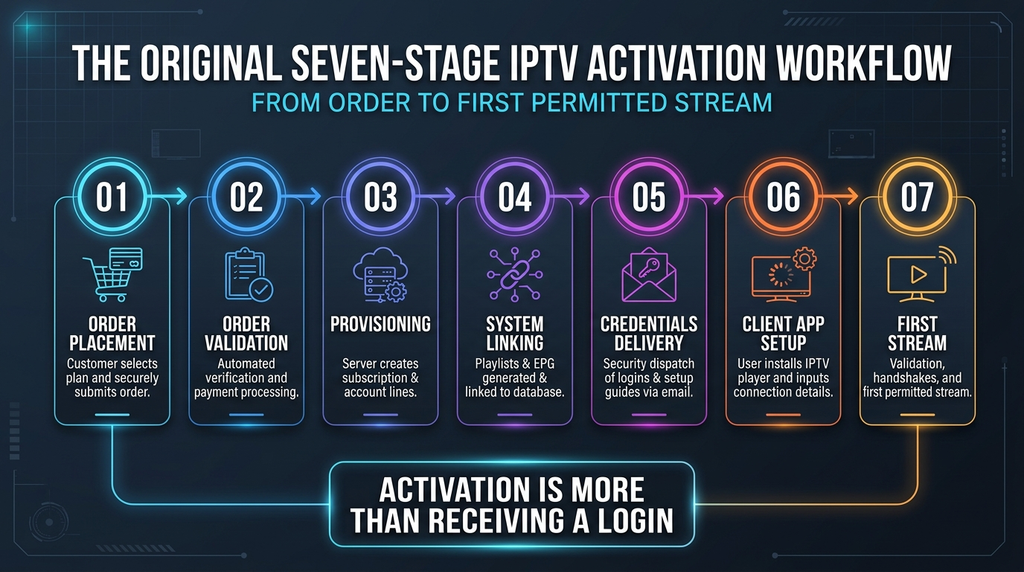
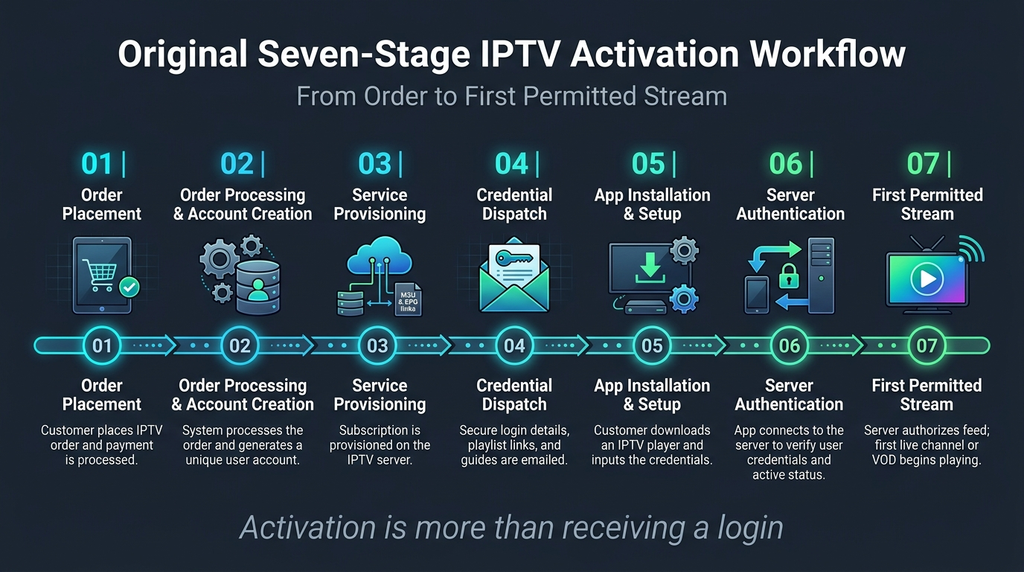
How Instant IPTV Activation Works: Order to First Stream
A clear workflow reduces avoidable setup mistakes. The following sequence describes the usual stages, but exact account delivery and login options depend on the selected provider and device.
Step 1: Confirm eligibility, permissions and your device
Start with the basics: is the service offered in the UK, are the programmes you need authorised for UK delivery and is a suitable player available for your device? A website being accessible from the UK does not prove that a subscription is available or permitted for use there. Get written clarification when a point is not stated.
Record the model of your streaming device, its operating system and your preferred viewing screen. An older smart television may have a different app catalogue from a new streaming stick, even when both connect to the same broadband router.
Step 2: Choose the subscription duration and connection allowance
Select the period you can comfortably commit to, then count concurrent viewers. One person using the living-room television and a second person streaming independently in another room usually means two simultaneous streams. Five household devices do not automatically require five streams if only one is ever active at a time.
Digital Lizard IPTV offers a selection interface for one to five simultaneous connections, with the displayed total varying according to the selection. Read its current pricing plans rather than assuming the one-connection prices apply to every household.
Step 3: Review the exact amount and order terms
Check the checkout total, payment currency, billing arrangement, refund conditions and any separate player-app charge. The price of a 12-month plan is an upfront commitment for that term when stated as a total price; it is not automatically a monthly instalment. For a buyer paying from a UK account, currency conversion and any card-provider charges may affect the final GBP cost.
If the product page advertises rapid processing, distinguish order transmission from confirmed first-stream availability. They are different events. Keep a copy of the order details and the terms displayed at checkout.
Step 4: Receive and securely store the account details
Depending on the provider and player, setup may use a username, password and server address; a playlist URL; an activation code; or another supported method. Enter only the information supplied through the official order or support channel. The main website address is not necessarily the login server address.
Do not paste account credentials into public forums, comment boxes or screenshots. If an email does not arrive, check the correct inbox and spam folder before making a second payment.
Step 5: Install a compatible player
Use the app store for your actual platform when a suitable player is listed. A smart TV running a manufacturer-specific operating system cannot necessarily install an Android application. Check developer identity, app pricing, subscription fees and privacy permissions before installation.
The Digital Lizard IPTV setup guide explains the main device families and the type of information needed to sign in. It does not guarantee that every app is available on every television model or in every country.
Step 6: Sign in, load the guide and test playback
Choose the login format that matches your account. Enter the supplied details accurately, save the profile and allow the player to retrieve its categories or programme guide where available. After the account loads, test one item that you are entitled to access. Then try another permitted item to distinguish a one-source issue from a general login or network problem.
Check picture and sound, the remote-control experience, programme-guide information and stability under normal household use. If it fails, record the exact stage and error before resetting the app.
Step 7: Keep your support information handy
Store the order reference and support contact separately from your password. If a problem develops, identify the device, operating system, player, login method and what you observed. A report saying the login was accepted but playback freezes after a minute is more useful than IPTV does not work.
What You Need Before Setting Up IPTV
The smoothest setup usually starts with a simple equipment check. You do not need to buy another television merely because you want to try an internet-delivered service. You do need a compatible way to install or use the selected player.
| Requirement | Why it matters | How to check |
|---|---|---|
| Reliable internet connection | Streams need a sustained connection rather than just a successful speed-test burst | Try ordinary internet activity on the same device |
| Supported television or streaming device | Installation options differ by model and operating system | Identify the exact model and software version |
| Compatible IPTV player | The player must accept the provided account format | Check the current publisher documentation and app-store listing |
| Private subscription credentials | The player needs the correct account to request content | Compare every field with the original delivery message |
| Suitable simultaneous-connection plan | Extra active streams can exceed a plan limit | Count people watching at the same time |
| Clearly stated legal access | Internet delivery does not remove content-rights requirements | Confirm the service’s rights for the viewing location |
Wi-Fi or Ethernet? A wired connection may reduce wireless interference and variation, particularly for a fixed living-room device. Strong Wi-Fi can also work well. The right choice depends on distance, building layout, congestion, router performance and the particular device—not just the advertised broadband speed.
Avoid treating a resolution label such as 4K as a performance guarantee. The content source, available encoding, player, television, network and local conditions all affect the result. If your device cannot decode the available stream format, a faster broadband package will not automatically solve that mismatch.
Instant IPTV Setup by Device: Fire TV, Smart TV, Android and Apple TV
The main setup principle is the same on every platform: install a compatible player, select the correct account method and use your private subscription details. The steps below are general and should be adapted to the exact application and operating system.
Amazon Fire TV Stick and Fire TV
- Connect Fire TV to the internet and complete available system updates.
- From the home screen, open Find and search for a compatible player.
- Review its publisher, compatibility, cost and permissions before installing.
- Open the player and choose the account or playlist method that matches your details.
- Save the profile, allow initial loading and test permitted playback.
Amazon’s Fire TV application instructions confirm how to search for and download available apps. Availability may differ by Fire TV model, software platform and region. Do not assume that an unofficial download code or APK from a random website is safe or compatible.
Samsung and LG smart televisions
Samsung and LG televisions use their own smart-TV platforms rather than a universal Android environment. Open your television’s own app area, look for a player that explicitly supports your model and region, and read the current app terms. If no suitable app appears, do not try an unrelated Android installer on the television.
When the player is installed, choose the accepted login route and enter the server information or playlist exactly as provided. Some television apps require a separate player activation payment. That charge, if present, is not proof that an IPTV content subscription is active or included.
If the remote control is awkward, the app closes unexpectedly or the login screen is missing a field, check the app’s version and documented capabilities before replacing the subscription. The problem may be a platform mismatch rather than the account itself.
Android TV and Google TV
On a supported Android TV or Google TV device, open the available app-search interface and select a compatible player. Google’s official Google TV app-installation guide describes searching for an app and selecting Install when it is offered.
After installation, open the application, select the matching login method, enter the private credentials and allow it to load. A mobile-phone version of an app may be difficult to use with a television remote; a TV-oriented interface is preferable where one is available. Keep the system and app updated through trusted channels.
Apple TV
On Apple TV models that support app downloads, use the App Store to find a compatible tvOS player. Apple’s Apple TV app-download guidance explains the supported models and notes that some older Apple TV hardware cannot download new applications.
Check the player’s tvOS requirements and account formats before paying for a subscription. Once installed, use the supplied login information, allow content or guide synchronisation and perform a first-play test. The iPhone App Store listing of an app does not prove it is also available on Apple TV.
Phone or computer: a useful comparison test
A compatible secondary device can help diagnose a problem without replacing your living-room hardware. For example, if the same account functions on an allowed Android phone but the TV app refuses to load it, investigate the television player and its settings. Test devices one at a time if you purchased a single simultaneous connection.
Instant IPTV Plans and Pricing: Digital Lizard IPTV Options
There is no universal price for the phrase Instant IPTV. Prices belong to particular providers and subscription configurations. For readers considering Digital Lizard IPTV, its published one-connection rate card provides a concrete starting point.
The following prices were displayed on the Digital Lizard IPTV pricing page when reviewed on 19 November 2026:
| Subscription duration | Advertised total (USD) | Approximate monthly equivalent | Concurrent connection |
|---|---|---|---|
| 1 month | $16 | $16.00 | 1 |
| 3 months | $36 | $12.00 | 1 |
| 6 months | $55 | $9.17 | 1 |
| 12 months | $75 | $6.25 | 1 |
The monthly equivalents are arithmetic comparisons, not monthly payment schedules. These are published seller prices, not independently verified market averages. They can change. Check the selected plan’s final checkout total and any currency-conversion costs before paying.
The main site also displays connection options from one to five simultaneous viewers, with the total price updated according to the number chosen. It describes account-delivery and setup-support features, but does not provide a measured or guaranteed activation time for UK buyers. UK service eligibility and content permissions require separate confirmation.
Which subscription period makes sense?
A one-month plan limits the initial commitment while you confirm your device experience, provided all relevant content rights and regional conditions have been checked. A three-month plan suits someone who has already established the setup works and prefers fewer renewals. Six- and twelve-month terms lower the displayed monthly equivalent but require more money upfront and expose the buyer to a longer commitment.
Do not confuse a three-day refund request period with a free trial
Digital Lizard IPTV’s published refund policy describes a three-day period for submitting a refund request, subject to review and the stated conditions. It does not say that every purchase is unconditionally refundable, and it is not the same as a free trial.
If you are looking specifically for a trial, use the site’s separate UK IPTV trial checklist to understand what should be confirmed. The current availability, price and terms of any trial must be checked at the time of ordering.
How to Choose the Right Number of Connections
The word device can mean a physical screen, while connection in subscription pricing usually describes an active stream. Counting them incorrectly is one of the easiest ways to choose the wrong plan.
Consider three households:
Household A: One viewer, two screens. Someone watches the living-room television in the evening and occasionally watches on a phone at another time. One concurrent connection may be sufficient if the provider allows that device-switching arrangement and only one stream is active.
Household B: Two people, two rooms. One person watches the television while another watches different content in a bedroom. They need an allowance that permits two independent simultaneous streams.
Household C: Three viewers with overlapping schedules. Three people may each use a different television or device at the same time. A three-connection plan may fit, but the buyer should confirm which behaviours count as separate sessions, including any multiview feature.
Use this three-question calculation before checkout: How many people watch at once? Are any apps left playing in the background? Can one account be moved between approved devices without creating an extra active session? Digital Lizard IPTV explains the distinction on its connection and subscription FAQs.
Seven Checks Before Ordering Instant IPTV in the UK
A quick purchase is only useful when the details are clear. Use this checklist in order; an uncertain answer is a reason to seek clarification, not a reason to guess.
1. Confirm your location is supported
A service whose website targets a different country may still have a UK visitor, but that does not establish UK availability. Ask about any location or account restrictions and obtain confirmation that the intended service is offered for use in the UK.
2. Ask about permissions for the content you want
The technology used to transmit video is separate from the rights to distribute programmes. A seller’s channel categories, large catalogue claim or low price do not themselves prove copyright permission. Before subscribing, confirm the supplier is entitled to provide the relevant content in the intended territory. If essential rights cannot be established, do not assume they exist.
3. Match the exact device and application
Verify the television model, software version and app availability. General wording such as works on smart TV is less useful than a confirmed compatible application for a specific Samsung, LG, Fire TV, Android TV or Apple TV model. Check whether the app has its own fee.
4. Check the real activation process
Ask whether account details are sent by email or another secure channel, when a subscription begins and whom to contact if nothing arrives. Fast order processing is not the same as guaranteed immediate viewing. Preserve the original confirmation message so that an activation issue can be traced.
5. Understand the connection limit
Choose the number of concurrent streams your household actually needs. If the buyer’s main objective is to use several televisions simultaneously, verify that those screens are included in the selected plan and that the checkout total reflects the choice.
6. Review the complete cost and policy terms
Read the displayed payment currency, whether the total is one-time for a term or recurring, the treatment of renewals, any app activation fee and the refund request conditions. Digital Lizard IPTV’s terms and conditions explain that current checkout pricing and third-party app availability can change.
7. Confirm the support route before purchasing
Identify the official account-support channel, the information required to raise a ticket and whether the team can assist with the specific device you plan to use. The site’s contact page requests a device model, player name and exact error details. Keep login passwords and payment-card details out of public support messages.
Common Instant IPTV Activation and Playback Problems
When a new subscription does not work, identify the first stage that fails. A single error message often has more diagnostic value than reinstalling everything.
| What happens | Possible explanation | First sensible check |
|---|---|---|
| No confirmation message | Delivery delay or wrong contact details | Check inbox, spam and original order reference |
| Player cannot be installed | Unsupported model, OS or regional app listing | Confirm app compatibility with the manufacturer |
| Login rejected | Mistyped field, wrong login method or account status | Compare details privately with the original message |
| Login works but no categories appear | Synchronisation, profile or service-source issue | Refresh once and record the displayed error |
| One programme fails but others play | Item-specific availability or encoding issue | Test unrelated permitted content |
| Everything buffers | Local connectivity, device limitations or service-side issue | Compare one device or network variable at a time |
| Second screen stops the first | Connection limit or concurrent session behaviour | Close other streams and test one active session |
| App requests an extra payment | Player licence or premium feature charge | Identify which app is asking and review its terms |
Why a successful login is not the same as working playback
Authentication and playback are separate steps. A player may store or accept an account profile but still fail to load its guide or a particular stream. Start by checking whether the account sections populate. If they do, test more than one permitted item; if they do not, focus on the login method, account details and current service status.
If the application asks for a premium player payment, establish whether this is a third-party software licence rather than a renewal of the IPTV content account. Paying an unrelated fee may not fix an expired subscription, incompatible device or unavailable stream.
A five-minute diagnostic sequence
- Confirm the actual viewing device has internet access.
- Check whether the player can open and whether it is the expected version.
- Compare the login method and each private field with the original subscription details.
- Close other streams and test a single permitted item.
- Record whether the failure concerns account loading, one item or every item; then contact support with those details.
Do not clear all app data as the first response. That can erase your profiles, favourites and other settings. If the problem persists, the site’s dedicated Digital Lizard IPTV troubleshooting guide provides a more detailed symptom-by-symptom process.
IPTV and UK Viewing Rules: What Buyers Need to Know
IPTV technology is not inherently unlawful. The important distinction is whether a service is entitled to supply the content it distributes and whether the viewer satisfies applicable rules. The UK’s Intellectual Property Office guidance on illicit streaming explains that devices used to view legitimate material are different from setups used to access programmes without the copyright owner’s permission.
UK viewers must also consider the separate TV Licence rules. The official TV Licensing guidance explains that watching or recording live television on a channel or streaming service generally requires a TV Licence, regardless of the viewing device, with additional rules for certain on-demand services.
A TV Licence and the supplier’s content rights address different requirements. Holding a TV Licence does not give a third-party streaming operator permission to redistribute someone else’s protected programmes. Likewise, a fast activation email does not establish that permission. No blanket claim about a particular provider’s complete UK catalogue can be made without evidence covering the relevant rights.
For this reason, buyers should ask about territory-specific authorisation, supported content and the viewing conditions that apply to their chosen package. This article does not independently certify the UK licensing status of Digital Lizard IPTV or any other provider.
Frequently Asked Questions About Instant IPTV
1. What is Instant IPTV?
Instant IPTV commonly means a subscription marketed with quick electronic account delivery. The phrase can also form part of a business name, so check the identity of the actual seller. It is not a separate internet technology, a universal subscription brand or a guarantee that a stream will begin immediately.
2. Does instant IPTV activation mean I can start watching straight away?
Not always. Credentials may arrive quickly, but you still need a supported app, accurate account setup, a usable network and permission to access the intended programming. Some orders and account checks may also require assistance.
3. Do I need a separate IPTV player?
Many account-based subscriptions require a compatible player. Some apps are free to install, while others charge for activation or advanced features. A player fee and a streaming subscription fee are separate unless the offer explicitly says otherwise.
4. Can I use Instant IPTV on a Fire TV Stick or smart TV?
Potentially, yes, if your exact device can run a suitable application and the account format is supported. Compatibility varies by model, operating system, software version and region. Check the relevant app listing and setup instructions before ordering.
5. How much does Instant IPTV cost through Digital Lizard IPTV?
The site’s published one-connection prices reviewed on 19 November 2026 are $16 for one month, $36 for three months, $55 for six months and $75 for twelve months. These are USD prices; UK buyers must confirm eligibility, any conversion charges and the actual checkout total.
6. Can one account work on two televisions at the same time?
Only if the selected plan permits the required number of simultaneous connections and the device arrangement is supported. Installing the player on two televisions does not automatically make a one-connection plan a two-stream subscription.
7. Is Instant IPTV legal in the UK?
The delivery method can be used lawfully, but individual content rights and UK viewing obligations matter. Verify the provider’s authorisation to distribute the programmes concerned, and check whether your live viewing requires a TV Licence. A low price or immediate login does not prove compliance.
8. What should I do if my IPTV credentials do not work?
Check the exact login method and fields, confirm the device has internet access, close additional streams and note the error. Do not publish passwords or full playlist URLs. If the issue persists, contact the provider with your order reference, device model and the first failing step.
Compare a Plan and Prepare Your Setup
The most useful way to approach Instant IPTV in the UK is to evaluate the complete path from purchase to permitted playback: confirm regional eligibility and content rights, check your actual device, understand the player requirements, choose the right simultaneous-connection limit and review the full financial commitment.
Digital Lizard IPTV publishes a subscription pricing comparison, a device setup guide and an order page. If you have confirmed that the offered service and content are suitable and authorised for your UK location, these resources can help you choose a plan and prepare your account setup. Ask support about any unresolved condition before payment rather than assuming that the word instant guarantees every part of the experience.